Add a section type report block
Visually break up a report into sections, create headings, force page breaks, include sections for question bank questions, and adjust the layout of a report by implementing Section report blocks.
Adding Section report blocks
To add a Section report block, select Section from the Select Report Block Type drop-down and click Add Report Block.
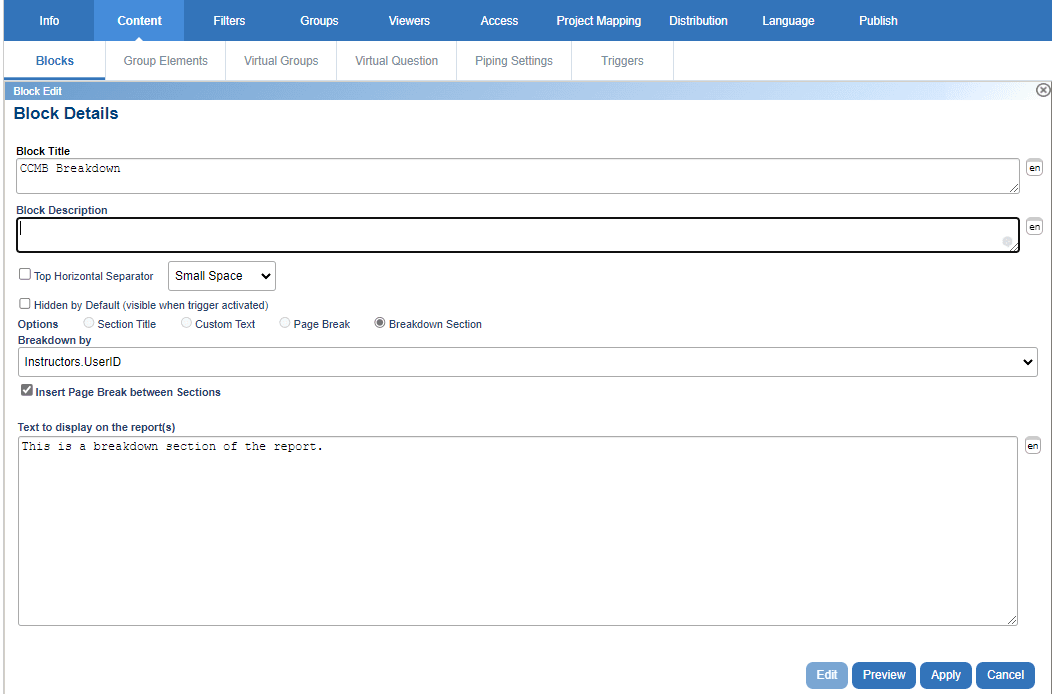
- Block Title - Enter a title for the section. This option is for identification purposes and is not displayed to the viewer.
A Block Title is required to prevent blank spaces in the table of contents for the report. This is necessary to meet WCAG 2.1 (Level AA) standards.
- Block Description - Provide additional information about the block. This option is for identification purposes and is not displayed to the viewer.
- Top Horizontal Separator - The horizontal separator is a gap between this report block and the previous block. Select the size of the separator: a small/medium/large (blank) space or a thin solid line.
- Options -
- Section Title - Select this option to present a clear structural delimitation between sections displayed in the report.
- Custom Text - Select this option to include a short message.
- Page Break - Select this option to insert a manual page break. Page breaks are invisible; the Block Title and Block Description will not be displayed.
- Placeholder Section Title - Select this option to create a report section dedicated to results for specific question bank sections of a questionnaire.
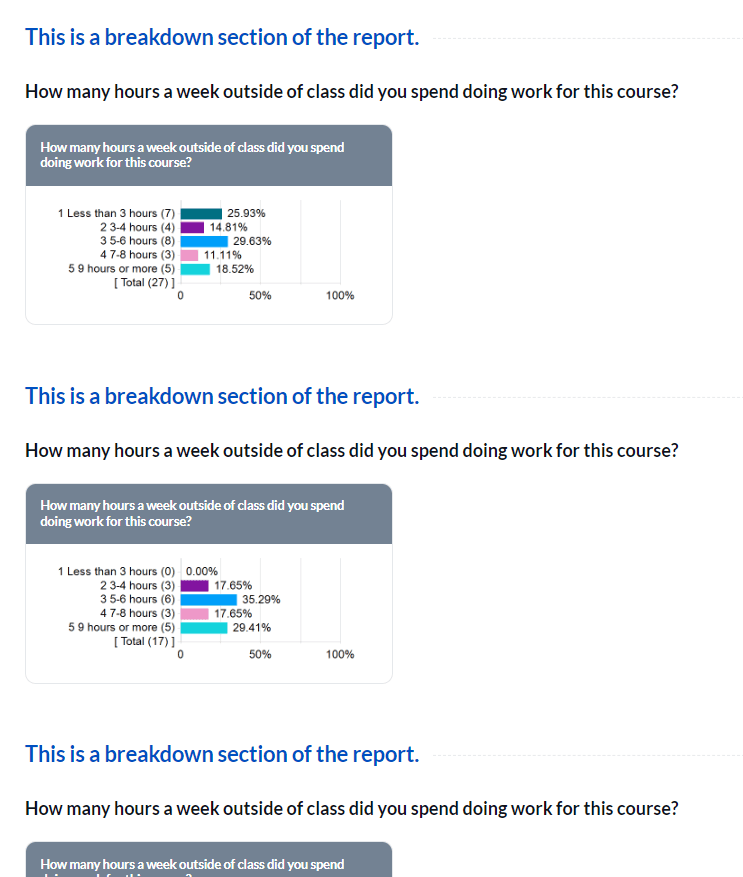
- Breakdown section - Select the breakdown section option to create a section of the report that is grouped by a selected demographic. Any report blocks that have been added to the breakdown section will be repeated in the report for each occurrence of the selected demographic.
Only question report blocks can be added to a breakdown section (i.e. score, frequency, spreadsheet, scale distribution, statistical distribution, and comments).
- Text to display on the report(s) - Enter the actual text that will appear in reports. If using a section title, the text will be in large and bold font; if using custom text, the text displayed will be in a smaller, softer font.
Click Add to List to include these options in the report.
Once sections have been added to the report blocks listing, they can be reconfigured as needed by clicking on the corresponding Edit link.
The same options are available as when adding a new Section report block, with the addition of the Apply and Preview buttons at the bottom of the screen.
Click Apply to save any changes made.
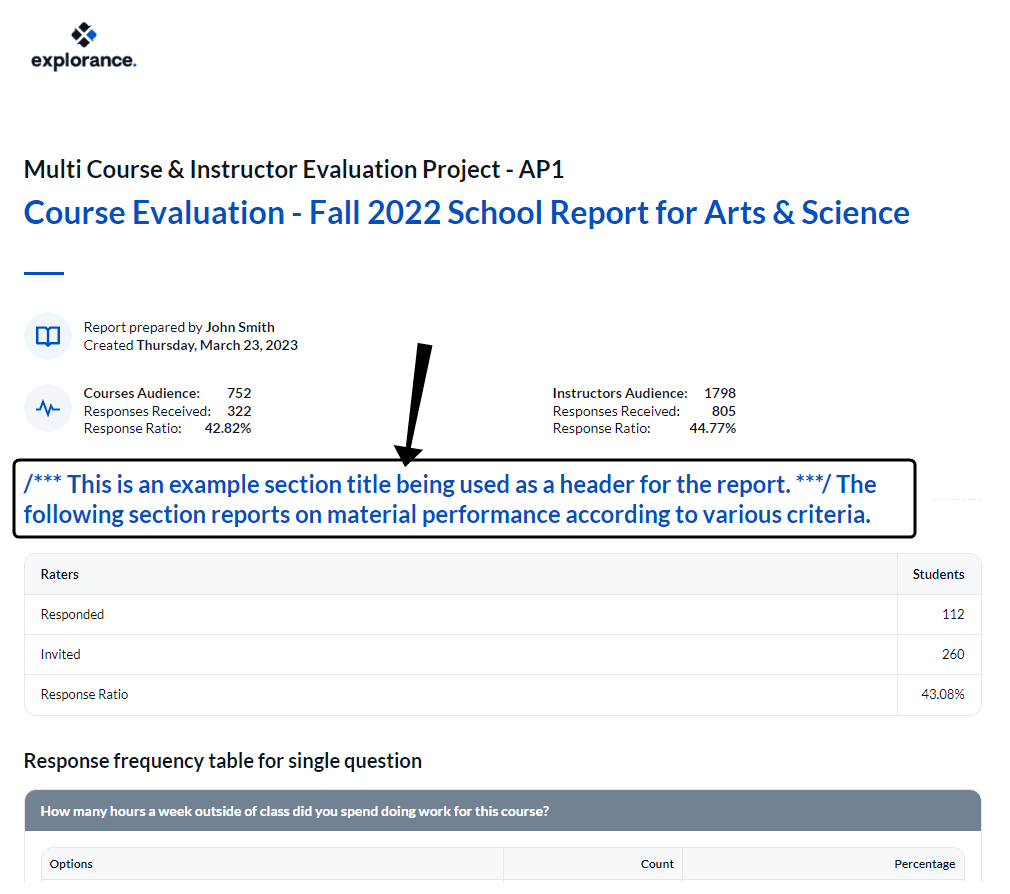
If a block Option is set to Page Break and is located immediately after a report block with the option Section title, the page break will not show up. Use a Custom text block before the page break instead.