Blue Home widgets and layout
Widgets and layout
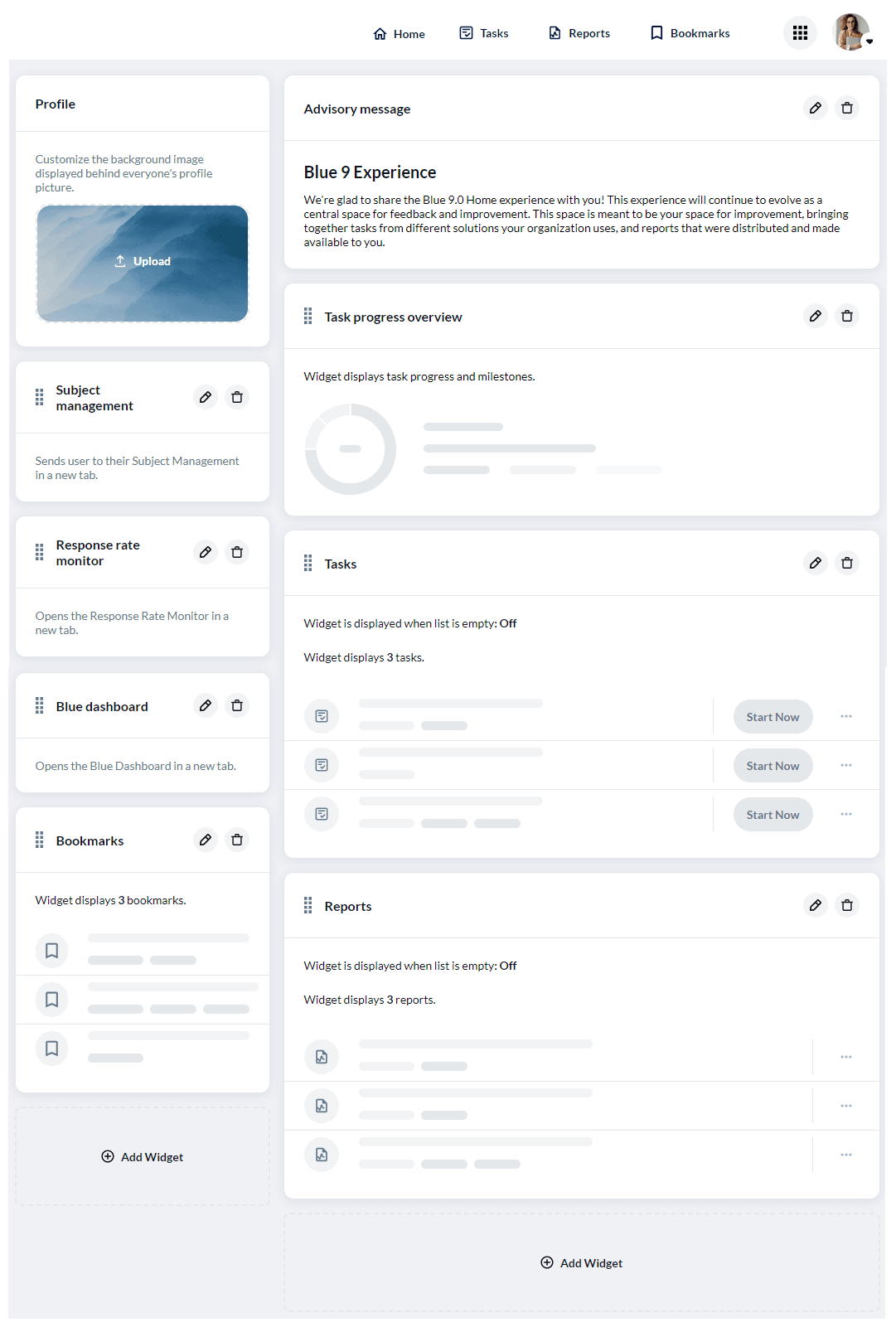
Blue home is split into two distinct sides. There is the left side and the right side. The widgets are designed for either a specific side and cannot move between sides. Customize which widgets are displayed on the page and drag and drop them to a new vertical position on the page. Widgets can be added by clicking on the Add Widget link at the bottom of each column.
Left side widgets
These are the widgets that only appear in the left side bar:
Profile
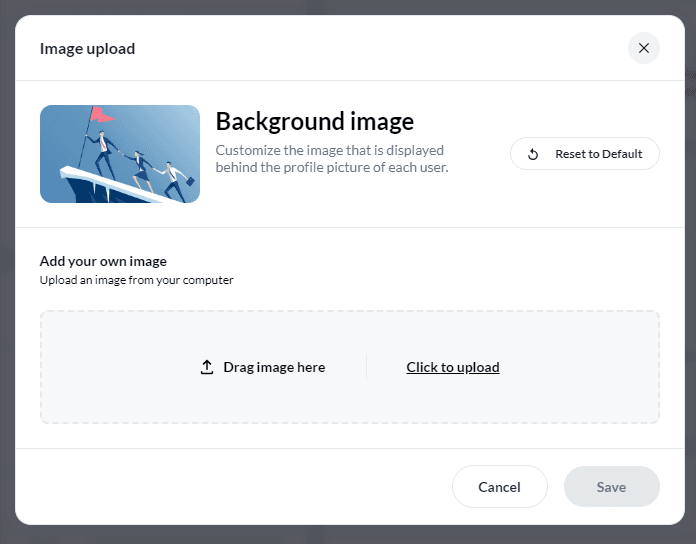
This widget, located in the upper left of the home page by default. The background image can be changed and your users will be able to upload a profile picture, update their profile bio, and change their display name if these options are enabled by the administrator. Alternatively, this widget can be removed from the home page entirely.
Background images should have a minimum resolution of 300px x 300px while being less than 4mb. Images files can be jpg, jpeg, gif, or png formats only.
Bookmarks
The bookmarks widget displays a number of most recently created bookmarks that the user can save. Users can save specific tasks and specific reports as bookmarks that they can later revisit. When you add the bookmark widget to the home page you are able to enter the number of bookmarks that the widget will display.
Blue subject management
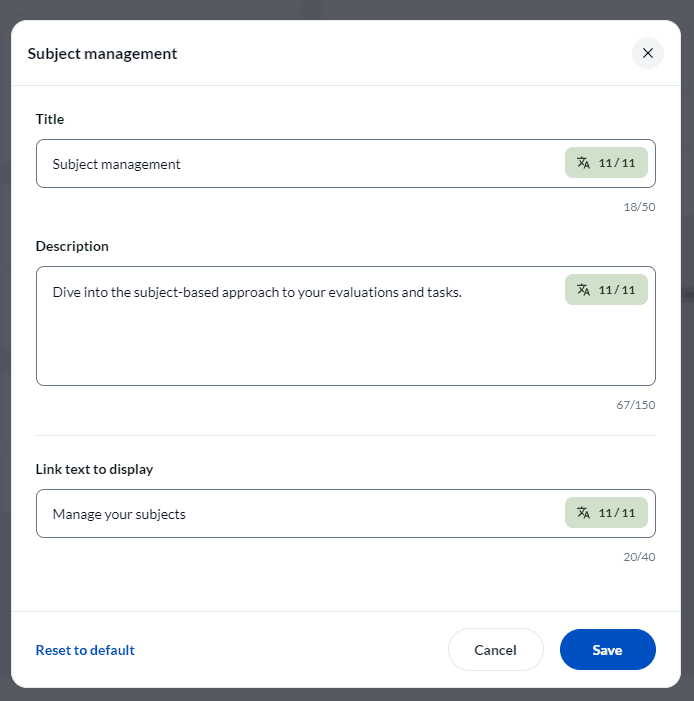
The Blue subject management widget is a launcher widget that will appear only if the user has subject management tasks assigned to them. When the widget is clicked, a new browser tab opens up into subject management. Users may be asked to select a datasource before subject management will open. The title, description, and link text can all be customized when the widget is added to the side bar.
Blue response rate monitor
The Blue response rate monitor widget is a launcher widget just like the subject management widget that will only appear if the user has access to the response rate monitor. When the widget is clicked, a new browser tab opens up into the response rate monitor. Users may be asked to select a datasource before the response rate monitor will open. The title, description, and link text can all be customized when the widget is added to the side bar.
Blue dashboard
The Blue dashboard widget is a launcher widget much like the response rate monitor and subject management widgets. It will only appear if the user has access to a dashboard and when clicked will open in a new browser tab. Users may be asked to select a datasource before the Blue dashboard will open. The title, description, and link text can all be customized when the widget is added to the side bar.
External link launcher
The external link launcher widget is similar the Blue dashboard widget, except that it displays to all users. When clicked it will open the link in a new browser tab, and like the other launcher widgets, the title, description, and link text can all be customized. Unique to the external link launcher, you can choose where the launcher links to and you can add as many of these external link launcher widgets as you like.
Right side widgets
Advisory message
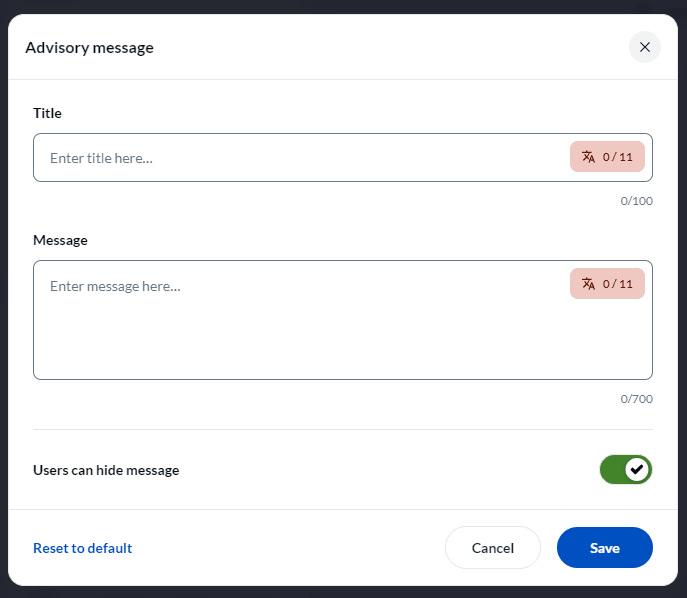
A widget that adds a short plain text message along with a title to the top of the home page for all users to see regardless of role. The title can be a total of 100 characters and the body of the message can be 700 characters. An option is available to allow users to hide the message.
Task progress overview
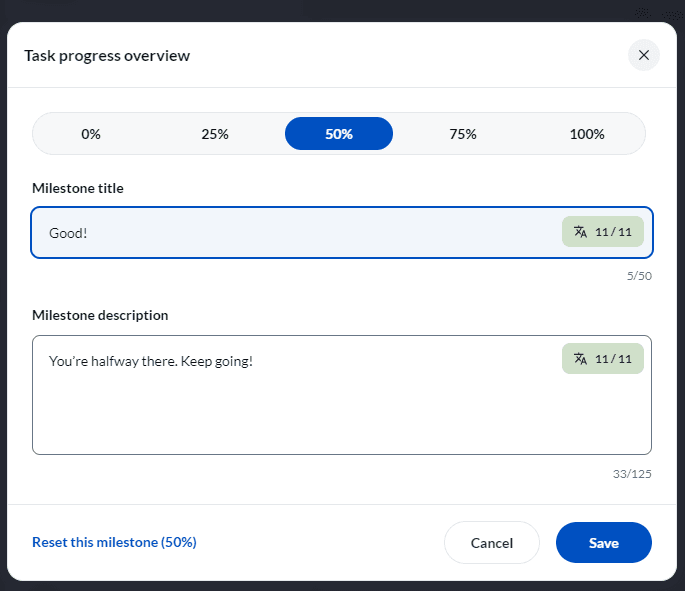
A widget that displays the users progress in completing their tasks. Several preset milestones are available that can be customized by the administrator with custom titles and descriptions for each milestone.
Tasks
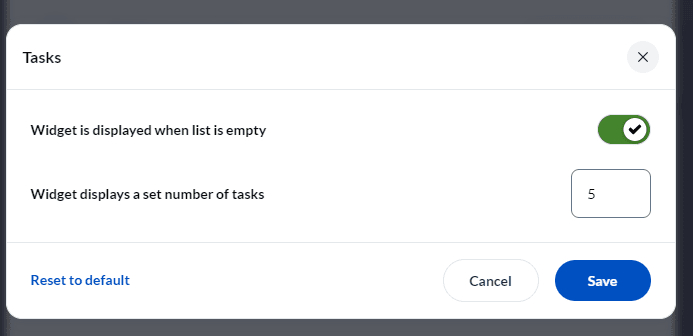
The tasks widget displays as list of the users tasks that they have not yet completed. There are two options available in this widget, the number of tasks to display and whether the widget will display when there are no tasks to display.
Reports
The reports widget is identical to the task widget except that it display reports instead of tasks. The same options are available as with the task widget.