Blue system logs
There are several resources available throughout Blue in the event that issues are encountered.
Activity logs
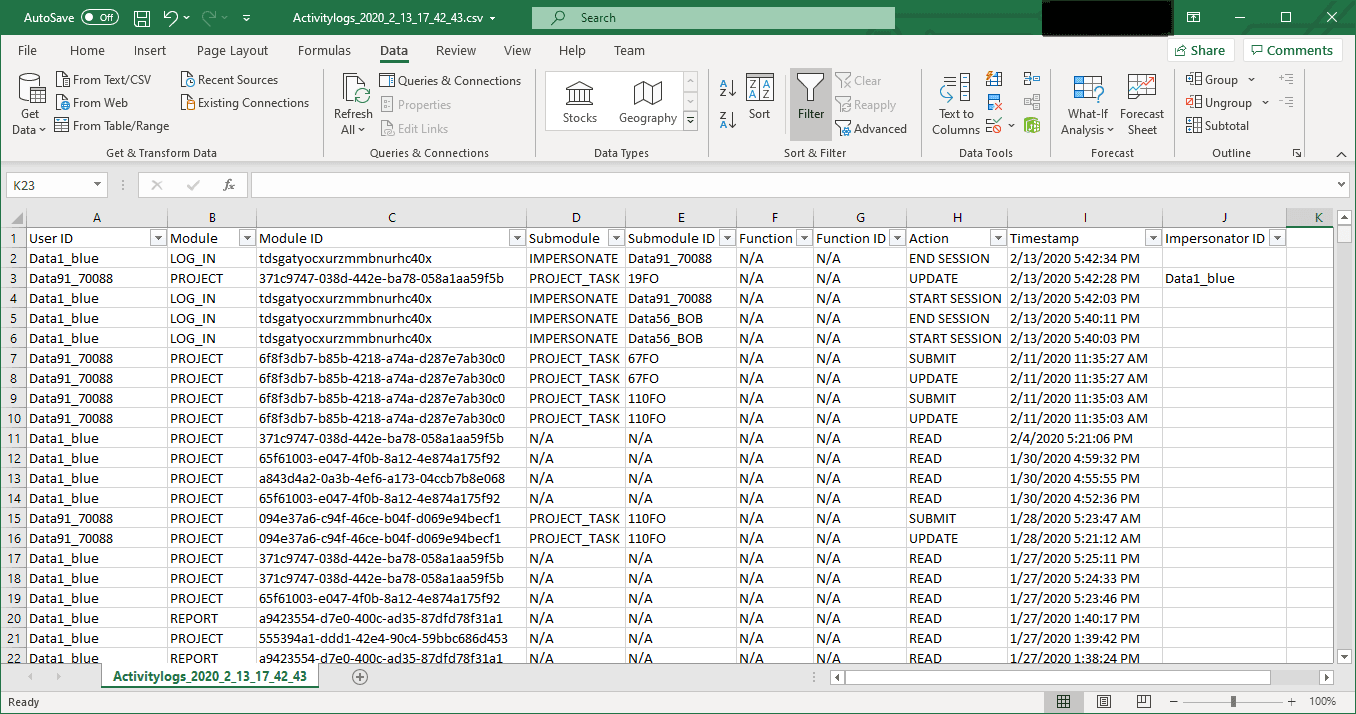
Navigate to Activity Logs - Activity from the Blue Administration Console to see user activity. Select the Download button to obtain a CSV file.
Activities that are logged
- Access As (User ID of the user logged in as another user)
- Any Save and Submit actions on the following tasks:
- Rater selection
- Rater selection signing
- Question personalization
- Question personalization signing
- Subject management
- Fillout
- Fillout signing
- DIG (Publish)
- Opt in or Opt out of a Fillout task
Log maintenance
- Logs older than one year will be deleted
- A maximum of 50,000 entries are kept
Information in the log
- User ID - the Blue ID of the person performing the action being logged.
- Module - can be one of the following possible values:
- PROJECT
- REPORT
- DASHBOARD
- DIG_PROJECT
- RECORD_MANAGEMENT
- Module ID - the ID of the module where the activity took place.
- Submodule - can be one of the following possible values:
- PROJECT_SUBJECT
- PROJECT_MEMBER
- PROJECT_TASK
- REPORT_VIEW
- DIG_SUBJECT
- DIG_MEMBER
- DIG_SETTING
- DIG_TASK
- DEFAULT_LOGIN
- N/A
- Submodule ID - the ID of the submodule where the activity took place.
- Function - can be one of the following values:
- ACCESS AS
- Data Source Automatic Update
- Date Source Automatic Relationship Sync
- PRIMARY_SUBJECT
- SECONDARY_SUBJECT
- Function ID - the ID of the function where the activity took place.
- Action - can be one of several actions depending on what the user is doing:
- CREATE
- READ
- UPDATE
- SUBMIT
- DELETE
- OPT OUT
- OPT IN
- PUBLISH
- START SESSION
- END SESSION
- Sign
- Unsign
- ANONYMIZED
- LAUNCH
- Timestamp - the date and time the activity took place.
- Access As User ID - the Blue ID of the person who used Access As on the user identified in the User ID column.
Error list
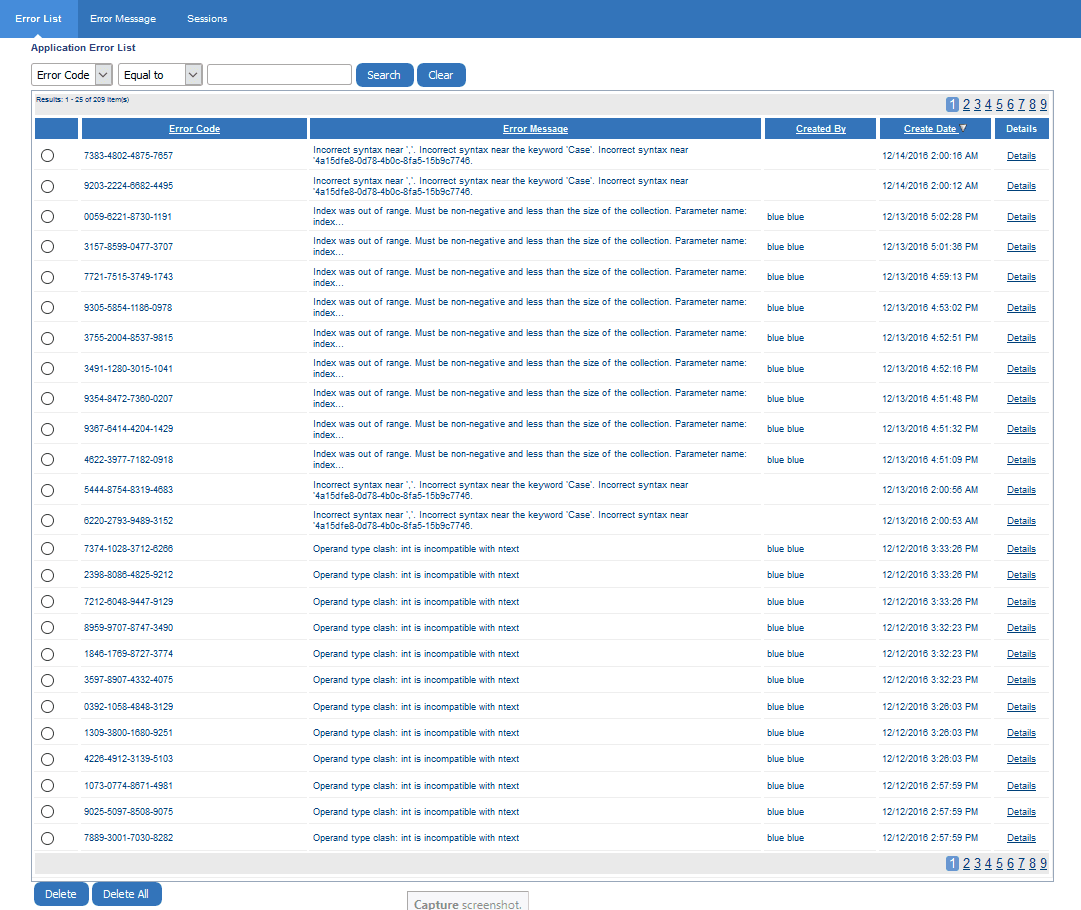
Navigate to Activity Logs from the Blue Administration Console to see error codes and error messages which can be helpful during troubleshooting. In cases where the error message is not explicit, select Details for more information.
Error message
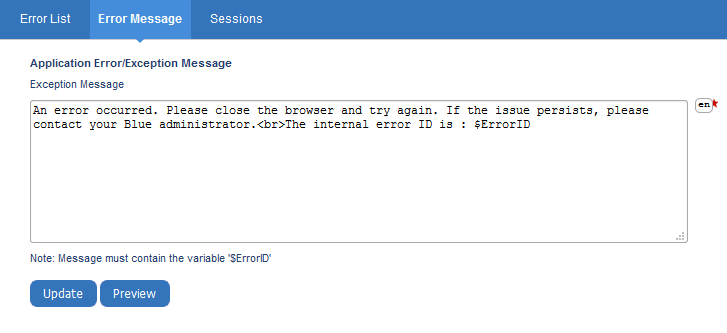
Located within the Activity Logs available when in the Blue Administration Console, the error message that displays on the client-side browser whenever an unhandled error is encountered can be customized according to the organization's needs. Errors that occur in a browser on the server will always display the debug mode message.
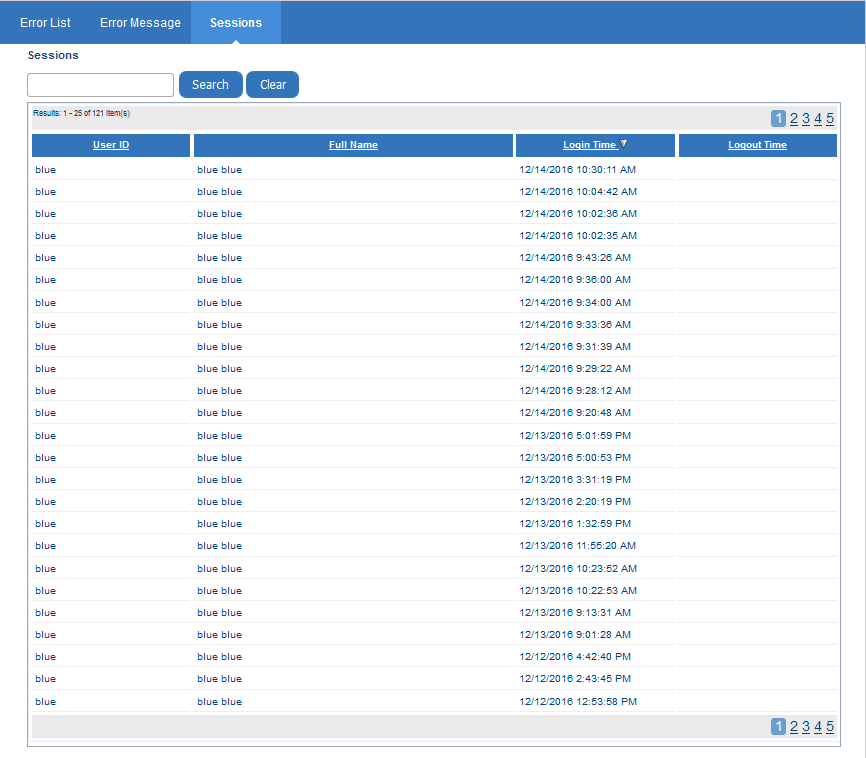
Sessions
Located within the Activity Logs available when in the Blue Administration Console, Sessions provides a list of the sign in and sign out events.
Thread tracker
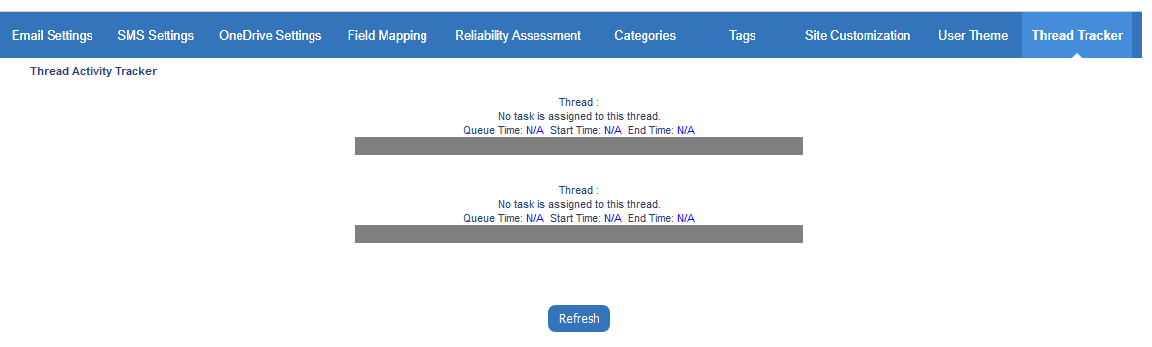
Use the Configuration - Thread Tracker to monitor threads (processes) that are currently running. This feature is useful for debugging purposes.