Bulk download
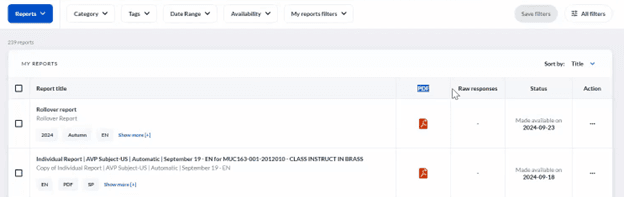
The bulk download functionality has been designed to offer a seamless and user-friendly experience. Users have access to a UI that is optimized for flexibility and performance, enabling both individual and grouped report downloads. Users can select reports across multiple parent reports and download them together.
The interface features a table layout, ensuring that critical columns like PDF and raw responses are prominently displayed and easily accessible. This enhancement simplifies report management and accelerates navigation for users.
Configuring report display settings
Administrators can choose which columns to display in the report table to suit their organization's preferences.
The settings can be adjusted following these steps:
- Navigate to Home administration > General settings.
- PDF column visibility:
- Toggle the Display column for PDF reports to show or hide the PDF column.
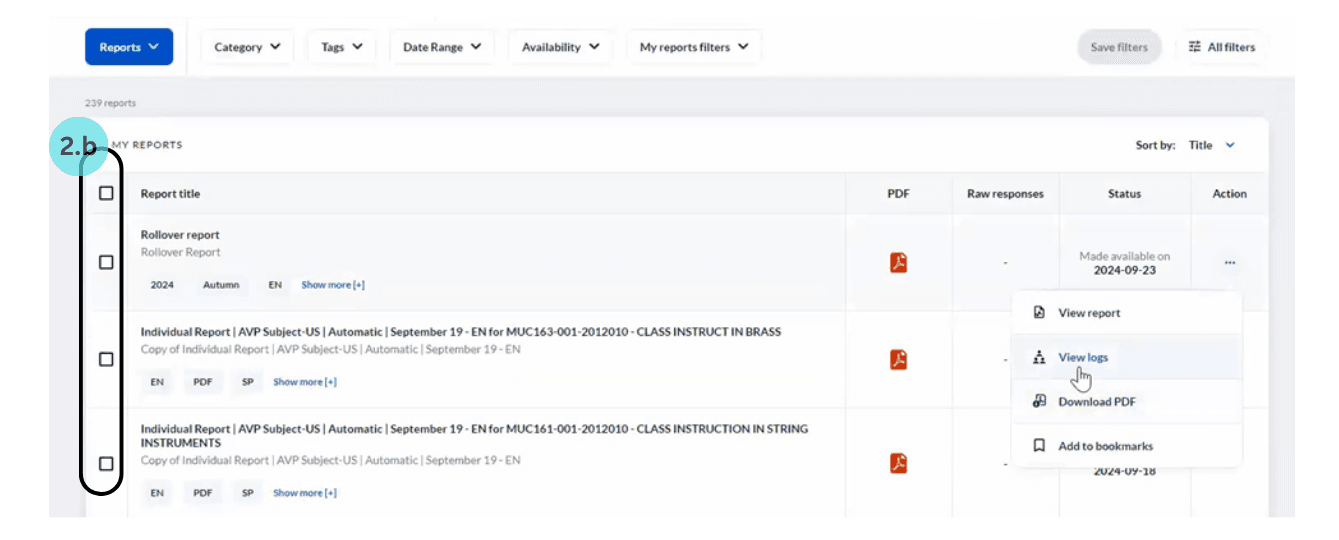
- If the PDF column is hidden, the checkbox column will also be removed, as bulk downloads depend on this column for functionality.
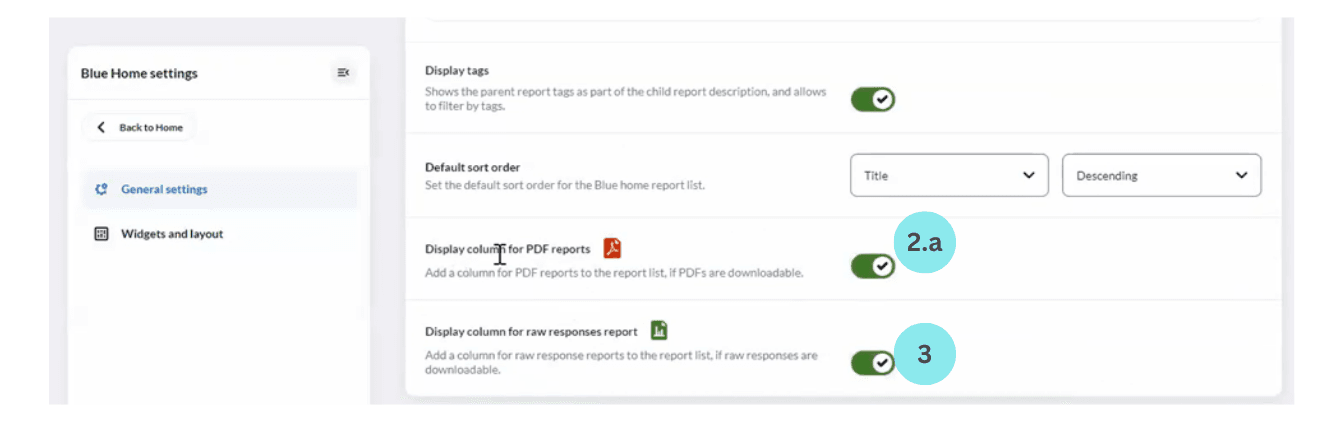
- Raw responses column visibility: Toggle the Display column for raw response report to show or hide the raw responses column.
Even when the PDF and raw responses columns are not displayed, essential actions such as View report, View logs, Download PDF, and Add to bookmark remain accessible via the action menu present on the right side of each report.
Bulk PDF download process
The bulk PDF download process is intuitive and ensures efficient handling of large volumes of data.
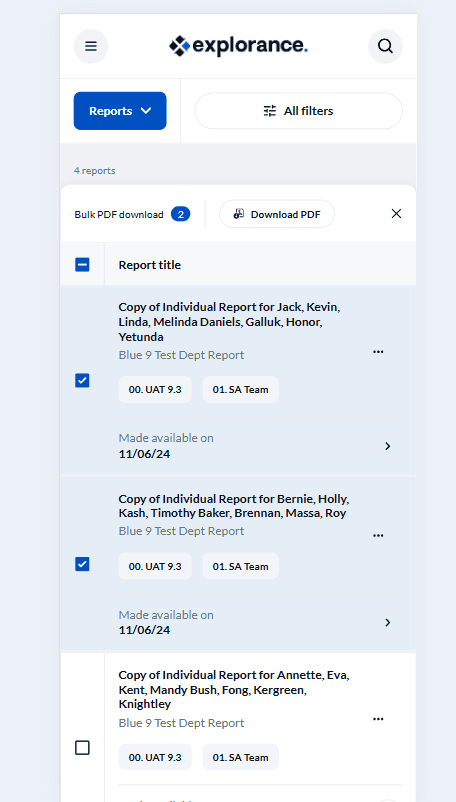
- Select the reports to be downloaded. If multiple reports are selected, the option Download PDF is displayed.
- The number on the right side of the Bulk PDF download reflects the count of selected files. This provides a quick reference for the user.
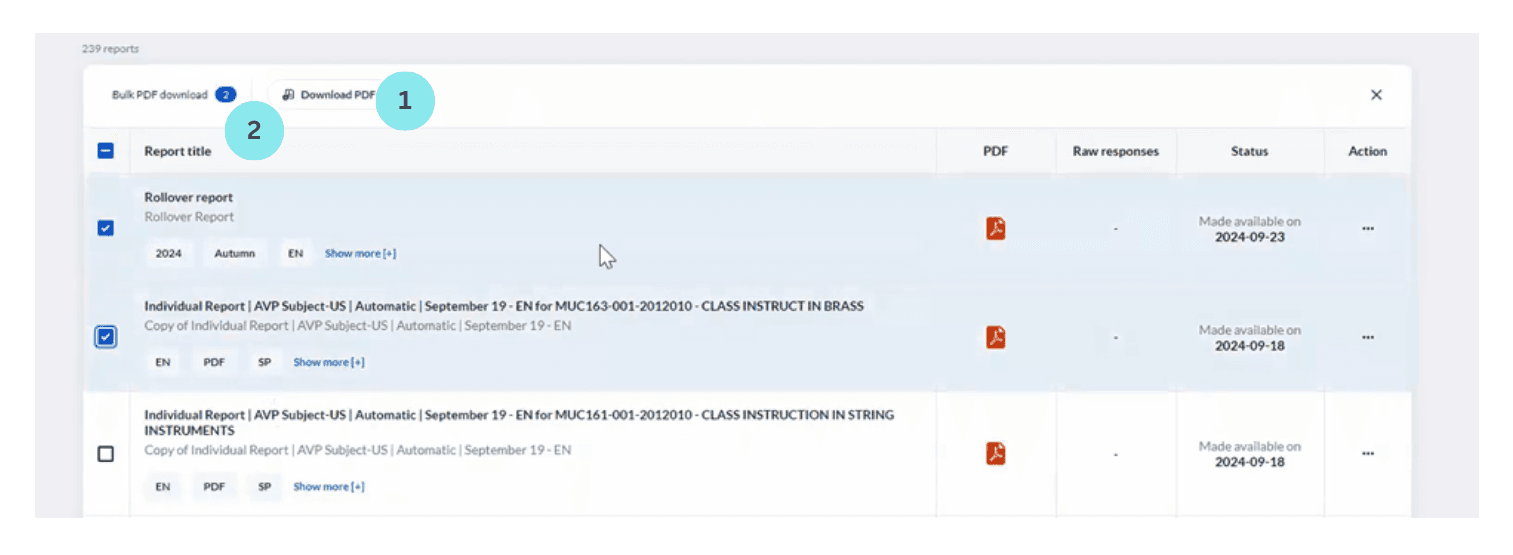
Users can select individual reports or select all reports across multiple pages. Although only up to 200 reports are displayed per page, selections persist when navigating between pages, allowing up to 10,000 reports to be selected in total. A drop-down at the bottom of the page lets users display 25, 50, 100, or 200 reports per page. - Language picker: Once users click on the Download PDF, the language picker dialog box opens. If the report is available in more than one language, choose the preferred language and click on Download.
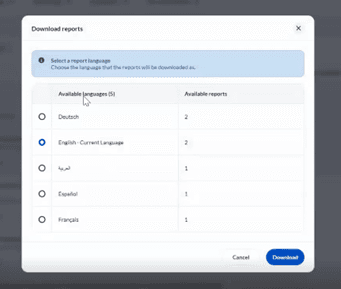
Not all reports will be available in all languages so this may affect the number of available reports.
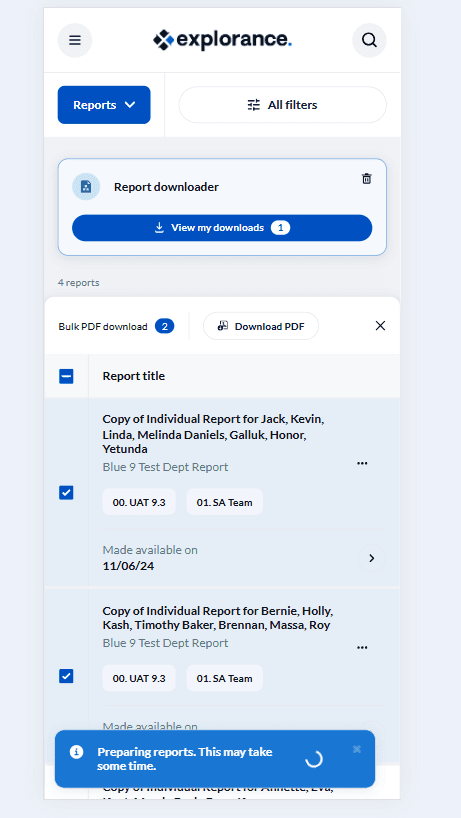
For reports with only one language, this step is skipped, and the download begins automatically. A notification appears at the bottom of the page stating: "Preparing reports. This may take some time." this informs users that the system is processing the selected reports.
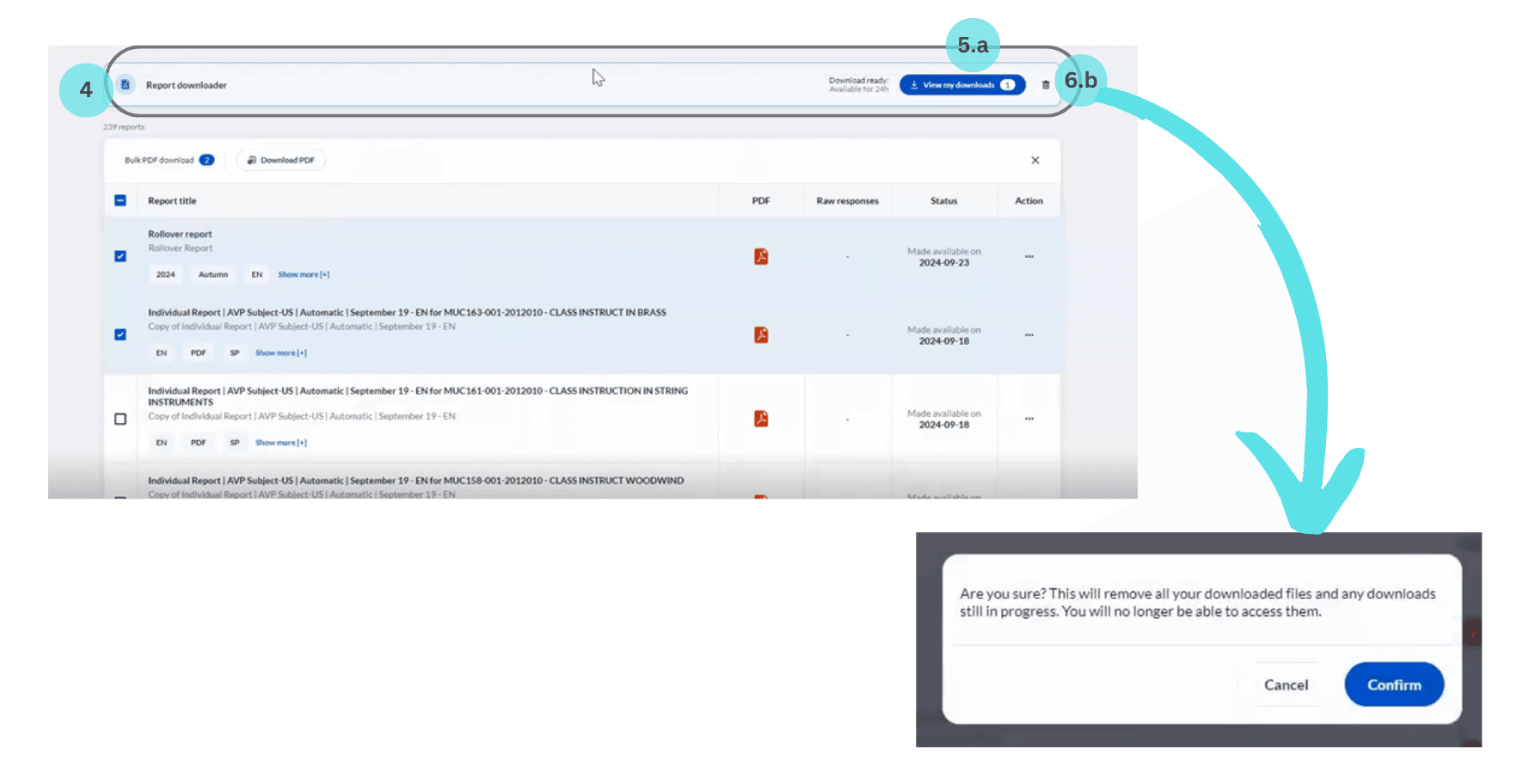
- Report downloader bar: Once the reports are ready, a report downloader bar appears at the top of the page, allowing users to download a Zip file containing the selected reports for 24 hours.
- Report downloader:
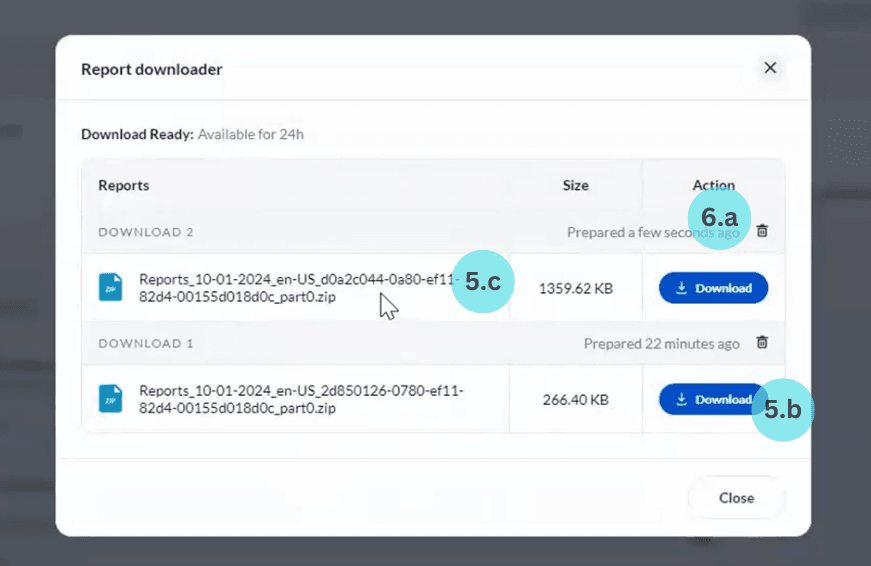
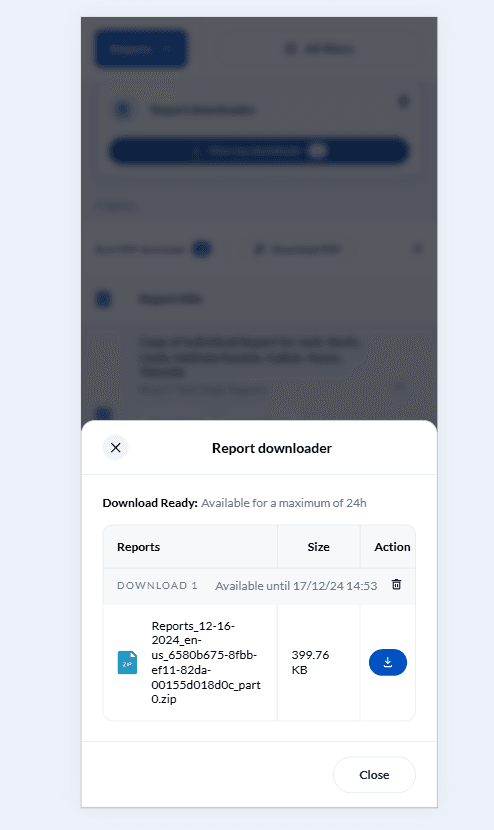
- Click on the View my downloads on the report downloader bar, to open the Report downloader. Each download is stored as a zip file.
- Users can download individual zip files.
- When a new download is initiated, the most recent download will appear at the top of the download queue.
- Delete download:
- Deleting individual downloads: Click the delete button beside the download to immediately remove it.
- Delete all files: To delete all downloads, click the delete button in the report downloader bar and confirm the action to remove them all.
Managing large-scale downloads
For large downloads, the system optimizes the process by splitting the reports into smaller batches. This ensures stability and reliability during the download process. Large downloads (e.g., 10,000 reports) are divided into smaller zip files containing up to 1,000 reports each. Each zip file is named sequentially (e.g., part 0, part 1, part 2), making it easy to track and manage multiple files. The zipping and preparation process continues in the background, even if the browser is closed. The users can start a download and return later to retrieve the files. If the connection is interrupted during the actual download, the user will need to restart the download.
The bulk download process provides several advantages, including simplified work flows, flexibility for different user needs, and a user interface that caters to both small and large-scale report downloads.