Export BTA rater comments post-analysis
Blue offers some incredibly detailed and useful reports with Text Analytics, but in some cases you may wish to do more with your data than is available. In this situation, Blue offers two export options for Text Analytics data. The first option exports the processed data in CSV format for further manipulation in a spreadsheet or database program. The second option exports the raw unprocessed data in native QDA Miner format for additional analysis using the Provalis Research suite of software.
How-to export Text Analytics data
These steps assume that you already have a report utilizing Text Analytics data.
- Sign in to Blue.
- Navigate to the Reports List.
- Edit the report that utilizes Text Analytics.
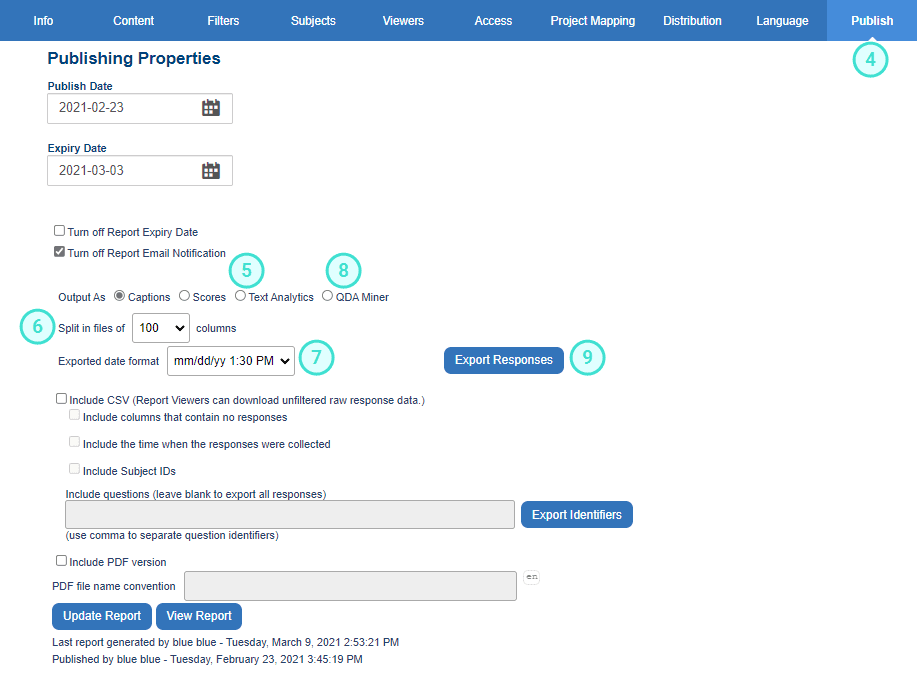
- Navigate to the Publishing Properties page.
- Select Text Analytics if you wish to export the already processed Text Analytics data in CSV format.
- Use the drop-down to limit the number of columns in each CSV file.
- Choose the date/time format used in the exported CSV files.
- Alternatively, select QDA Miner if you would like to use QDA Miner from Provalis Research to analyze the raw data.
- Export responses.
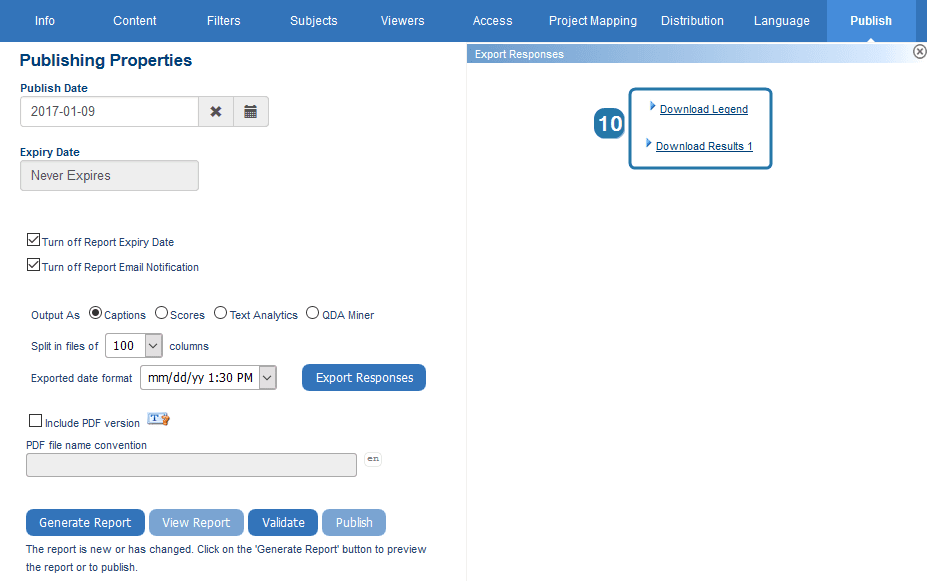
- The CSV or QDA Miner file(s) will appear in the Export Responses window. Click on the links to download the files for use outside of Blue.
THINGS TO KNOW
- Split the CSV file after a certain number of columns to make the CSV file more manageable. A column is created for each theme in the dictionary with some dictionaries containing thousands of themes a CSV file can quickly become unwieldy unless it is split.
- When choosing to export Text Analytics, at least one CSV file will be created for each dictionary utilized in the analysis of the questions in the report. When exporting the raw data to QDA Miner format, only one file is generated.