Link BTA to a project
As a project manager, setting up Text Analytics is a quick and easy process. Before we begin, let's assume that you have already created and set up a project, it can be published or unpublished. Text Analytics can be leveraged even if your project has already been published and you've already started to receive feedback.
Steps to set up Text Analytics for a project:
- Edit the project and navigate to Questionnaire - Text Analytics.
- The Text Analytics page is only available if the license has already been installed by a Blue administrator.
- Click Edit on a dictionary to associate comment type questions with it.
- All of the installed dictionaries will be listed. Additional dictionaries can be installed by the Blue administrator.
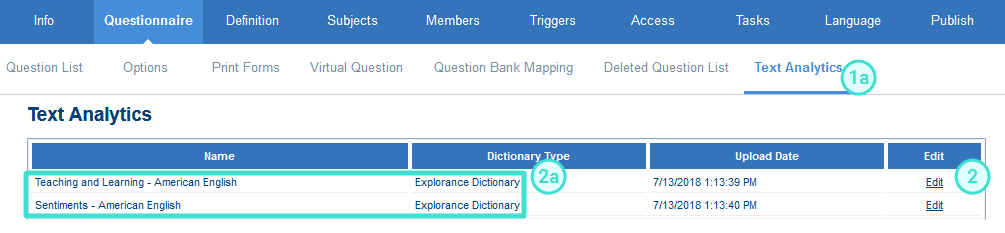
- All of the installed dictionaries will be listed. Additional dictionaries can be installed by the Blue administrator.
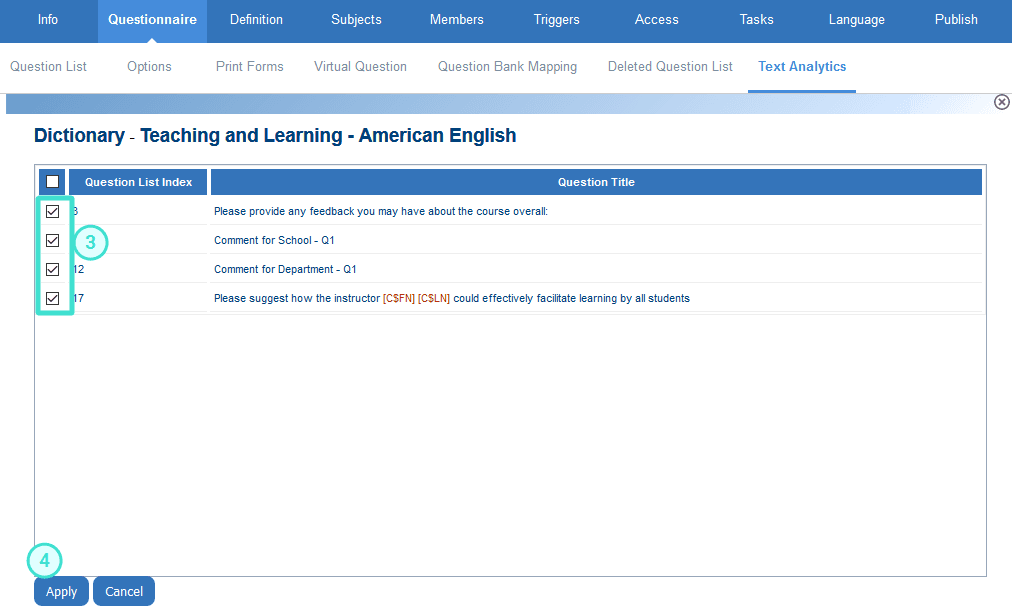
- Select the questions you would like analyzed by this dictionary (questions can be analyzed by more than one dictionary).
- Once you have selected the questions to be analyzed by the dictionary, click Apply to confirm your selection.
- Finally click Save before navigating away.