Blue administration - Project overview
The Project Admin – Overview page gives administrators a single, consolidated view of everything that matters before publishing a project.
Instead of navigating through multiple tabs (Subjects, Members, Tasks, Questionnaire, Publish, etc.) to validate settings, you can now see a clear summary in one place and jump directly to details when needed.
On this page, you can quickly:
- Confirm that the right people are included in the project
- Review key project settings and status
- Check which tasks and schedules are active
- Understand your questionnaire content and fillout settings
- Confirm publish dates
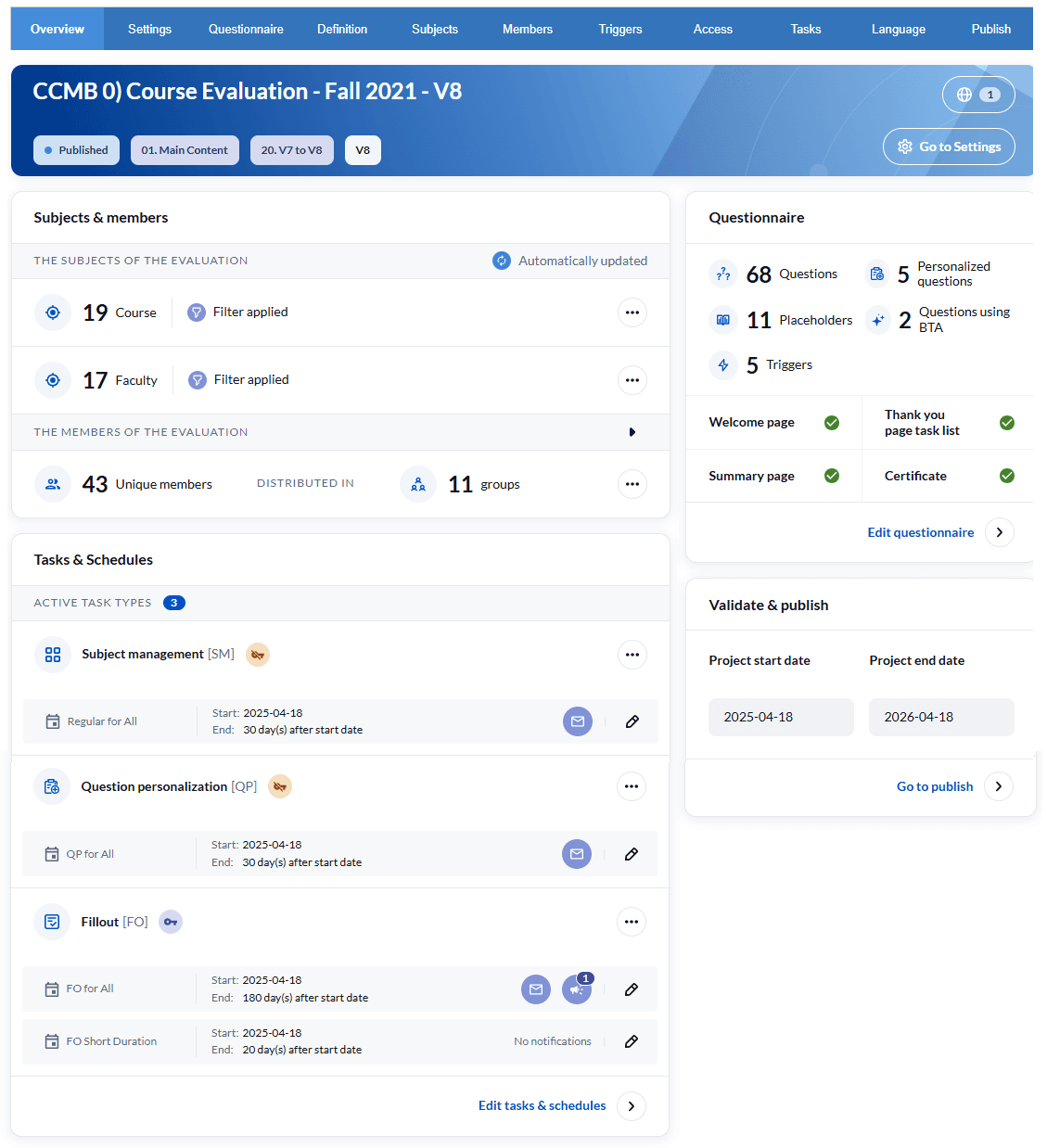
Overview page at a glance
When you open a project, the Overview page is the default landing page.
It is organized into five widgets:
- Settings – core project information
- Subjects & Members – who is being evaluated and who participates
- Tasks & Schedules – which tasks are active and when they run
- Questionnaire – high‑level question and trigger counts, plus fillout experience settings
- Validate & Publish – publish dates and shortcut to the Publish tab
All widgets offer one‑click navigation to the detailed configuration screens.
Settings widget
The Settings widget appears at the top of the Overview page. It summarizes key project properties and provides a shortcut to the Settings tab.
What you see
- Project title
- Displays the project title in the project base language, or the internal project title if it exists.
- Project title is shown in the users selected language or in the project's base language as a fallback..
- The title on the Overview page is read‑only.
- Project languages icon
- Shows a count of active project languages.
- Hover to see more details.
- Click to open Settings → Options.
- Project status
- Shows the current status
- Category
- Shows the project category.
- Click to open Settings with focus on Category.
- Sub‑category
- Shows the project sub‑category
- Click to open Settings with focus on Sub‑category.
- Tags
- Shows applied tags, with a tooltip listing additional tags.
- Go to Settings button
- A button at the bottom of the widget that opens the Settings tab.
How it helps
- Quickly confirm the project identity, languages, status, and categorization.
- Jump straight into Settings for titles, languages, categories, and tags without searching through tabs.
Subjects & Members widget
The Subjects & Members widget summarizes who is being evaluated (subjects) and who participates (members), grouped by user groups.
It helps you confirm that the right people are in scope before publishing.
Once at least one subject (for subject‑based projects) or at least one member (for non‑subject projects) exists, the detailed view appears.
Subjects section (for projects with subjects)
When the project uses subjects, you’ll see:
- Primary subjects
- Total number of active primary subjects:
- Deleted subjects are excluded.
- Opted‑out subjects are included in the count.
- A mention indicating whether a subject filter is configured.
- An action menu that lets you:
- Edit subjects
- Edit subject filter
- Total number of active primary subjects:
- Secondary subjects (when applicable)
- Total number of active secondary subjects:
- If no secondary subject is associated, the count is
0. - Deleted secondary subjects are excluded.
- Opted‑out secondary subjects are included.
- If no secondary subject is associated, the count is
- An “optional” indicator when secondary subjects are optional in the project definition.
- A mention indicating whether a secondary subject filter is configured.
- An action menu that lets you:
- Edit secondary subjects
- Edit secondary subject filters
- Total number of active secondary subjects:
Members section
The Members part of the widget summarizes:
- Total unique members in the project
- Number of user groups used in the project
- Details per group when expanded
The section can be shown in a collapsed or expanded state:
- Collapsed view:
- Shows:
- Total unique members (report viewers are excluded).
- Number of user groups.
- Includes an action menu to:
- Edit members
- Edit groups
- Shows:
- Expanded view:
- Lists all groups, and for each group show:
- Group name
- A mention if the group is global.
- Icons for automatic update and group filters, when applicable.
- A privileges list.
- Count of Unique members
- Public displayed instead of a number for fillout groups in public projects.
- Dynamic displayed instead of a number for groups linked through organizational structures.
- An action menu that can include:
- Edit group
- Edit group filter
- Edit members
- Primary‑subject‑linked groups → Members → Subject Members
- Secondary‑subject‑linked groups → Members → Secondary Subject Members
- Global‑selection groups → Members → Global Selection
- Simplified surveys → Import/Export Members
- Lists all groups, and for each group show:
At the bottom of the widget, a link takes you directly to Definition → Group.
How it helps
- Confirms who is being evaluated and who is participating, in one place.
- Highlights potential issues (e.g., missing subjects, very small groups, no filters).
- Provides quick navigation to correct configuration issues in a few clicks.
Tasks & Schedules widget
The Tasks & Schedules widget shows:
- Which task types are active or inactive
- The schedules configured for each task type
- Which notifications are active on each schedule
This gives you a clear view of how and when project communications and related actions will occur.
Tasks
For each task type, you see:
- Task name, icon, and acronym
- An icon indicating whether the task requires authentication
- For Fill‑Out (FO) tasks:
- An icon if the project is Confidential
- An icon if the project is Confidential with anonymization
- A Public tag if the project is public
For active task types, an action menu lets you:
- Configure → open the configuration panel for that task type
- Schedule → open the schedule list for that task type
- Not available for fillout tasks in public projects.
Schedules
For each task type, all configured schedules are shown beneath them.
How it helps
- Shows at a glance which tasks are enabled, how they are scheduled, and which notifications will be sent.
- Makes it easy to adjust configuration before publishing, from a single place.
Questionnaire widget
The Questionnaire widget summarizes your project’s questions and triggers, and highlights questionnaire settings that shape the rater experience.
Question statistics
- Total number of questions (excluding section headers).
- A breakdown of questions used in the questionnaire:
- Question personalization questions
- Question Bank placeholder questions
- Virtual questions
- Questions flagged for MLY or BTA analysis
- Number of triggers configured.
Fillout experience settings
The widget also shows questionnaire options that impact raters:
- Welcome page availability
- Summary page availability
- Thank‑you page task list availability
- Certificate (shown only if the certificate license is available)
How it helps
- Provides a quick sense of the size and complexity of your questionnaire.
- Confirms that fillout experience settings (welcome, summary, thank you, and certificates) are correctly configured.
Validate & Publish widget
The Validate & Publish widget summarizes your project’s publish dates and provides a shortcut to the Publish tab.
How it helps
- Makes it easy to see whether the project has a valid date range.
- Helps you quickly confirm if a project is upcoming, active, or past its end date.