Accessing and managing shared surveys
BlueX simplifies collaboration by organizing shared surveys and templates under dedicated tabs accessible to all users. These sections provide tools for searching, filtering, and managing shared content efficiently. This article provides guidance on accessing and managing shared surveys and templates in BlueX.
The ‘Shared with me’ tab is added to the survey list dropdown, and it lists surveys that others have shared with you. The ‘Templates shared with me’ tab appears in the templates list dropdown, and it lists templates shared with you.
All surveys and templates shared with the current user appear under these tabs, making it easy to find collaborative content. Regardless of user roles, all users will see these tabs, ensuring easy access to shared content.
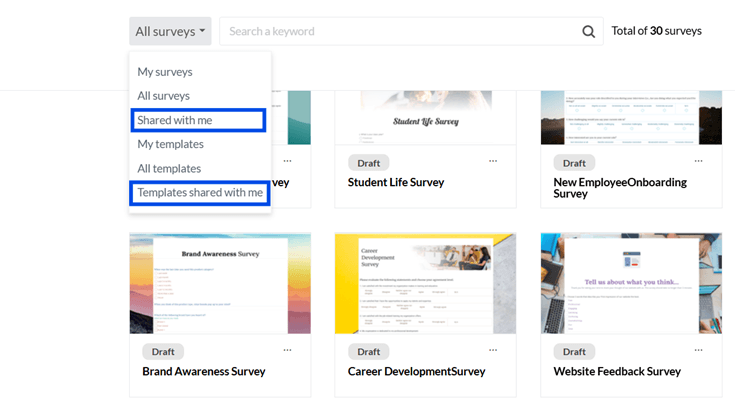
This ensures that collaborators know exactly where to find the surveys and templates that have been shared with them.
Navigating and Managing Shared Surveys
Inside the ‘Shared with me’ and ‘Templates shared with me’ tabs, BlueX provides robust tools for users to manage and navigate shared content:
Search and Filter
Users can filter surveys by statuses like Draft, Published, Live, and Closed and select multiple statuses at once. Active filters are displayed as pills that can be individually removed or cleared all at once.
Users can search for surveys by name and see the count of results dynamically. Sorting options are available in fields like Survey name, Status, Author, Updated, Created, and Number of questions.
Quick actions and survey information
Hovering over a survey reveals shortcuts to key pages like Respondents, Form, Email Campaign, Publishing, and Survey Management.
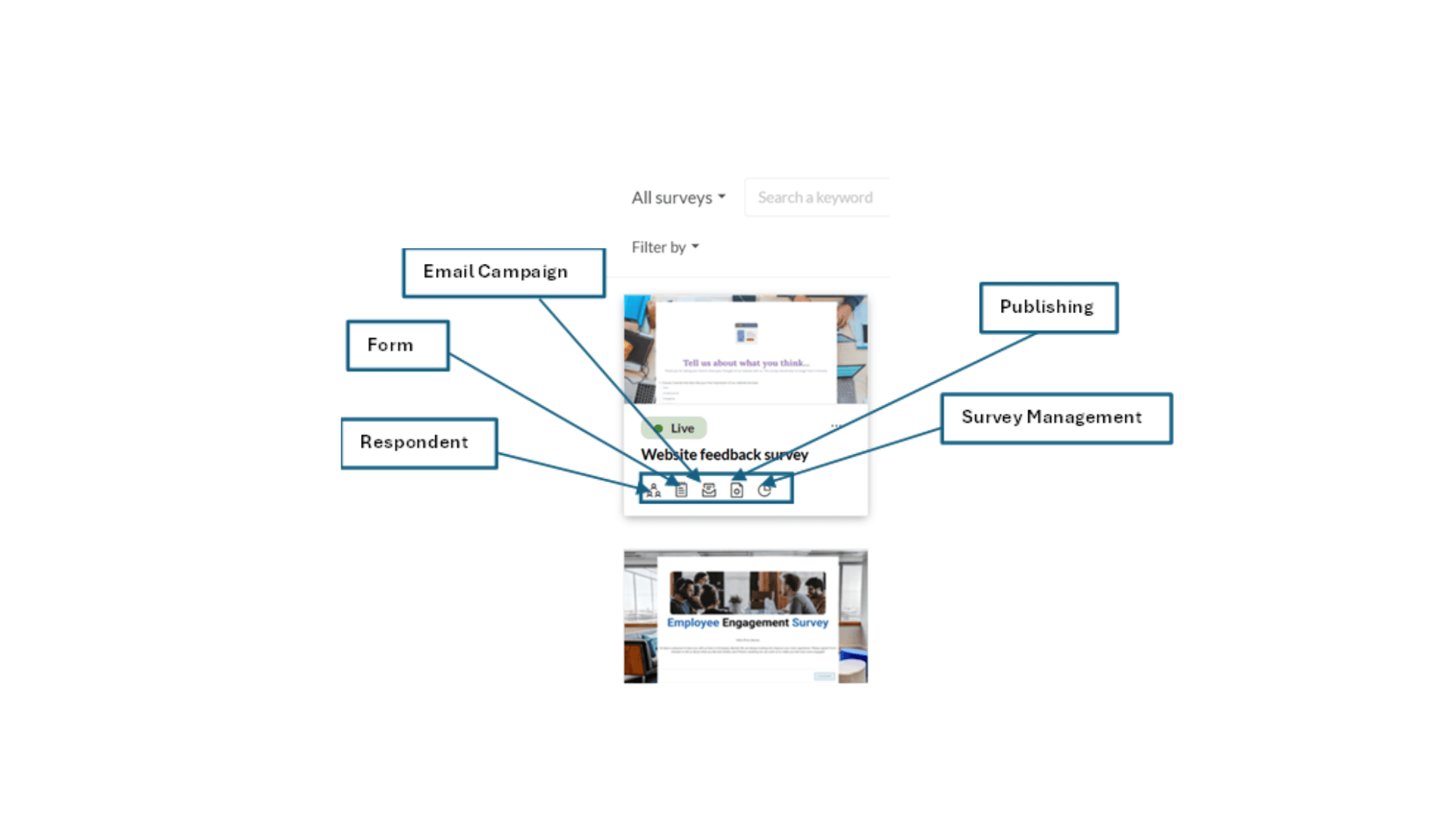
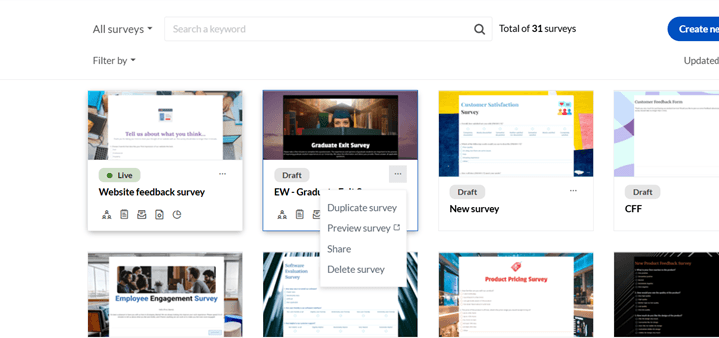
Clicking the cogwheel icon opens advanced settings, and the three-dot icon provides options like Duplicate, Preview, and Delete survey. Survey status and versioning icons are displayed to help track progress.