Add mathematical equations to survey questions
Overview
BlueX supports building Mathematical Equations which allow survey authors to insert, edit, and render complex mathematical expressions anywhere rich text is supported in the platform. Whether you are building:
- algebra problems
- engineering assessments
- statistics-heavy coursework
This feature makes it easy to add professional-quality equations to your content.
The equation editor offers two input modes:
- Visual Equation Builder for point-and-click construction
- LaTeX Editor for direct code input Both kept in sync in real time.
Key Benefits
- Dual-mode editing: Build equations visually or write LaTeX directly — switch between both at any time.
- Consistent rendering: Equations display identically in Design mode, Preview, and the Respondent view.
- Broad content support: Insert equations into survey introductions, question titles, answer options, table labels, and more.
- Accessible and secure: Equations are screen-reader compatible and all LaTeX input is sanitized for security.
- Suitable for STEM disciplines: Designed for mathematics, engineering, science, and polytechnic use cases.
Before You Begin
This feature is available to survey authors in BlueX.
Mathematical equations can be inserted in any content field that supports rich text editing, including:
- Survey introductions and instructions
- Question titles and descriptions
- Answer options
- Table and matrix labels and cell content
Familiarity with LaTeX is helpful but not required — the Visual Equation Builder allows you to construct equations without any coding knowledge.
Using the Visual Equation Builder
The Visual Equation Builder provides a palette of mathematical expressions and symbols, making it easy to construct equations without writing code. BlueX supports two equation formats:
- block equation (standalone, on its own line)
- inline equation (within a line of text).
Follow the steps below to insert and build your equations.
Step 1: Open the Equation Workspace
For a block equation: In the rich text editor, click on an empty space in the content field where you want the equation to appear, for example as a response for a multiple choice question.
For an inline equation: In the rich text editor, place your cursor at the exact position in the text where you want the equation to appear.
- In the editor ribbon, click the Equation icon. You can hover over any icon in the ribbon to display its name.
Figure 1: BlueX rich text editor ribbon with the Equation icon highlighted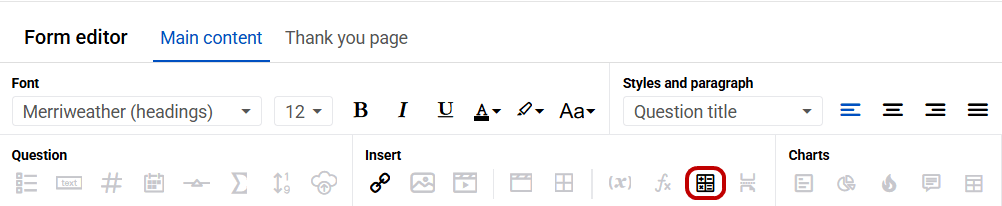
- The equation workspace opens, displaying the placeholder text Enter formula here, with the Expressions and Symbols palette displayed below.
Figure 2: BlueX inline equation Enter formula here.
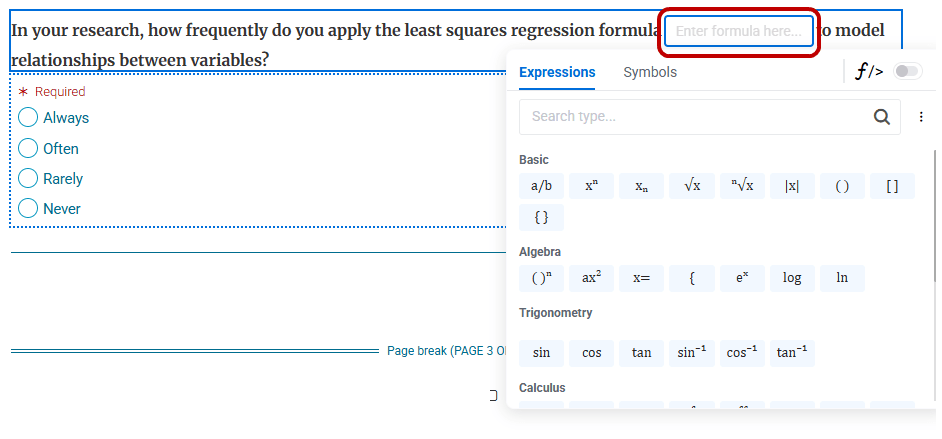
Step 2: Build Your Equation
- Locate the Expressions and Symbols palette displayed below the equation workspace.
- The palette is organized into the following categories:
- Basic – Fundamental mathematical expressions
- Algebra – Algebraic expressions and notation
- Trigonometry – Trigonometric functions and identities
- Calculus – Derivatives, integrals, and limits
- Linear Algebra – Matrices, vectors, and related notation
- Probability & Statistics – Statistical notation and expressions
- Formatting – Formatting options for equations
- Browse the categories and click a symbol or expression to insert it into the equation workspace.
- Clickable placeholders will appear where you need to enter values or sub-expressions. Click each placeholder and type the appropriate value.
- Continue selecting symbols and filling in placeholders until your equation is complete.
- As you build visually, the** LaTeX panel** will automatically update to reflect the corresponding LaTeX code.
Figure 3: Visual Equation Builder with the symbol palette visible, showing category tabs and a sample equation being constructed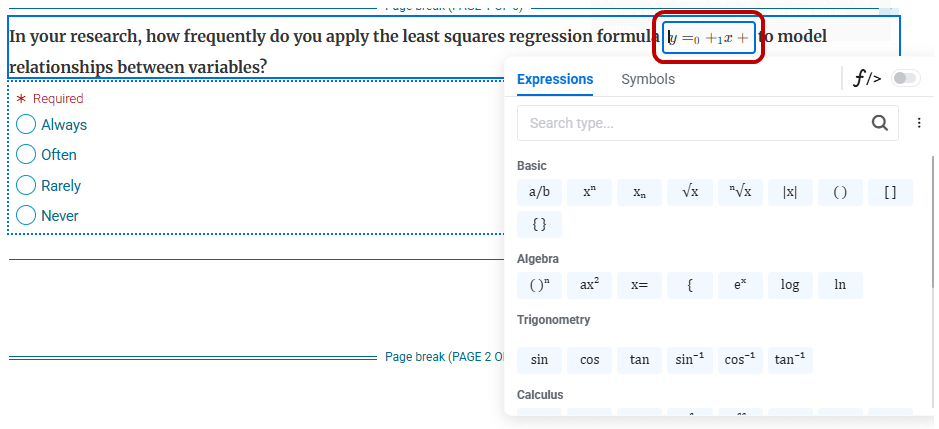
Step 3: Save and Apply Your Equation
When finished, click on an empty space outside the equation box to save and apply the equation to your content.
Tip: You can start building visually and then switch to the LaTeX panel to fine-tune your equation using code.
Using the LaTeX Editor
Advanced users can input or paste LaTeX code directly into the LaTeX panel for real-time rendering.
- With the equation workspace open, locate the LaTeX panel next to the** f/>** symbol and click the toggle to enable the LaTeX Editor.
- Type or paste your LaTeX code into the LaTeX input field.
- The Visual Equation Builder will update in real time to render and display the equation.
- If your LaTeX contains an error, a user-friendly error message will appear. Correct the code and the preview will refresh automatically.
- When finished, click on an empty space outside the equation box to save and apply the equation.
Figure 4: LaTeX panel open with sample LaTeX code entered and the rendered equation displayed in the workspace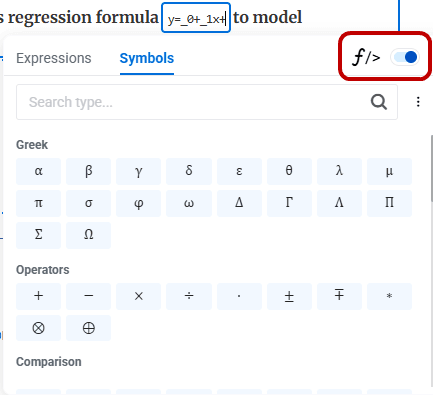
Tip: You can paste LaTeX from an external source and BlueX will render it immediately. You can also switch to the Visual Builder at any time to continue editing.
Editing an Existing Equation
You can modify any equation that has already been inserted into your content.
- In the content editor, click on the equation you want to edit.
- The Equation Editor will re-open, restoring the equation in the Visual Builder (where possible) and displaying the fully editable LaTeX in the LaTeX panel.
- Make your changes using the Visual Builder or the LaTeX panel.
- When finished, click on an empty space outside the equation box and save your survey.
Notes & Troubleshooting
| Issue | Resolutions |
|---|---|
| Error message appears after entering LaTeX | Check your LaTeX syntax for typos or unsupported commands. BlueX will display a user-friendly error message to guide you. |
| Equation does not render correctly in Preview | Equations are designed to render consistently across Design, Preview, and Respondent views. Try clicking the equation to re-open the editor, confirm your LaTeX is valid, and click outside to re-apply. |
| Visual Builder does not fully reflect my LaTeX | Some advanced LaTeX may not fully translate back to the visual representation. The LaTeX remains fully editable regardless. |
| Performance seems slow with many equations | BlueX is designed to handle multiple equations on a page without significant performance degradation. If you experience slowness, try refreshing the page. |
| Screen reader compatibility concerns | Equations are built with accessibility in mind and support screen reader compatibility and scalable rendering. |
| A symbol or expression I need is not available | Use the LaTeX panel to manually enter expressions not found in the visual palette. Refer to standard LaTeX documentation for syntax guidance. |