Create a confidential survey
A confidential survey collects identifiable responses while protecting respondent privacy in analytics. Administrators can track participation, but individual identities are never displayed in results. This article explains:
- What a confidential survey is
- How to configure it
- How confidentiality works for reporting results
What is a confidential survey
In a confidential survey:
- The system stores respondent identities.
- Only authorized administrators can access identifying information.
- Analytics never display names or personal identifiers.
- Confidentiality thresholds prevent results from appearing when response counts are too low. Use confidential surveys when follow-up, accountability, or demographic analysis is required, while still protecting respondent privacy.
Before you start
- Confidential mode must be selected before launching the survey.
- After launch, confidentiality mode cannot be changed.
- The minimum demographic confidentiality threshold is 3 responses.
How to create a confidential survey
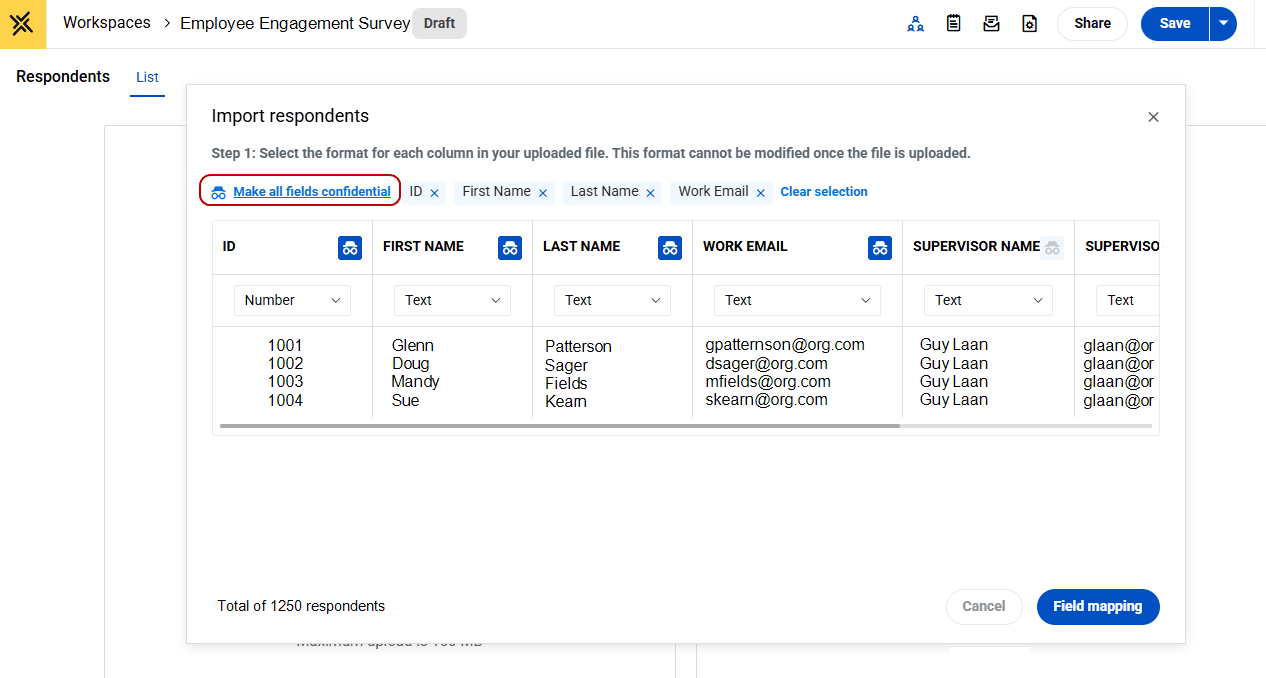
Select which demographics will be confidential.
When importing your respondent data:
- Select Make all fields confidential and then de-select using the X icon any demographics that will remain visible in your survey results.
Configure confidential survey
- Create a new survey or open an existing draft.
- Go to Publishing.
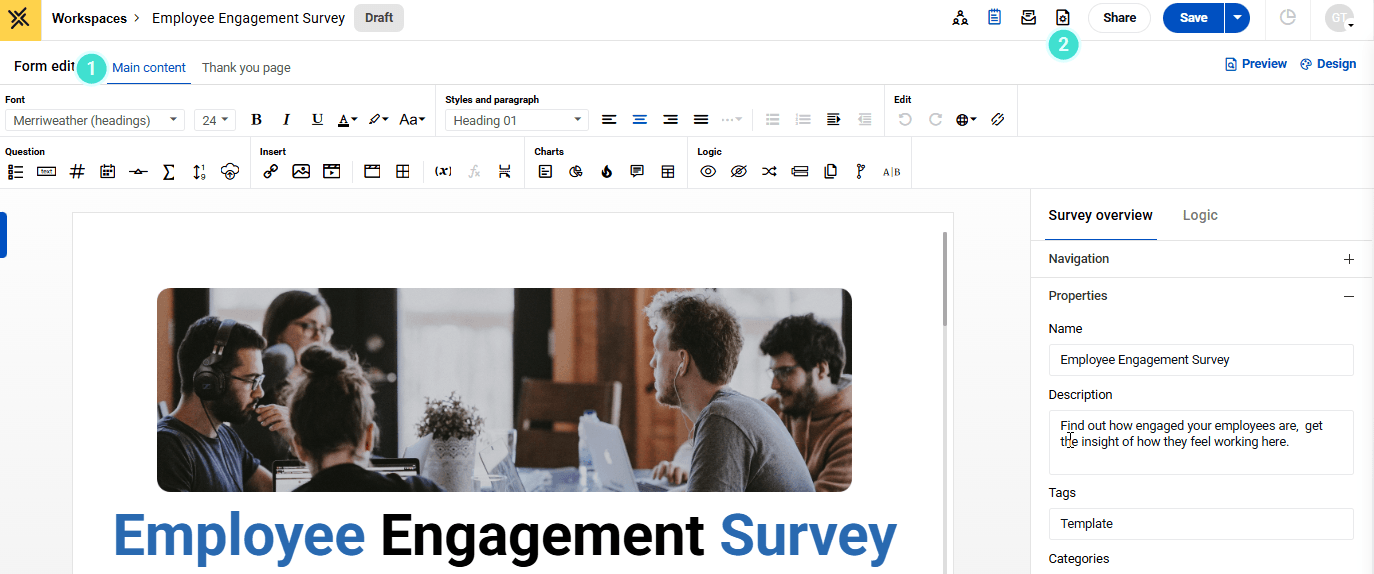
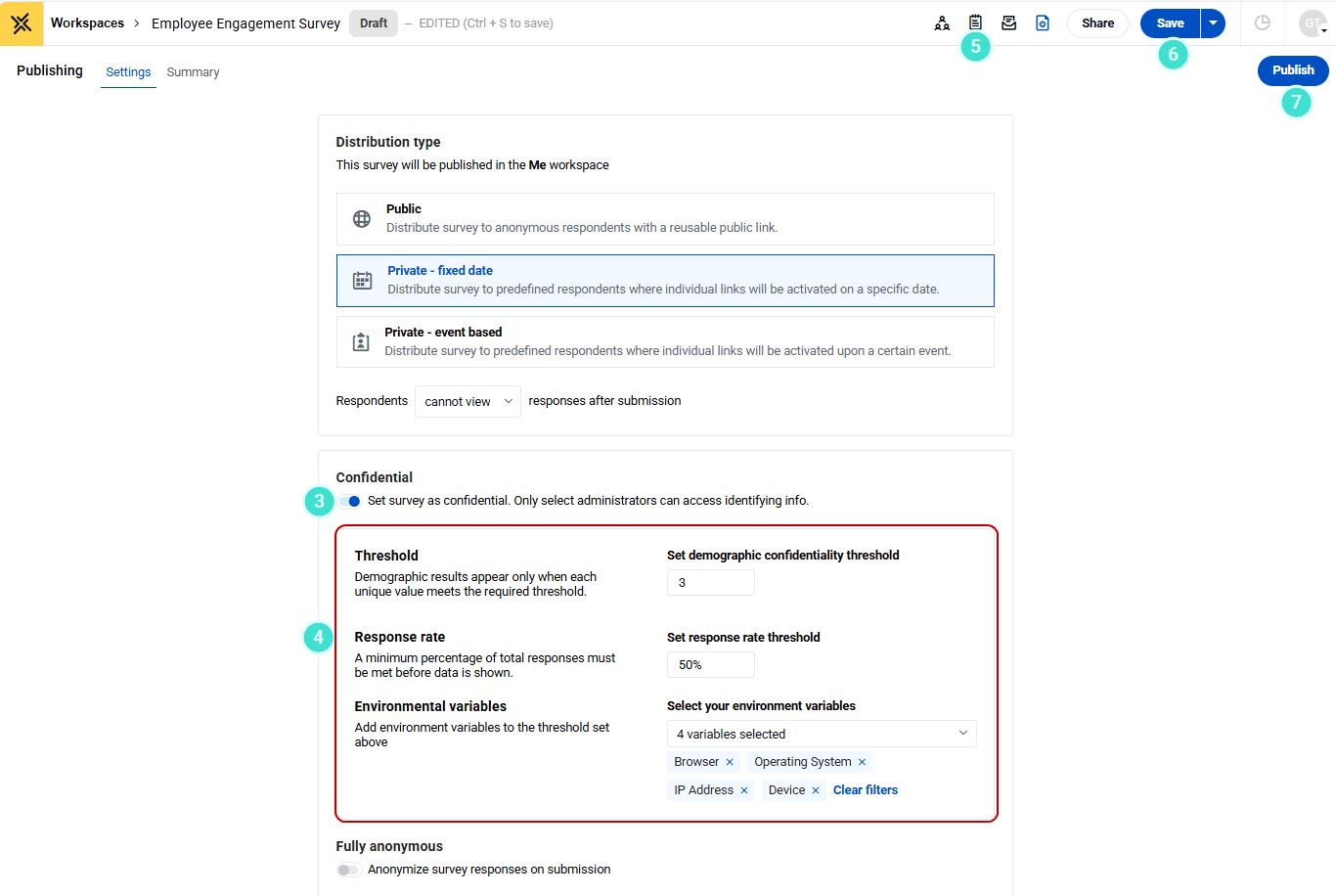
- Enable Set survey as confidential.
- Configure thresholds:,
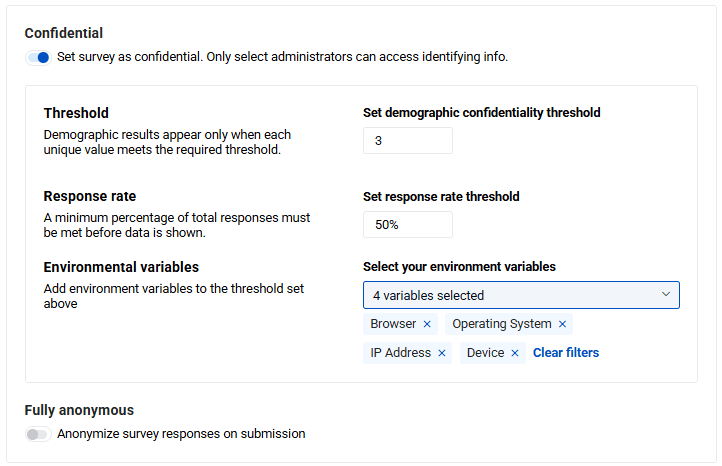
- Demographic confidentiality threshold (minimum = 3; increase for added privacy)
- Response rate threshold (minimum percentage required before results display)
- Select applicable environment variables, if required
- Review the confidentiality message shown to respondents.
- Save and test all components.
- When ready, publish to launch the survey.
Understanding confidentiality thresholds
Thresholds determine when results can be displayed.
Demographic confidentiality threshold
This threshold:
- Prevents identification in small subgroups (for example, a single person in a department
- Ensures results appear only when the minimum count is met
- Reduces re-identification risk when filters are applied
- Supports compliance with privacy regulations and internal policies
Increasing the threshold strengthens anonymity but limits data visibility.
Response rate threshold
This threshold:
- Blocks results until a minimum participation rate is reached
- Prevents conclusions based on very small or biased samples
- Encourages broader participation before reporting
- Protects anonymity in low-response populations
Why include environment variables in threshold calculations
Environment variables (such as browser, operating system, device, or IP address) can indirectly identify individuals when combined with demographic data.
Including them in threshold calculations:
- Prevents identification through unique technical combinations
- Protects anonymity when cross-filtering results
- Reduces risk in small or specialized populations
- Adds an additional privacy layer beyond standard demographic controls
In summary:
- Thresholds control when results are shown.
- Environment variables reduce the risk of identifying individuals when data is segmented.
What respondents see
Best practice: Respondents should be clearly informed that the survey is confidential.
This message should appear on:
- The welcome survey screen
- Email and reminder invitations
The message should also contain text such as:
- Confidential survey,
- Only authorized administrators can access identifying information.
- Reports and analytics will not display your name.”
Welcome survey screen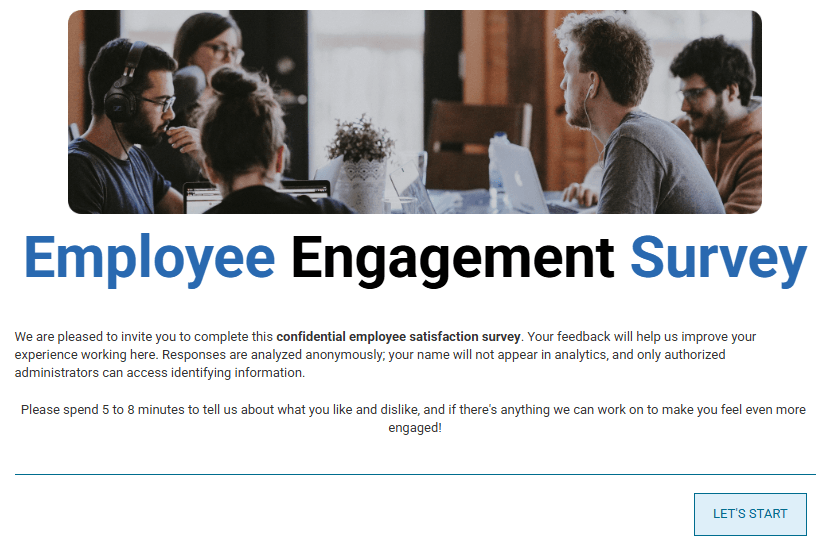
Email survey invitation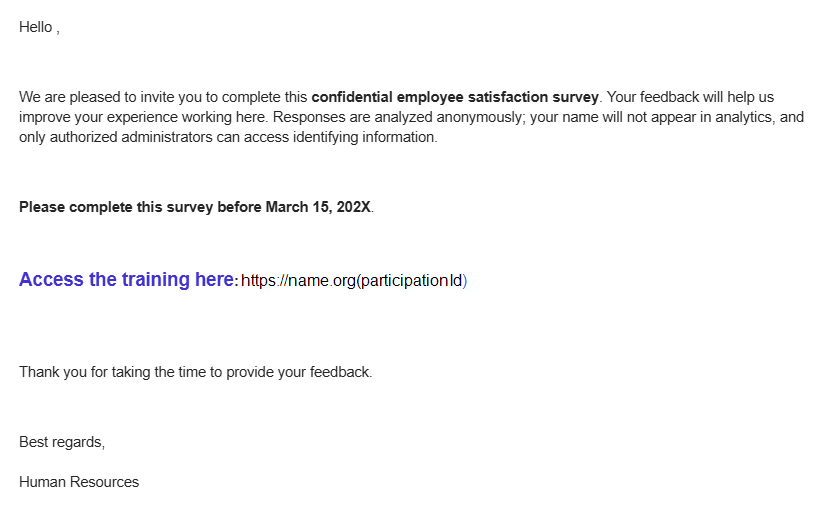
How results are managed
In confidential surveys:
- Response status (who responded or did not) is hidden from users without special permissions.
- Names, emails, and other unique identifiers are automatically redacted.
- Dashboards, widgets, and exported results suppress data when thresholds are not met.
- Suppressed content displays a notice indicating that data is hidden to protect privacy.
Demographic data and permissions
You can control who can view demographic fields used for filtering and analysis.
Examples:
- Salary data visible only to HR
- Location visible only to department heads
These permissions apply consistently across dashboards, exports, and APIs.
Permissions and auditing
Only users with elevated permissions can:
- Configure confidentiality mode before launch
- Define or adjust thresholds
- Override confidentiality restrictions
All access to confidential data is logged for auditing purposes.
Related survey modes
- Identified: Responses are linked to identities and visible in reports.
- Anonymous: No identifying information is stored or tracked.
- Confidential: Identities are stored but never shown in reports.
Choose Confidential when accountability is required without exposing individual responses.