Create an anonymous survey
What is an anonymous survey
An anonymous survey completely separates responses from personally identifiable information.
In an anonymous survey:
- Responses are not linked to identifiable demographic data.
- Selected demographics are one-way hashed upon submission.
- No user, including administrators with “View confidential data” permission, can access anonymized fields after submission.
- Contact lists are automatically unlinked.
Anonymous surveys should be used when absolute respondent anonymity is required and individual follow-up is not needed.
Before you start
- Anonymous mode must be selected before or at publishing.
- Once published as anonymous, the setting cannot be reverted.
- Anonymous surveys cannot remain linked to a contact list.
- The minimum demographic confidentiality threshold is 3.
- Both demographic threshold and response rate threshold must be met before results display.
How to create an anonymous survey
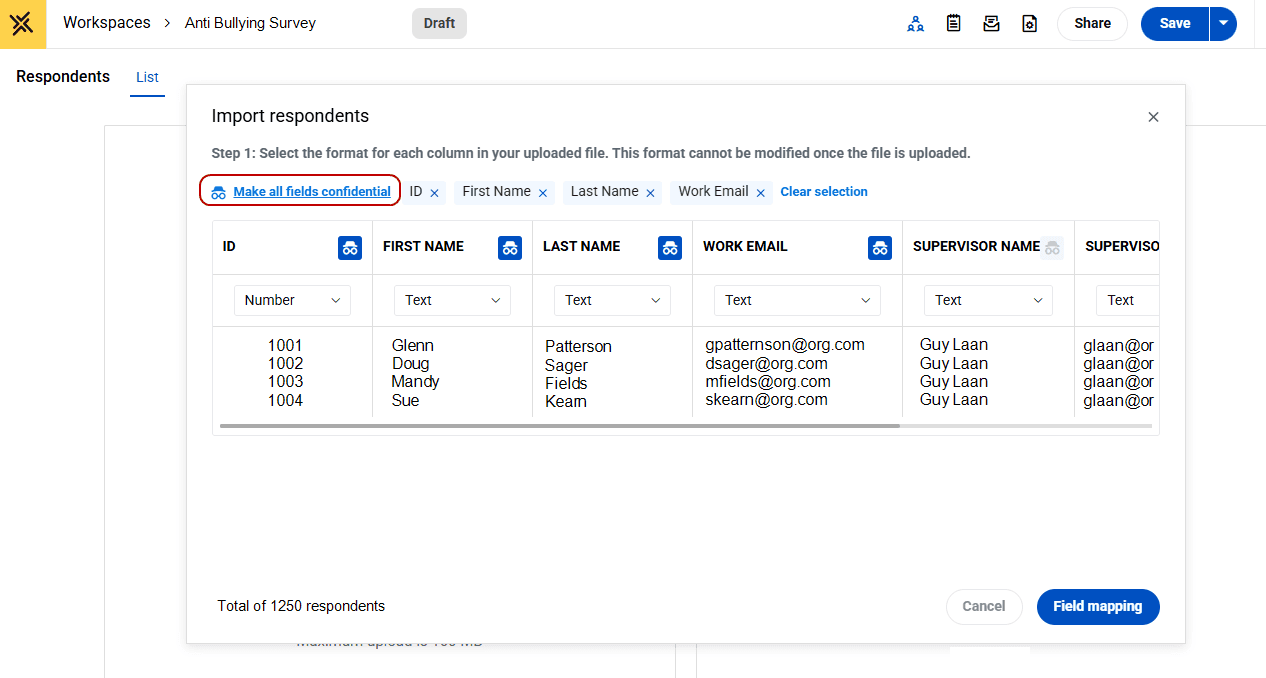
Select which demographics will be confidential.
When importing your respondent data:
- Select Make all fields confidential and then de-select using the X icon any demographics that will remain visible in your survey results.
Configure an anonymous survey
- Create a new survey or open an existing draft.
- Go to Publishing.
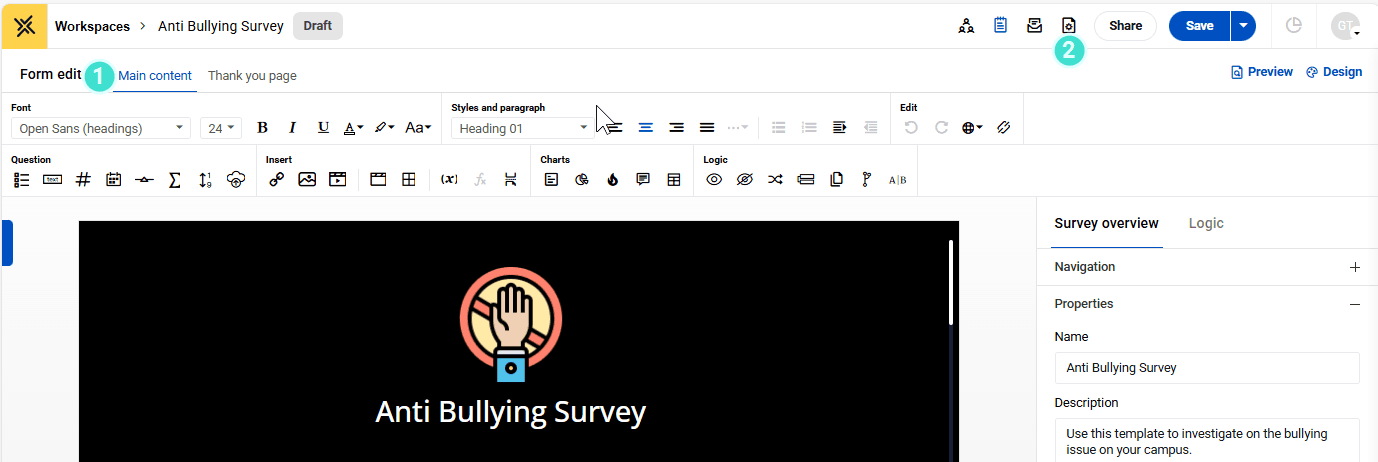
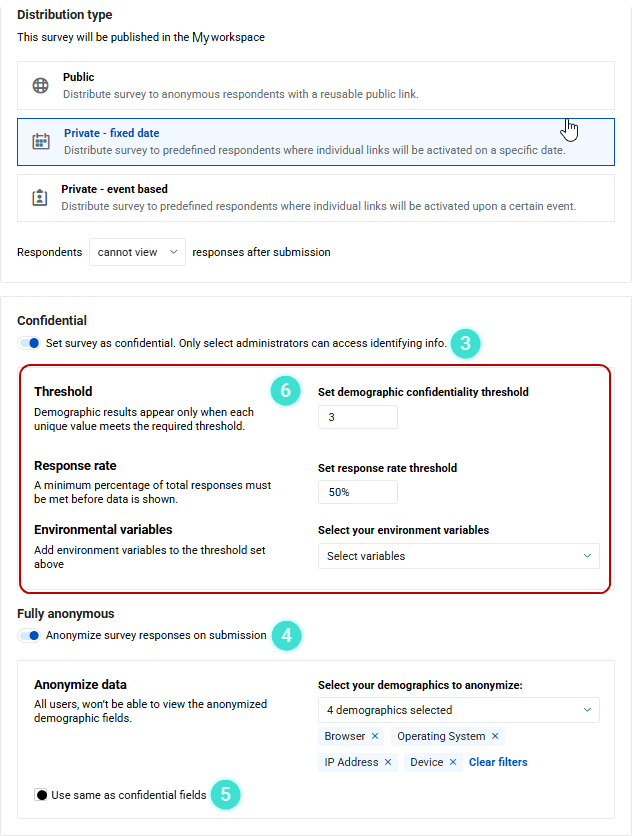
- Enable Set survey as confidential.
- Enable Anonymize survey responses.
- Select the demographics to anonymize.
- Optionally choose: Use same as confidential fields.
- Environment variables (Browser, Device, Operating System) can also be selected.
- Configure thresholds:
- Demographic confidentiality threshold (minimum = 3)
- Response rate threshold (minimum percentage required before results display)
- Review the anonymity message shown to respondents.
- Save and test all components.
- Publish the survey.
If a contact list is linked, a warning appears indicating the contact list will no longer sync.
Understanding anonymity controls
Anonymity ensures that selected demographic fields cannot be retrieved after submission.
Demographic anonymization
- Selected demographics are hashed at submission.
- Anonymized fields are suppressed in:
- Respondent list
- Task management
- Email center
- Responses tab
- Widgets
- Export history
- First name and Last name are replaced with a generic Participant label.
- Participation ID links are broken after submission when anonymization is applied.
Anonymized fields are never visible, regardless of user role or permissions.
Thresholds and response rate
Results are displayed only when both conditions are met:
- Demographic confidentiality threshold
- Each unique value in a demographic must meet the minimum response count (minimum 3).
- Prevents identification in small subgroups.
- Applies to widgets and filtered reports.
- Response rate threshold
- A minimum participation percentage must be reached.
- Calculated against the total respondents in the selected survey version.
- Applies per version or across versions, depending on filter selection.
If either condition is not met:
- Widgets suppress results.
- Exports exclude suppressed data.
Environment variables
Environment variables include:
- Browser
- Device
- Operating System
When included:
- They are subject to threshold rules.
- They prevent indirect identification through technical combinations.
- They add an additional layer of privacy when filtering.
Environment variable data is not displayed unless threshold requirements are satisfied.
What respondents see
Best Practice: Respondents must be clearly informed that the survey is anonymous.
The message should appear on:
- The welcome survey screen
- Email and reminder invitations
Suggested wording for an anonymous survey:
- This is an anonymous survey
- Your responses cannot be linked to your identity.
- No identifying information is stored in any reports or analytics.
The message should clearly state that responses cannot be traced back to individuals.
How results are managed
Data suppression and permissions
In anonymous surveys:
- Identifying demographics are permanently inaccessible after submission.
- Advanced filters exclude anonymized fields.
- Respondent-level detail cannot reveal identity.
- Exports remove:
- Names
- Emails
- Unique identifiers
- IP address
- Respondent ID
- Widgets suppress data when thresholds are not met.
- Suppressed results display a notice indicating privacy protection.
Even users with elevated permissions cannot override anonymized data restrictions.
Anonymize on demand
If anonymization is enabled: The Anonymize survey now option is available.
- Once triggered:
- All selected demographics are hashed for existing and future responses.
- The action cannot be reversed.
- The option appears only once.
- Additional fields can only be added through a new survey version.
Warnings
- The message below is displayed when a user sets the survey to anonymous while a contact list is linked.
- It appears on both the Publishing page and the Summary page.
Sample Warning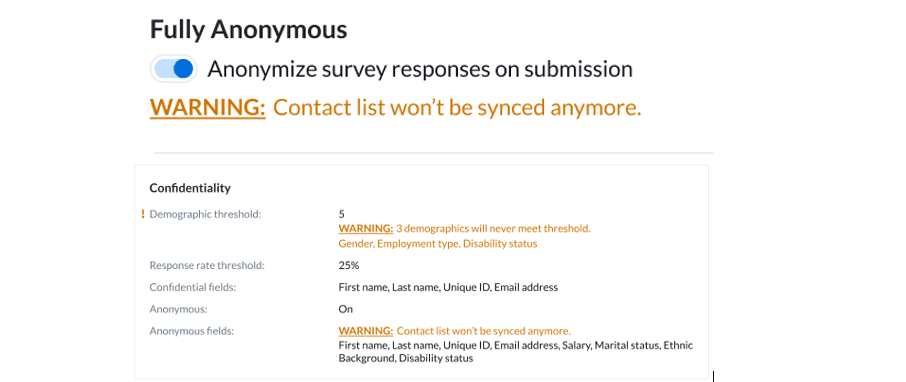
Related survey modes
- Identified - Responses are linked to identities and visible in reports.
- Confidential- Identities are stored but never displayed in analytics. Access is permission-based.
- Anonymous - Identifying information is permanently separated from responses and cannot be accessed.