Managing users and privileges in BlueX
BlueX provides organizations with a secure, organized, and flexible approach to managing who can access the platform, what actions they can perform, and how these users are maintained over time.
Logging in and first-time setup
When an organization begins using BlueX, designated administrators receive a system-generated email containing a temporary password and a link to log in. On the first login, administrators are prompted to set a new, secure password to activate their account.
Once logged in, administrators can access the user management section from the administration panel. Here, they can:
- View the full list of users with details such as name, email, status, and last login date.
- Search and filter users to locate specific accounts quickly.
Using existing credentials across platforms
Users can log in to BlueX using their existing organizational credentials. If your organization uses other Explorance products like Blue, the same login credentials will work for BlueX, ensuring a seamless experience without the need for users to manage multiple accounts or passwords.
For organizations using Single Sign-On (SSO), users can authenticate using their institutional or corporate credentials, reducing friction and improving security by leveraging existing authentication policies.
This unified login approach helps organizations:
- Reduce password fatigue for users.
- Simplify IT support by minimizing login-related issues.
- Improve security through centralized credential management.
Account management block
On the right side of the BlueX home page, administrators will see an Account Management block designed to provide quick access to managing users and security settings. This block serves as launchpad where administrators can:
- View and update personal details, such as name, alternate emails, and contact preferences, ensuring their profile remains current and accurate.
- Manage security settings including password updates and login preferences, supporting a secure user experience aligned with organizational policies.
- Review access permissions, allowing users to see which products, surveys, and features they can access within BlueX.
This design helps users stay focused on their core tasks within BlueX without requiring navigation through multiple menus to manage their account.
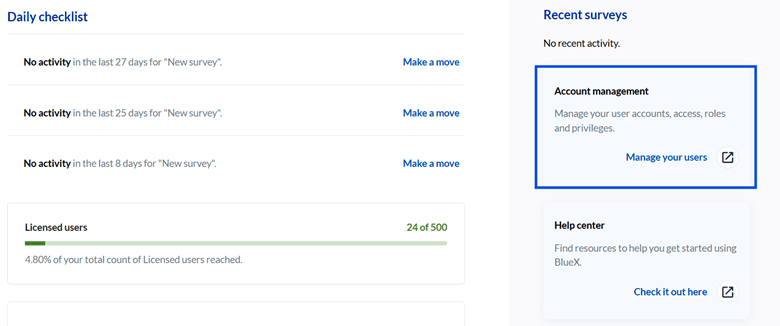
The Account Management block in BlueX includes a “Manage your users” option that opens a new browser tab, available only to administrators. Administrators can add users individually by entering their details and specifying authentication methods or using the CSV bulk upload feature for onboarding multiple users. The CSV method supports dynamic field mapping and validation, saving administrative time and minimizing errors while automatically adding users to a mandatory “Everyone” group for baseline permissions. If enabled, BlueX can also auto-update user lists from systems like Active Directory to keep accounts current without manual intervention.
BlueX supports user groups for organized management, allowing administrators to structure users based on roles, departments, or other organizational needs under System administration > Access Control > Groups. Groups like “Survey Creators,” “Instructors,” and “Department Admins” can be created to control access, with administrators able to assign users to one or multiple groups manually or through bulk updates. Users inherit the privileges of their groups, ensuring consistent permissions across the platform while simplifying large-scale user management during organizational changes.
This guide explains the different user roles available in BlueX, what each role can do, and how they work together. Whether you're an administrator assigning roles or a user trying to understand your own access, this article will walk you through everything you need to know.
An overview of roles and privileges in BlueX
BlueX uses a hierarchical role system to control what users can see and do within the platform. Roles are organized in levels, where each higher role includes all the capabilities of the roles below it.
BlueX Admin
  └── Approver
        └── Survey Admin
              └── Survey Author
                    └── Requires Approval (optional sub-setting)
Important: Roles build on each other. You cannot assign a higher role to a user without first assigning the roles it depends on. The system enforces this automatically.
User Roles
Survey Author
A Survey Author is the base-level role for anyone who creates and manages surveys in BlueX.
A Survey Author can:
- Create new surveys
- Create and manage contact lists
- Publish their own surveys
- Access the Survey Dashboard, Task Management, and Email Center
- View responses and export history for their own surveys
Key rule: If a survey has been shared with you, you have full management rights over that survey — there are no partial or view-only permissions in the current release.
Requires Approval (Sub-setting of Survey Author)
Requires Approval is an optional setting that can be enabled on a Survey Author account. It does not grant additional capabilities — instead, it adds a publishing approval step.
When Requires Approval is enabled:
- Any survey the user tries to publish — whether they created it or it was shared with them — must first be reviewed and approved by an Approver before it goes live.
Who can have this setting? Only users who already have the Survey Author role.
Survey Admin
A Survey Admin has organization-wide access to all surveys and contact lists in BlueX.
A Survey Admin can do everything a Survey Author can, plus:
- View, edit, and publish any survey in the organization
- Access responses and export history for any survey
- Access any contact list
Dependency requirement: To be assigned the Survey Admin role, a user must already be a Survey Author. The system will not allow this role to be assigned otherwise.
Note on Requires Approval: If a user has Survey Admin, Survey Author, and Requires Approval all enabled, the approval requirement applies to every survey they publish — including organization-wide ones.
Approver
An Approver is authorized to review and approve surveys before they are published.
An Approver can:
- Receive approval requests from Survey Authors
- Review survey content
- Approve or reject publication
- Leave comments on a submitted survey
Dependency requirement: To be assigned the Approver role, a user must already be both a Survey Author and a Survey Admin. This ensures they have full visibility into all surveys submitted for review.
BlueX Admin
BlueX Admin is the highest-level role in the system, with full authority over platform configuration and user management.
A BlueX Admin can manage:
- Users and their role assignments
- Workspaces
- System settings
- Webhooks and API integrations
- Approval routing and governance configuration
Role Permissions at a Glance
| Capability | Survey Author | Survey Admin | Approver | BlueX Admin |
|---|---|---|---|---|
| Create surveys | ✅ | ✅ | ✅ | ✅ |
| Edit own surveys | ✅ | ✅ | ✅ | ✅ |
| Edit any survey | ❌ | ✅ | ✅ | ✅ |
| Publish own surveys | ✅ | ✅ | ✅ | ✅ |
| Publish any survey | ❌ | ✅ | ✅ | ✅ |
| View own responses | ✅ | ✅ | ✅ | ✅ |
| View all responses | ❌ | ✅ | ✅ | ✅ |
| Approve surveys | ❌ | ❌ | ✅ | ✅ |
| Manage users | ❌ | ❌ | ❌ | ✅ |
| Manage workspaces | ❌ | ❌ | ❌ | ✅ |
| Manage webhooks and APIs | ❌ | ❌ | ❌ | ✅ |
How the Approval Workflow Works
BlueX supports a centralized approval process to ensure surveys meet organizational standards before going live.
Default behavior: All surveys require approval before publication.
The publishing flow:
- A Survey Author clicks Publish on their survey.
- The survey is sent to the Approvers queue for review.
- An Approver reviews the survey and either approves or rejects it, optionally adding comments.
- If approved, the survey is published. If rejected, the author is notified.
Requires Approval: All surveys must go through the approval workflow before they are published. This ensures every survey meets organizational standards before going live. Approval routing is configured by a BlueX Admin.
Role Assignment Rules
When assigning roles, keep the following rules in mind:
- Survey Admin requires Survey Author. A user cannot be a Survey Admin without also being a Survey Author.
- Approver requires both Survey Author and Survey Admin. All three roles must be active for the Approver role to be assigned.
- Requires Approval only applies to Survey Authors. It cannot be enabled independently.
- Publishing means full management. There are no partial rights — if you can publish a survey, you have full access to manage it.
The BlueX interface enforces these rules automatically. When you assign a higher role, required lower roles are enabled on your behalf, and the system will display a warning if a selection would create an invalid combination.
Frequently Asked Questions
Can I give someone view-only access to a survey? No. Access rights are blanket-based — users either have full management rights or no access.
What happens if someone with Requires Approval is also a Survey Admin? The approval requirement still applies. If Requires Approval is enabled on their account, every survey they publish — including organization-wide ones — will go through the approval workflow.
Can an Approver approve their own surveys? The Approver role grants approval rights over surveys submitted by others. Governance configuration is managed by a BlueX Admin.
Who manages role assignments? Only a BlueX Admin can assign and modify user roles.
Inviting users to access BlueX
Administrators can invite users to access BlueX directly from the admin panel. The system sends an automated email to the selected users, guiding them through setting up their account and logging in.
Key details of the invitation process:
- Invitations can be sent to individual users or multiple users at once.
- Administrators can choose when to send invitations, allowing them to prepare user lists before granting access.
- Users follow a clear, step-by-step email flow to activate their accounts, ensuring a smooth onboarding experience.
This capability allows administrators to align user onboarding with organizational timelines, such as academic terms, new project cycles, or phased platform rollouts.
Benefits of BlueX user and privilege management
Using BlueX’s user and privilege management features, organizations can:
- Ensure secure and controlled access to survey and evaluation tools.
- Simplify onboarding for users with existing organizational credentials.
- Reduce administrative burden through bulk uploads and automated updates.
- Use groups to manage large numbers of users efficiently.
- Control what users can see and do within BlueX by assigning precise privileges.
- Improve data accuracy by using system-driven user import and validation.
- Plan groups and privileges before onboarding users to align with organizational structures and workflows.
- Use the CSV upload feature for large-scale user additions, ensuring data accuracy through template adherence.
- Leverage automatic user updates to keep user lists synchronized with organizational systems when available.
- Regularly review user and group privileges to ensure they align with evolving organizational needs.
- Utilize the invitation system to onboard users at the right time, ensuring users receive instructions in a timely manner.