Selecting users to share the survey
BlueX provides a streamlined and secure way to share surveys and templates with active users. Through the Share pop-up, collaborators can be easily selected, with access granted based on their role permissions. This ensures controlled collaboration while maintaining data security and clarity of responsibilities.
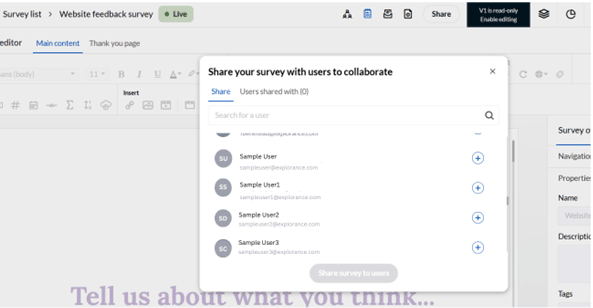
Once the Share option is selected, BlueX displays a user-friendly pop-up that helps the sharer select collaborators. The pop-up shows a searchable list of all active users in the environment, including their first Name, last Name, and email address. The pop-up has two tabs:
- Share tab — where the sharer can select new users.
- Users shared with tab — showing a count of users the current survey or template is already shared with.
It is important to understand how permissions work when sharing:
- Surveys can only be shared with active users in the current environment. All sharing is done with full collaborator access. All shared users can view and edit the survey by default.
- Role-based permissions still apply: For example, if a user does not have publishing rights in their role, they cannot publish a shared survey. Also, there are three categories of users – one category of users who can’t publish a survey, second category of users who can publish the survey with approval by raising a request for approval and the third category of users who can publish the survey without approval.
- Access to areas like Dashboard, Task Management, Email Center, Responses, Export History, and Publishing depends on the role permissions of the sharee.
- Users have the same permissions on shared surveys as they do on surveys, they created themselves.
- Inaccessible features are shown as disabled icons in the UI, and direct URL access results in an access denied screen.
Searching and selecting users:
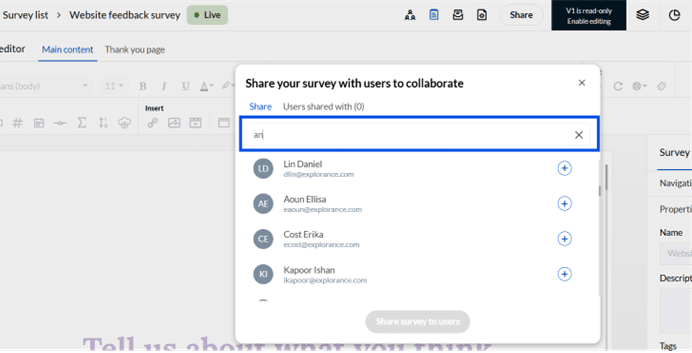
- Enter the first name, last name, or email address to search for specific users’ real time. Alphanumeric characters and special characters are supported while searching for users.
- Clicking the ‘+’ icon beside a user selects them; the icon changes to a checkmark, and the row is highlighted. Clicking again unselects that user.
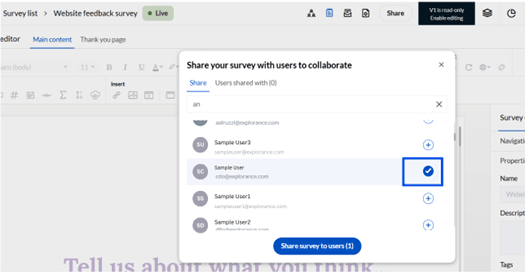
At any time, the sharer can close the pop-up using the X icon, with no changes saved unless the Share button is clicked. Once selections are made, clicking ‘Share survey to users’ triggers a confirmation toast message: “Survey has been successfully shared.”
When surveys are shared, associated respondent data and contact lists are shared as well.
- Any contact list linked to the survey is also shared with full access, allowing collaborators to view and edit contacts.
- Changes made to shared contact lists can be pushed to all linked surveys.
- All respondents added manually or via bulk import are also shared with full access.
- Collaborators have full access to the Survey Editor, Email Scheduling, and Publishing pages.
- Any changes made to a shared survey and subsequently published result in a new survey version.