Manage your evaluation settings as a manager
You may be given rights to configure settings for some of your evaluations.
The typical enterprise evaluation will go through a sequence of three statuses in the following order:
- Ready - Ready means the evaluation is set to begin. You may still have some optional tasks to complete, so take note of on-screen instructions.
- Live - The evaluation has started. Your respondents can access their tasks through email, LMS or by other means communicated with them already. If you see a QR code option, you may also display it to encourage employees during in-person or remote sessions.
- Completed - The evaluation has ended and employees will no longer be able to fill out the evaluation.
Other statuses you may see:
- Opted out - You (or someone authorized) has chosen to skip this evaluation. No invitations will be sent and no results will be collected for this evaluation.
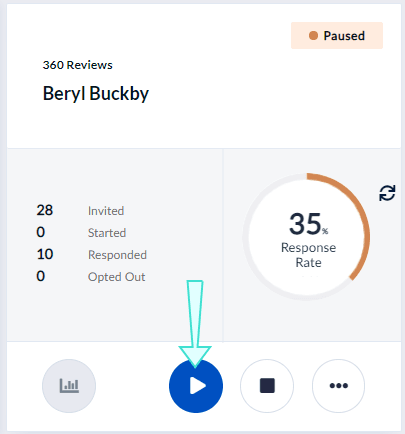
- Paused - The evaluation has been paused. This will temporarily prevent employees from providing feedback until it is unpaused and goes Live again. This is useful if you started the evaluation prematurely and want to start it again at a later date.
Ready status
Ready means the evaluation is set to begin. You may still have some optional tasks to complete, so take note of on-screen instructions. You can view or adjust settings to Ready evaluations by clicking Manage Settings.
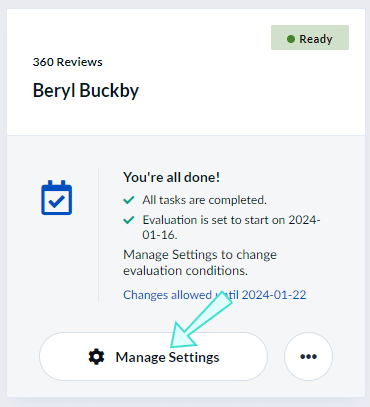
If allowed by your Blue administrator, you may adjust some or all settings to your Ready evaluation before it goes Live on the start date.
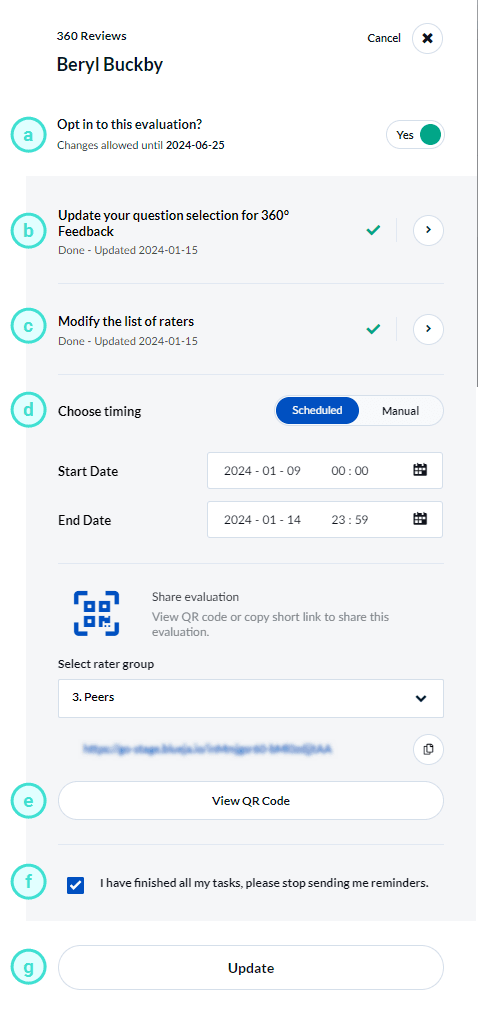
MANAGE SETTINGS WINDOW FOR READY EVALUATION
a. Opt in to this evaluation? - Choose whether the evaluation will happen or not. Default participation will typically be set to Yes. Once an evaluation goes Live, this cannot be modified.
b. Update your question selection for [360° Feedback] - Allows you to update questions you have chosen for the evaluation. Selecting this will bring you to your Question Personalization page. To learn more, see Personalize your questions.
c. Modify the list of raters - Allows you to modify the list of participants you have chosen for the evaluation. Selecting this will bring you to your Rater Selection page. To learn more, see Select your raters.
d. Share evaluation - Print or display the QR code for your evaluation to employees during remote or in-person sessions to encourage participation. You may select which rater group you wish to display the QR code by using the drop-down.
e. Choose timing - Set the start and end dates to when employees will be able to complete your evaluation. You may use a scheduled calendar or do it manually.
f. Checkbox - Check this box if you have finished all your tasks and wish to stop receiving reminders.
g. Update - Updates your setting changes.
You may click on the following sections for instructions on how to opt out, choose questions, and choose the timing for your Ready evaluations.
Live status
The evaluation has started and your respondents can access their tasks through email, LMS or by other means communicated with them already. You can view or adjust your settings to Live evaluations by clicking the More options button and selecting Manage Settings.
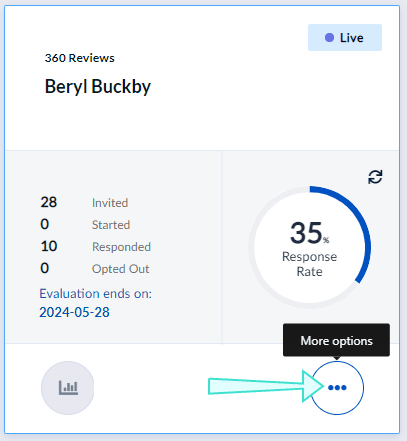
You may view or adjust settings to your Live evaluation before it ends. Some settings will be locked for changes since the evaluation has already gone Live.
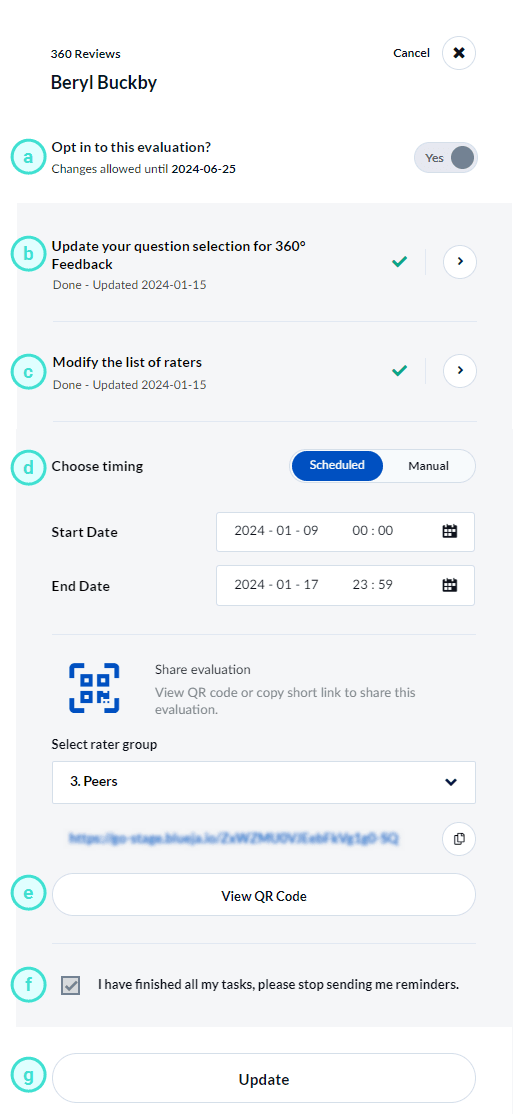
MANAGE SETTINGS WINDOW FOR LIVE EVALUATION
a. Opt in to this evaluation? - You will not be able to opt out of the evaluation since it has already gone Live.
b. Update your question selection for [360° Feedback] - Allows you to view questions you have chosen for your evaluation while it is Live. Selecting this will bring you to your Question Personalization page. To learn more, see Personalize your questions.
c. Modify the list of raters - Allows you to modify the list of participants you have chosen for your evaluation while it is Live. Selecting this will bring you to your Rater Selection page. To learn more, see Select your raters.
d. Choose timing - Adjust the start and end dates to when employees will be able to complete your evaluation. You may use a scheduled calendar or do it manually.
e. Share evaluation - Print or display the QR code for your evaluation to employees during remote or in-person sessions to encourage participation. You may select which rater group you wish to display the QR code by using the drop-down.
f. Checkbox - Check this box if you have finished all your tasks and wish to stop receiving reminders.
g. Update - Updates your setting changes.
If you wish to view instructions on how to adjust timing to your Live evaluations, click the following:
Completed status
The evaluation has ended and employees will no longer be able to fill out the evaluation. You can view settings to Completed evaluations by clicking the More options button and selecting Manage Setting. You may consult the questionnaire to verify which questions were included in the evaluation, or view the timing to determine when the evaluation was done.
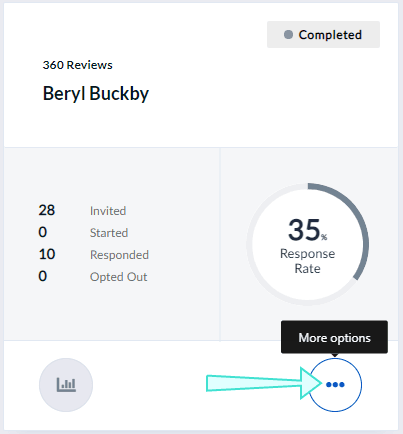
An additional feature you may see is being able to download raw response data to a Completed evaluation.
Other statuses you may see
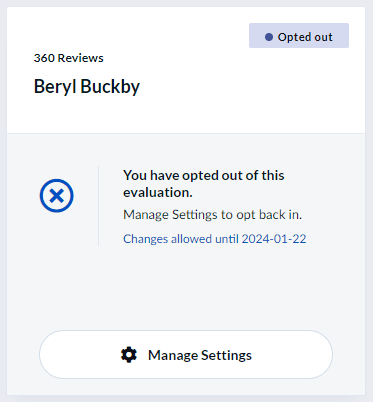
Opted out - You (or someone authorized) has chosen to skip this evaluation. No invitations will be sent and no results will be collected for this evaluation.
Paused - The evaluation has been paused. This will temporarily prevent employees from providing feedback until it is unpaused and goes Live again. This is useful if you started the evaluation prematurely and want to start it again at a later date.