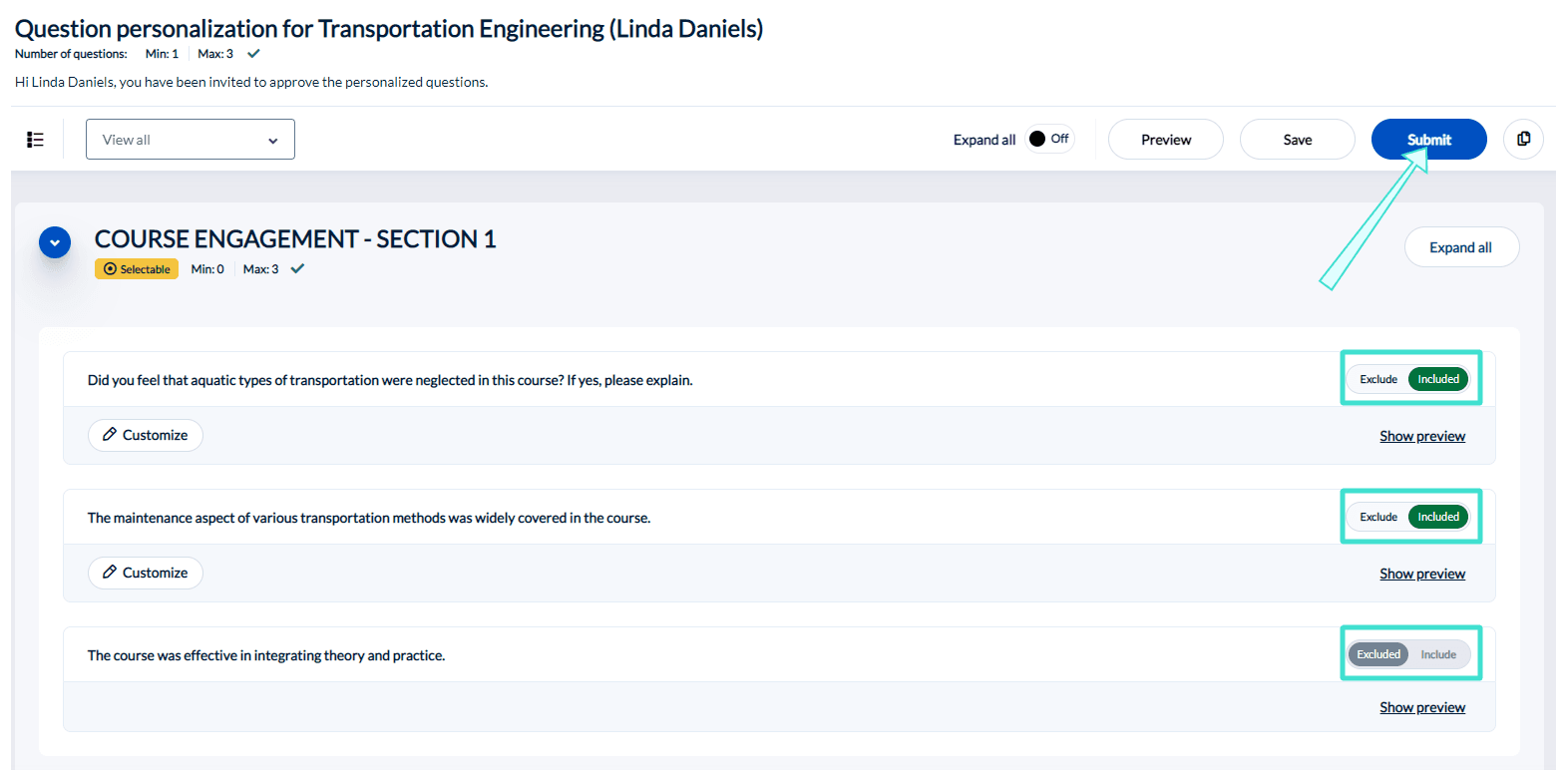
Personalize your questions as an instructor
Question personalization allows you to add your own questions to a survey. You can access the Question Personalization page by selecting:
- A direct notification (email or SMS) that was provided to you.
- A question personalization task from your LMS, Blue Home, or Subject Management page.
Access from your Subject Management page
To access your Question Personalization page from your Subject Management page:
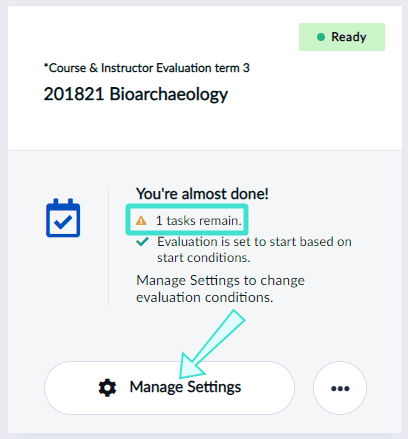
- Find an evaluation tile where there is an incomplete task remaining.
- Click View/Manage Settings. A window to view or manage your settings will appear.
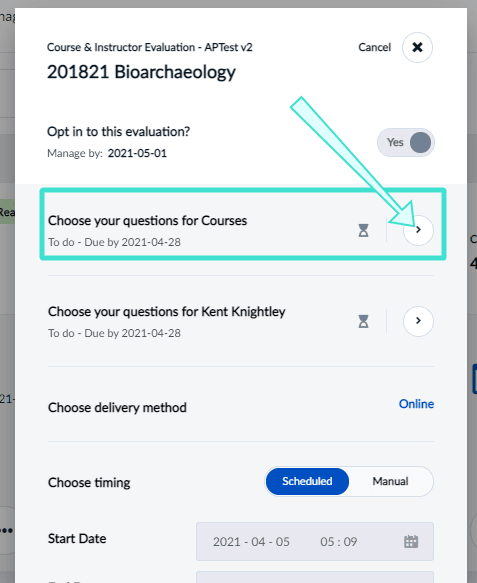
- Click Choose your questions for Courses. You will be directed to your Question Personalization page.
Question personalization overview
On your Question Personalization page, you may see two types of questions to add to your evaluation:
- Customizable - A type of question you can write in your own words to tailor towards your course and students.
- Selectable - A type of question you can choose from a list.
Example of Question Personalization page in desktop view:
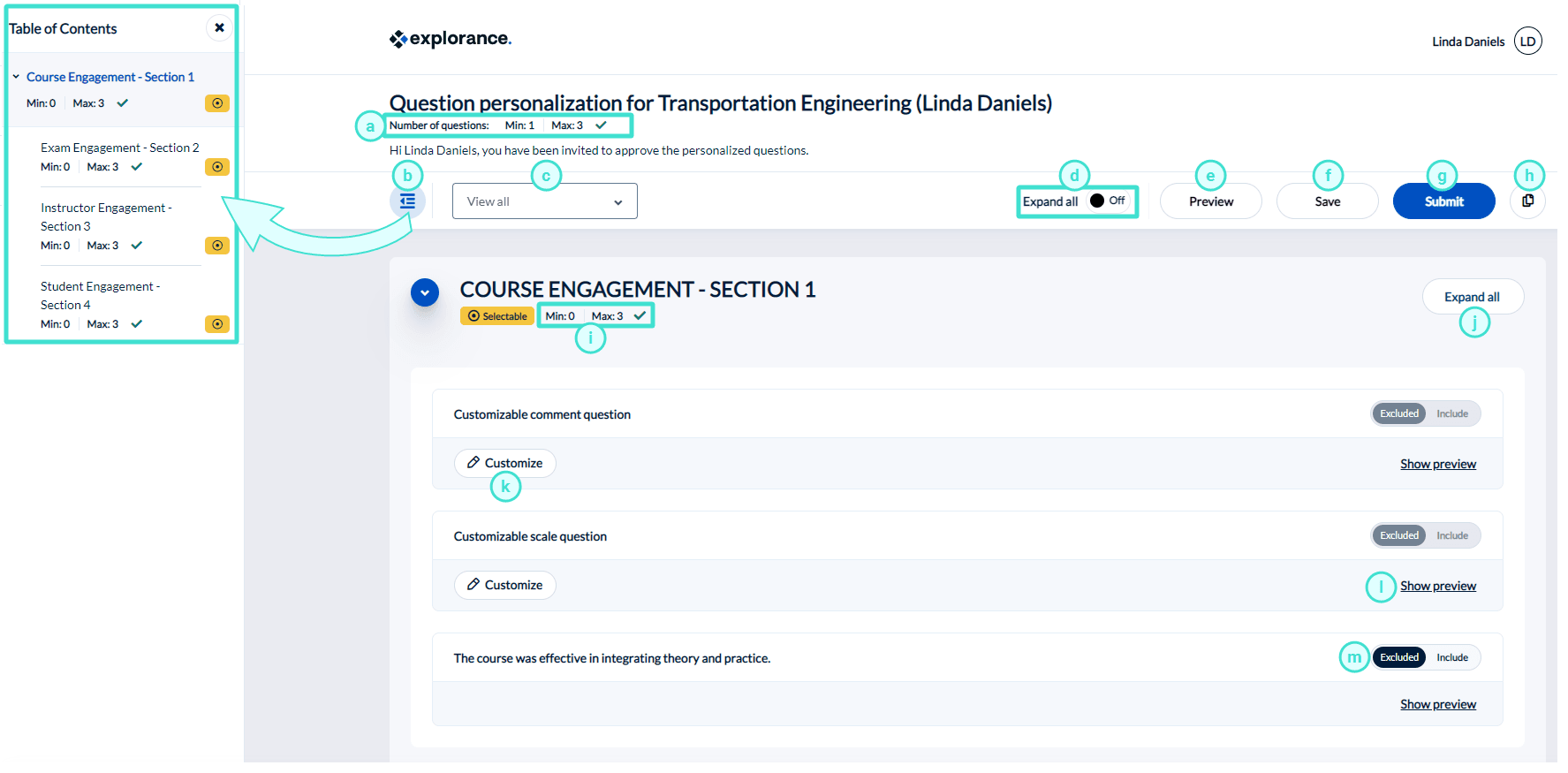
Question personalization menu features
- Number of questions condition - Displays the minimum and maximum number of personalized questions allowed for selection. A green check mark means the global conditions have been satisfied.
- Table of contents - Provides a simplified overview of question sections you can personalize. The page will automatically scroll to the question section you selected.
- Filter - Filters the list of questions displayed.
- View All - All available questions.
- Selectable - Only questions that can be selected.
- Customizable - Only personalized questions that can be modified.
- Included - Only questions that have been chosen to be included in the questionnaire.
- Excluded - Only questions that have been chosen to be excluded from the questionnaire.
- Expand all - Allows you to expand or collapse all question previews for all sections in the questionnaire.
- Preview - Allows you to preview a sample of your evaluation from the perspective of your students. Make sure to save your changes before using the preview function.
- Save - Saves your changes on the page without submitting.
- Submit - Submits your personalized questions to be included in the evaluation.
- Copy options - Allows you to copy selections and personalized questions to or from another course. To learn more, see Copy questions between your courses.
- Number of questions condition - Displays the minimum and maximum number of personalized questions allowed in the specific section. A green check mark means the section conditions have been satisfied.
- Expand all - Allows you to expand or collapse all question previews for a specific section in the questionnaire.
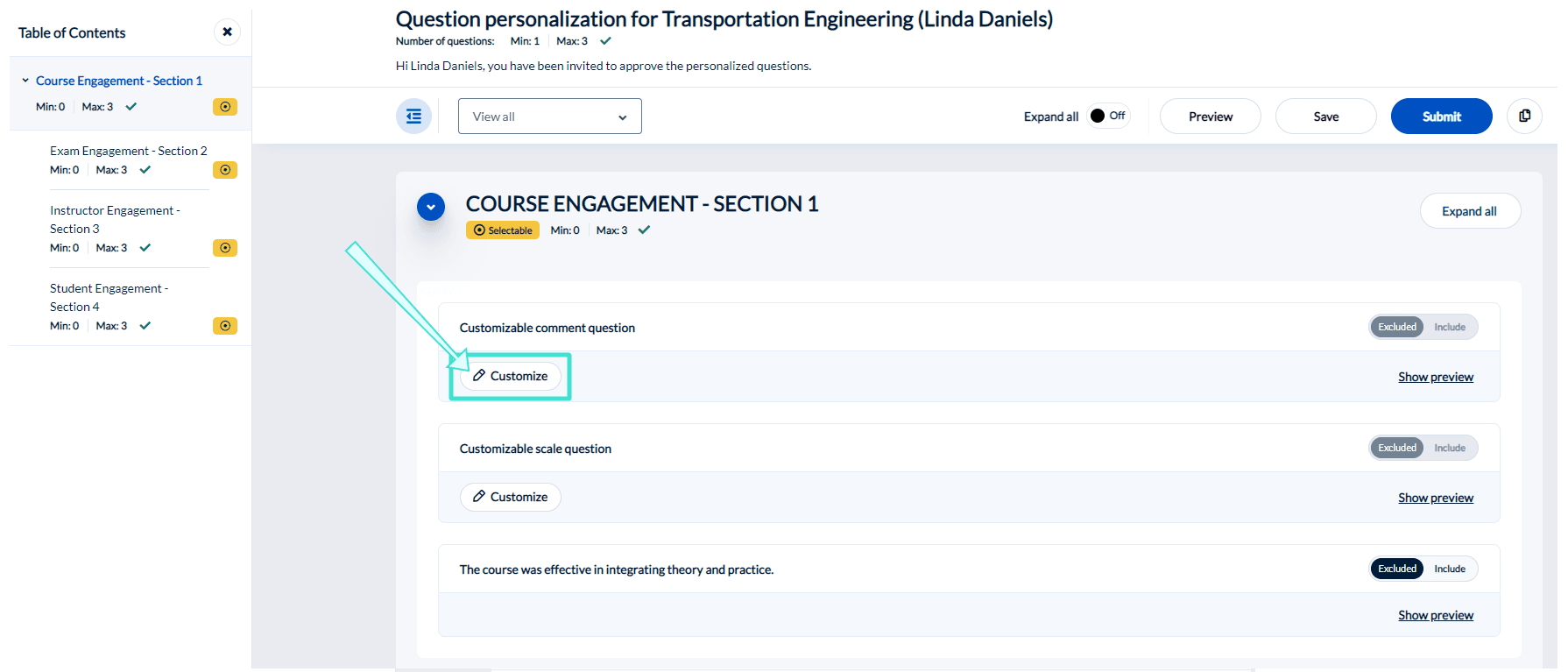
- Customize - Allows you to customize the question.
- Show preview - Allows you to preview a sample response of the question.
- Include/ Exclude - Allows you to include or exclude a question from the evaluation.
You may see customizable questions in your evaluation:
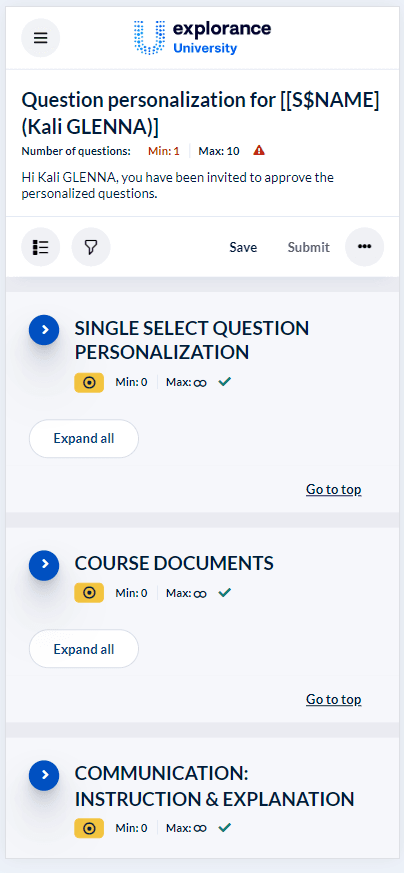
Example of Question Personalization page in mobile view:
- Click customize next to a question you wish to modify. You will be directed to the question editor.
The type of response for a customizable question cannot be modified. For example, you cannot change a question with a comment response to one with a multiple choice response.
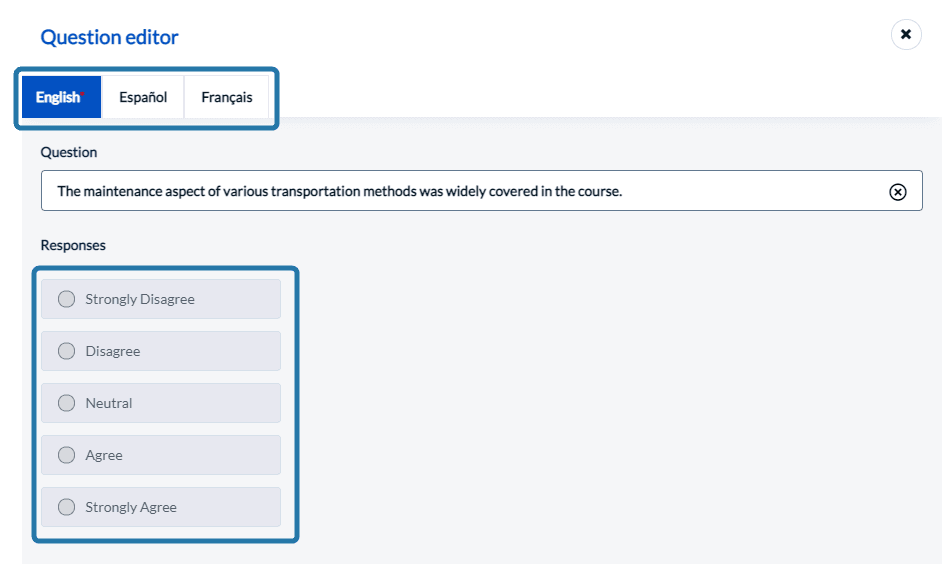
- Input the title you wish to give to your question. Keep in mind that the question's title must support the type of response (comment, multiple selection, etc.) so that students can easily provide feedback.
You may be able to provide your survey questions in different languages by switching between tabs. The survey's base language is represented with a red asterisk, and if you leave a language blank, it will automatically use the base language's question text in it's place.
Once you have customized a question, it will automatically be included in your evaluation. You can choose to include or exclude questions by toggling the include/ exclude button next to them.
- Choose the questions (customizable and selectable) you wish to include in your evaluation.
- Click Submit when you are done.