Redaction - Exemption lists
Introduction
Exemption lists prevent specific terms, or phrases from being redacted so you preserve context and brand identity of the comments during the redaction process.
What Exemption lists do
- Shield institution specific names or phrases from redaction. Example: donor named buildings, program names, team names.
- Apply the Exemption list on top of your redaction rules so protected terms are not removed. Exemptions take precedent when applied to a rule set.
Typical uses
- Donor or building names tied to brand or heritage.
- Official program or team names that must remain visible.
- Any approved terms your compliance team designates as safe to show.
Create and manage Exemption lists
Access
Navigation: Redaction menu → Exemption lists. Visible only if the Redaction feature is enabled.
Exemption lists page
- See all lists with columns: Name, Type (Personal or Global), # Terms, Last updated. Columns are resizable. Sort, filter, search, paginate.
- Double click a row to edit. Row menu: Edit, Delete. Delete is blocked if the list is used by any Redaction rule set.
Create a new Exemption list
- Click Create a new exemption list.
- Enter Name. Choose Type: Personal or Global.
- Type cannot be changed after creation.
- Add terms to exclude from redaction. Paste multiple terms if needed using Control>C.
- Save. Save is enabled only after changes are made. On first save, the page URL updates to the new list.
- Optional: Discard to undo unsaved changes. Back returns to the listing page. If you try to leave with unsaved work, you’ll get a warning.
Minimum items to save an Exemption list: Name, Type, and at least one term.
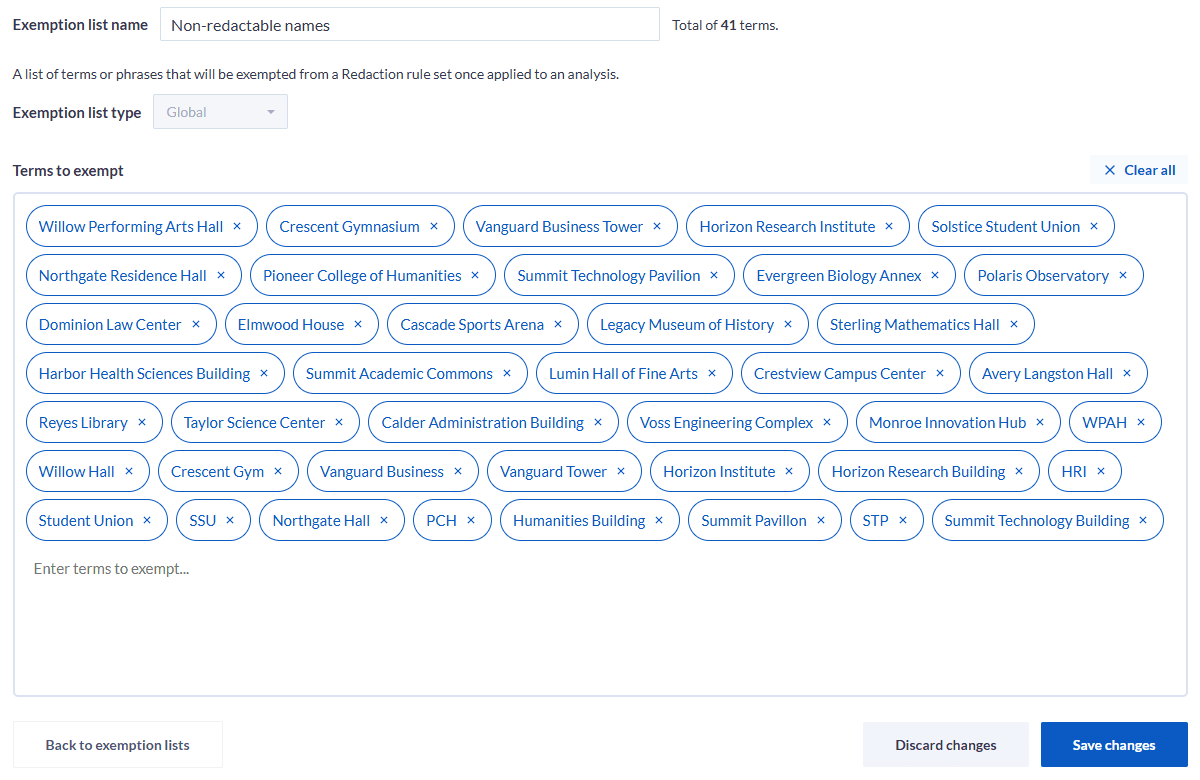
Edit an Exemption list
- Open via double click or row menu Edit. Existing terms are prefilled.
- Update the name or terms, then Save. Discard reverts unsaved edits.
Apply Exemption lists to a Redaction rule set
- In the rule set editor, use the Exemption lists multi select to add any number of lists. The selector appears only if at least one list exists. The placeholder updates to show the count selected.
- Effect: the rule set will avoid redacting any terms found in the selected Exemption lists.
- Scope:
- Global rule sets show only Global Exemption lists.
- Personal rule sets can include Exemption lists as available in your workspace.
Important rules and limits
- Feature visibility: only when Redaction is enabled.
- Multiple lists can be applied to a single rule set.
- Delete is blocked if a list is in use.
- Type of list (global or personal) cannot be changed after creation.
- Supported terms include single words or phrases.
Best practice
- Keep donor and brand names in one Global exemption list for reuse.
- Use Personal lists for analyst specific vocabularies.
- Review term overlap to avoid unintended exposure of sensitive variants.
Troubleshooting
• I don’t see Exemption lists. Redaction has not been enabled for your organization. Contact Explorance for details. • Can’t delete a list. It is referenced by a rule set. Remove it from all referenced rule sets first. • Save button is disabled. You have no edits yet or required fields are missing.