Add or Edit Users / Instructors
A user for the purposes of adding and editing Users / Instructors in MTM signifies an individual who logs into MTM and has a valid user license. This includes administrators, instructors, and various users who have access to Reporting, Dashboards and / or Data Explorer in MTM. These users / instructors can be found listed on the Manage Users / Instructors page.
Other individuals such as Course Report Recipients, Instructor Managers, Students, Conference participants, etc. who are not included in the User / Instructor list can receive surveys, reports and / or access public shared dashboards without an MTM licenses.
Learn more about user types:
- User management overview
- Course report recipient
- Instructor managers
- Create / add classes or Enroll students in conferences (student enrollment)
You must be an Administrator for your organization to add new or edit existing users / instructors.
To add new users / instructors:
- Login to MTM and navigate to Administration > People > Users & Instructors.
- Select Add User / Instructor.
- In the top left of the popup window, select to add a User or Instructor.
- If your instance of MTM contains more than one Organization, click on the down arrow of this field and select an organization for the new user or instructor.
- If this new user / instructor should have access to various additional features such as Admin or reporting, etc., click on the down arrow of this field and select a User Group.
- Click on the down arrow Choose a user group for your user.
- Any default rights, masking, or automated reports applied at the group level will automatically be applied to the new user.
- If you are creating an Admin or Reporting user, selecting an Admin or Reporting group will determine the user type; for example, to create a Reporting user, you would need to select a Reporting user group.
- Add First Name, Last Name and Email Address.
- If you do not want your new user to receive an email from MTM with instructions on how to log in to their new MTM account, uncheck "Email Login Details".
- Click Add User.
To edit existing users / instructors:
- Login to MTM and navigate to Administration > People > Users & Instructors.
- Search for an existing user / instructor.
- Click on the Gear Icon for this user / instructor and select Edit
- to change this user’s or instructor’s Organization,
- modify the user’s or instructor’s User Group,
- add or remove the Instructor Manager(s) associated with this instructor.
- by default, the user’s Status is Active. Uncheck this box to change the status to Inactive. This will transfer the user to the Inactive users list.
- by default, the checkbox beside Email login details, is checked. Uncheck this box so that login information will not be sent to the user / instructor.
- add or edit an Instructor External ID.
- Click on the Gear Icon and select Impersonate to update
- user’s name,
- email address
- password
- To navigate to the user profile, click on the user's name in the upper right corner and select My Profile from the drop-down.
- Update First Name, Last Name, and/or Email.
- Click here to change password.
- Click Save Changes.
- Check Notify Profile Update to send an email message to the user.
- To return to your account, click End Impersonation at the top right of your screen.
Time saving features available on this page:
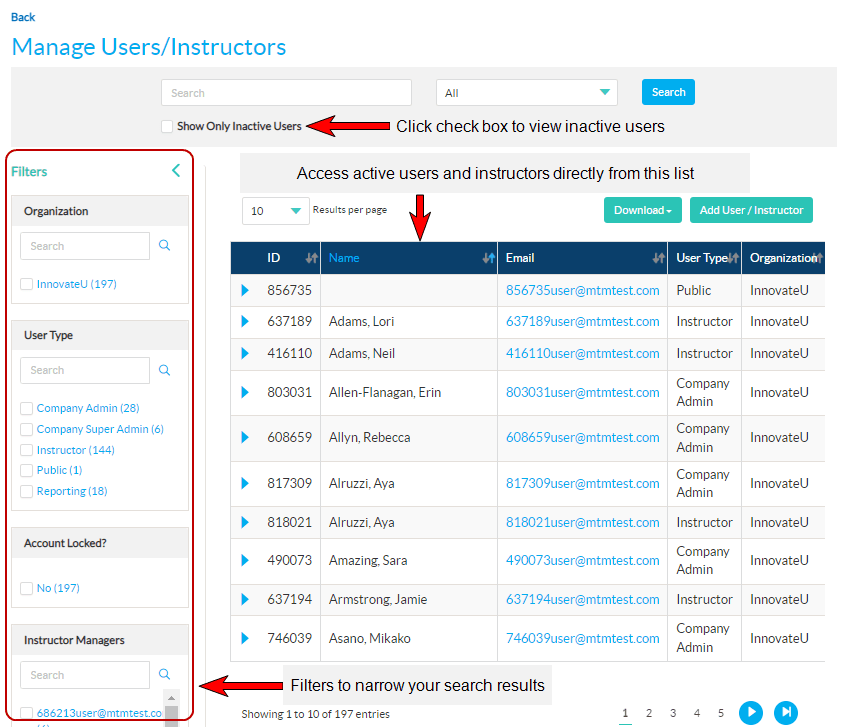
- The Manage Users / Instructors page provides a list of all the active users by default.
- To access Inactive Users, click on the checkbox located under the search field at the top of this page.
- Other handy search filters are available on the left side of the screen and include Organization, User type, Account Locked and Instructor manager.
To convert an Admin user to a Super Admin user, click: Grant Super Admin Status for step by step instructions.