Create dashboards from templates
Overview
Dashboard templates give clients a jumping off point to create their own custom dashboard. Each of these templates is based on best practices and recommendations from our consulting team and represents either a persona or a use case.
Available templates:
By persona: Conference, Course Owner, Executive, Instructor, Instructor Manager, L&D / Operations.
By use case: ILT vs Online Training.
After creating the dashboard, clients can delete, add and modify the widgets to suit their own needs.
Only dashboard users with dashboard management permissions can create new dashboards from an MTM template.
Step-by-step instructions
Create a new dashboard from a custom template
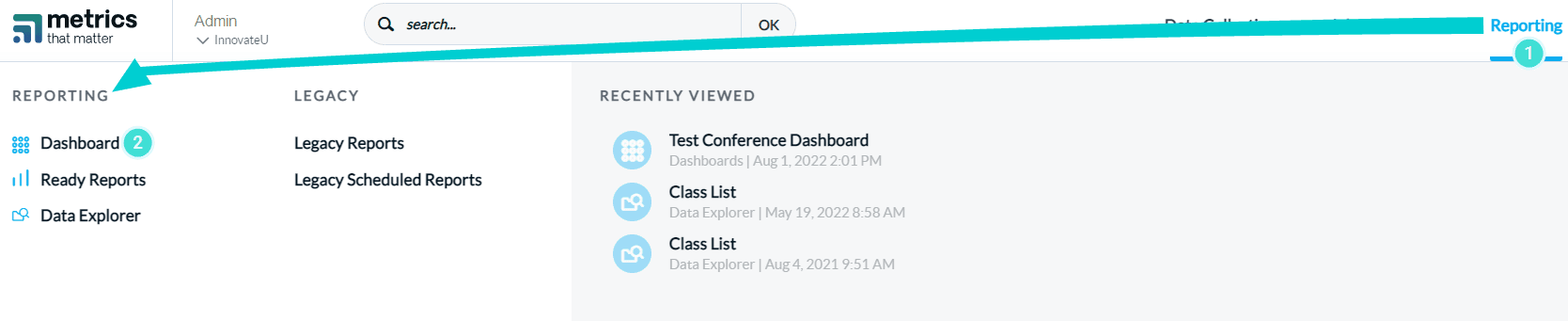
- Navigate to Reporting > Reporting
- Select Dashboard.
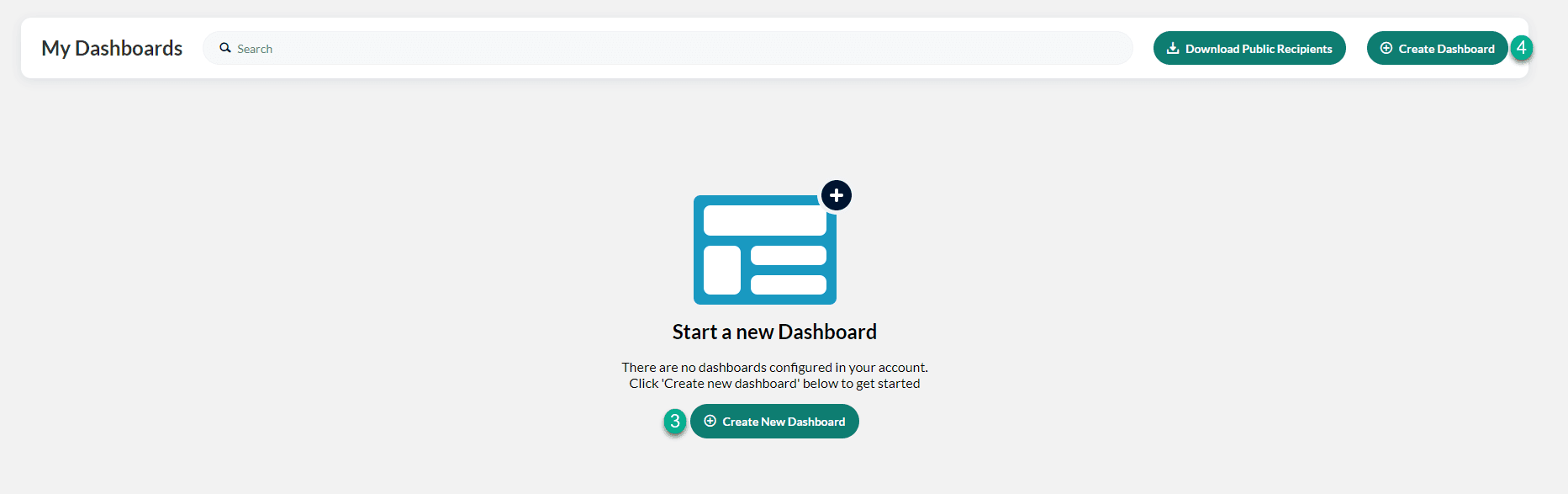
- Click Create new dashboard or
- If you already have dashboards displayed on your screen, click on the Create Dashboard Button.
- Enter a title for your new dashboard.
- Select Use Templates (this selection is used for the following steps)
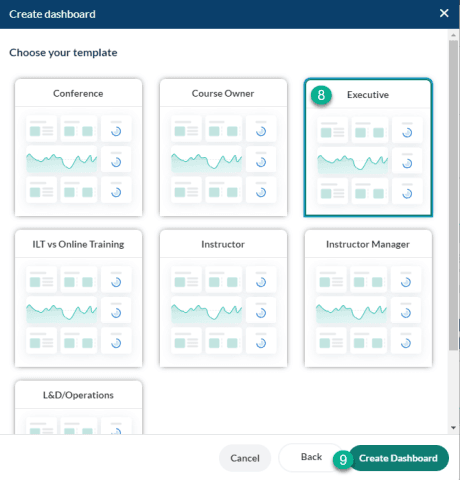
Each ready-to-use template contains a collection of widgets based on a specific persona or use case. Current templates include: Conference, Course Owner, Executive, ILT vs Online Training, Instructor, Instructor Manager, and L&D / Operations.
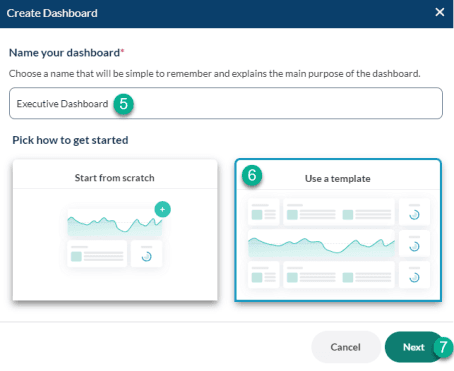
- Select Next
- Select the template you would like to use. (For this scenario, we have selected the Executive template).
- Select Create Dashboard
- Your dashboard will be created and display data based on the default date range for that dashboard.
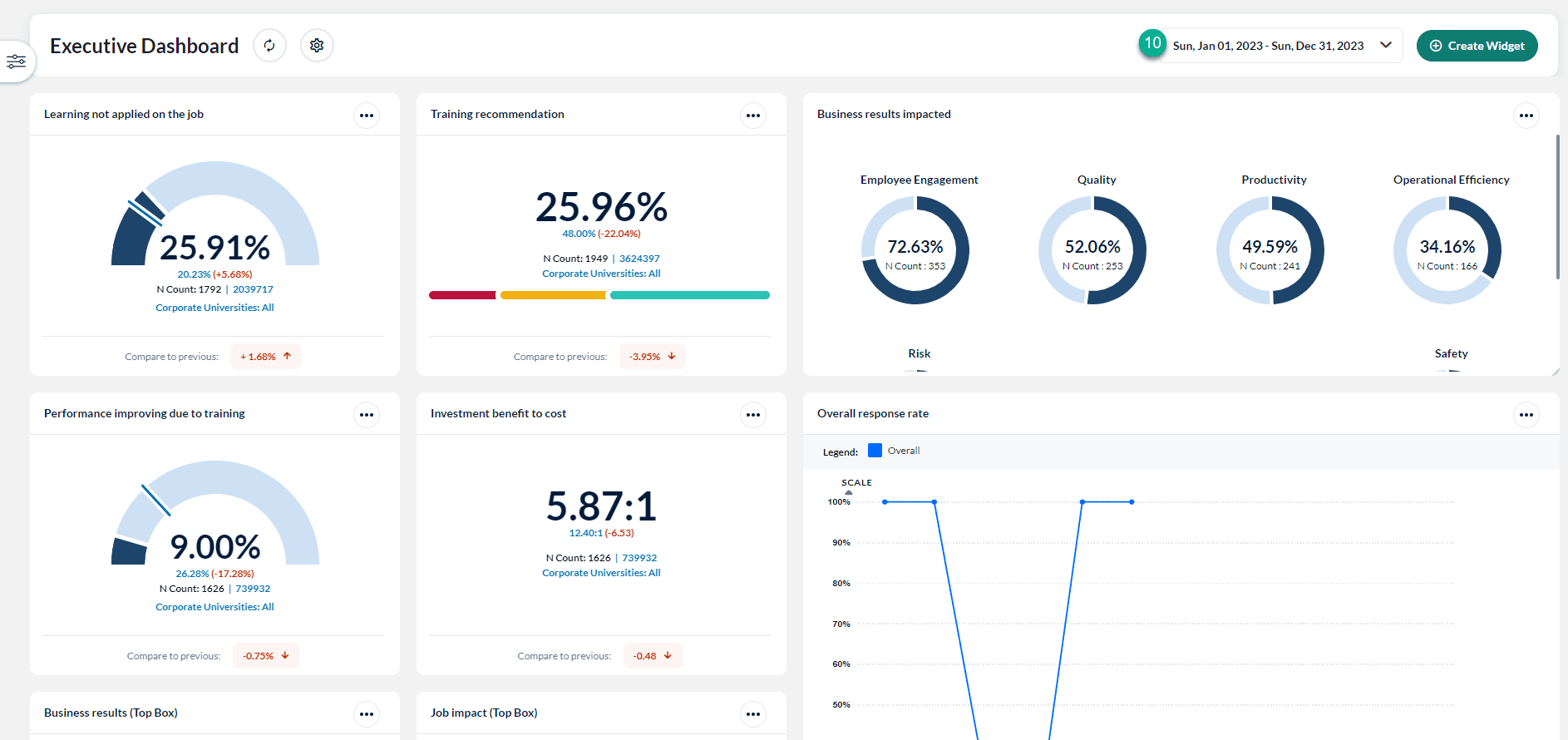
The Executive Dashboard has a default date range of 90 days.