Dashboard widget guide
Introduction
Metrics That Matter™ (MTM) Dashboards allow you to display key metrics and graphical view of your data through a series of widgets that can be configured to suit your needs. This guide provides a summary of the metrics and display options available in MTM so you can make informed decisions when selecting widgets to fulfill your data visualization goals.
Metric Type and Corresponding Widgets
When you create a new widget, the first thing you do is select the Metric you want to show. Afterwards, MTM will present the types of widgets available to showcase for that metric. There are two types of metrics - Core & MLY. Core metrics are powered by quantitative data and include popular Key Metrics like NPS, Scrap, and Top Box. MLY metrics are powered by qualitative data and only available if your organization is using MLY.
| Core Metric | Available Widgets* |
|---|---|
| Benefit to Cost Ratio | Ranking, Card, Trend |
| Count: Course, Events, Evaluations | Activity |
| Count: Unique Enrollments | Activity |
| Estimated Performance Improvement | Ranking, Card, Trend |
| Multiple Choice Question | Multichoice |
| Net Promoter Score (NPS) | Ranking, Card, Trend |
| Overall Average | Ranking, Card, Trend |
| Overall Response Rates | Card, Trend |
| Overall Top Box | Ranking, Card, Trend |
| Percentage: Courses, Events, Evaluations | Activity |
| Scrap Learning | Ranking, Card, Trend |
| MLY Metric | Available Widgets* |
|---|---|
| Comment Sentiment | Card, Ranking, Trend, Activity |
| Topic Sentiment | Ranking, Trend, Activity |
| Recommendations | Card, Ranking, Activity |
| Alerts | Card, Activity |
*See examples of display options below
Widget Types
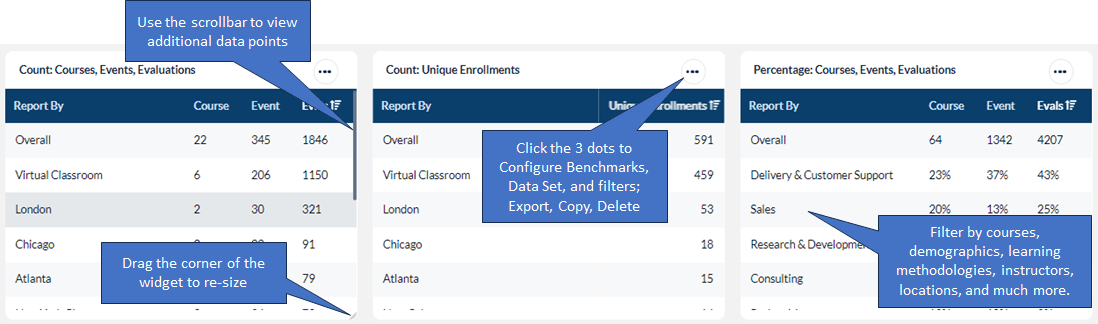
The Activity widget supports 3 Core metrics:
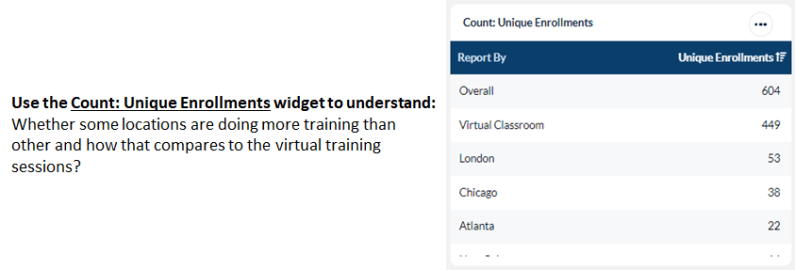
- Count: Unique Enrollments widgets will display the unique enrollments for the selected training element or audience/demographics during the time frame selected.
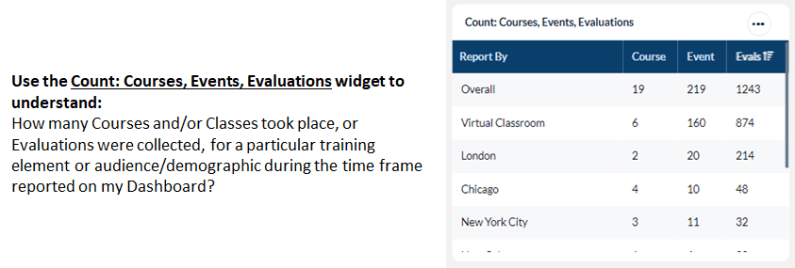
- Count: Courses, Events, Evaluations widgets will display the number of courses, events and evaluations submitted for the selected training element or audience/demographics during the time frame selected.
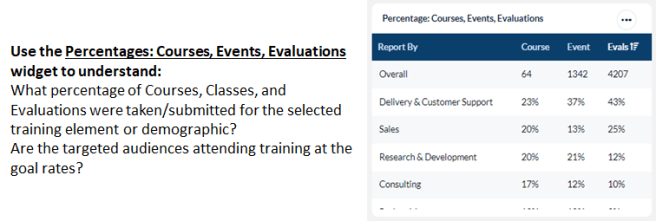
- Percentage: Courses, Events, Evaluations widgets will display the percentage of courses, events and evaluations submitted for the selected training element or audience/demographics during the time frame selected.
Ranking
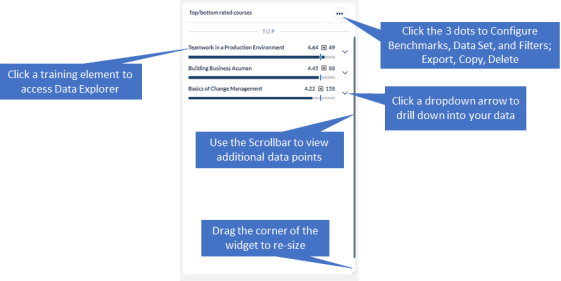
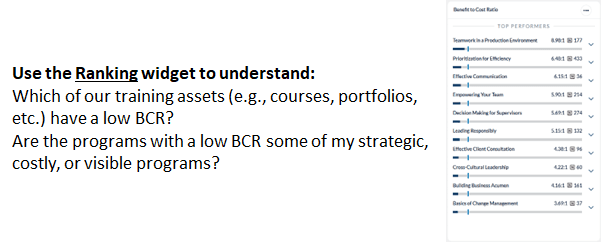
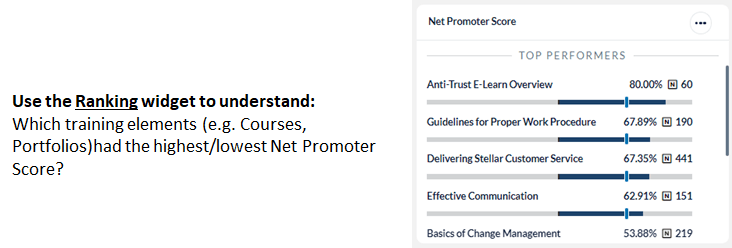
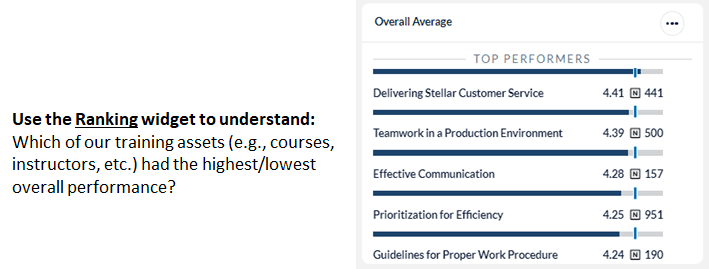
Ranking widgets present your data in one of six different Display options: Top Performers or Bottom Performers, Top/Bottom or Bottom/Top, Highest/Lowest, or Lowest/Highest. Each option will show up to 10 items. For Top/Bottom or Bottom/Top selections, you will see a line in the widget dividing the top vs. the bottom performers.
Additional configuration options for Ranking widgets:
- Apply a minimum n-count (default is 20)
- Apply one or two benchmarks at a time
- Drill-down into individual training elements within the widget (ex: click on the down arrow next to the Course Name to view individual Class data)
- Link to Data Explorer for Course, Class, Instructor, and Demographic data by clicking on one of the items in the widget
- Filter, Export, Copy
Card
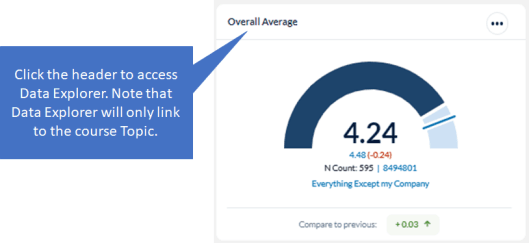
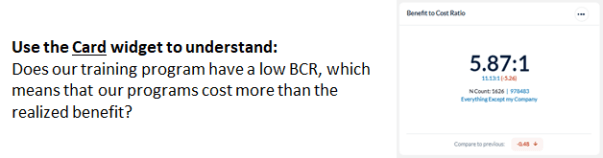
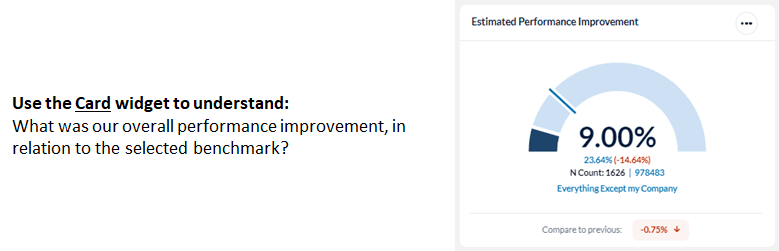
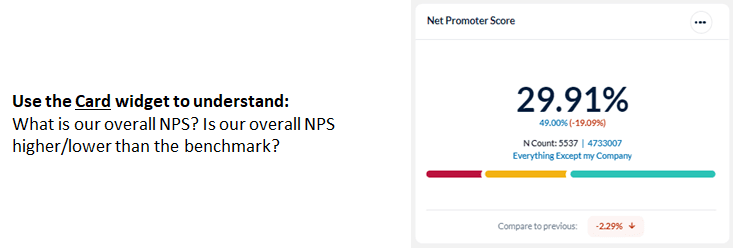
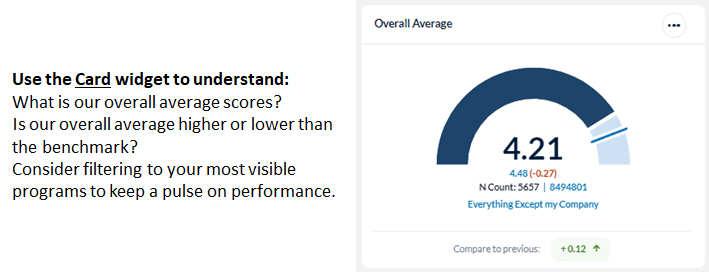
Card widgets present the overall score for the selected metric, with a benchmark comparison, in an easy-to read, simple display. Only one benchmark can be applied to a Card widget.
Card widgets can be moved anywhere on your Dashboard, and can be re-sized to the full width of the dashboard.
Trend
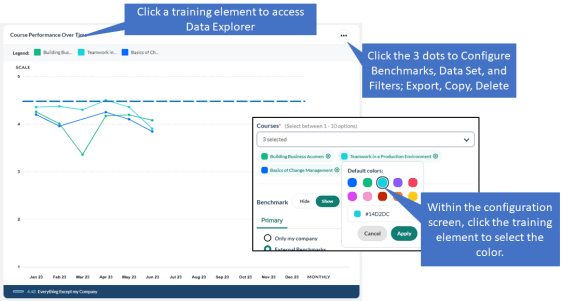
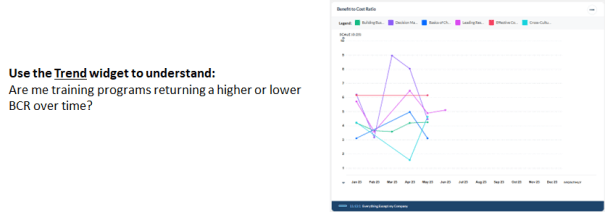
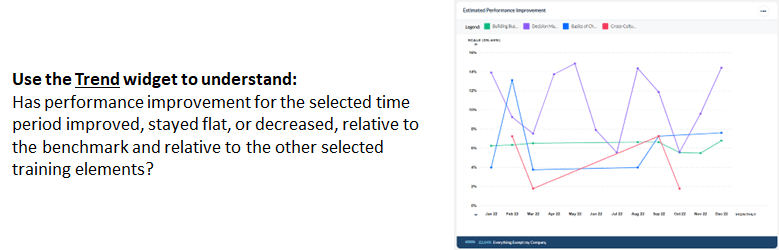
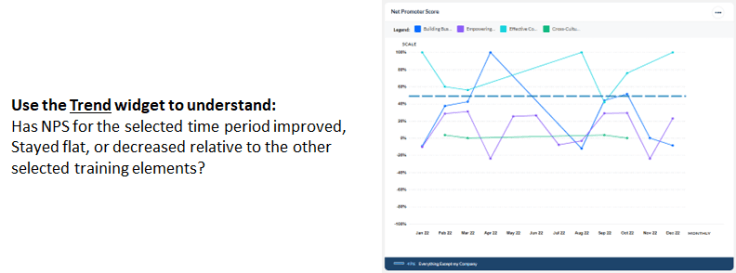
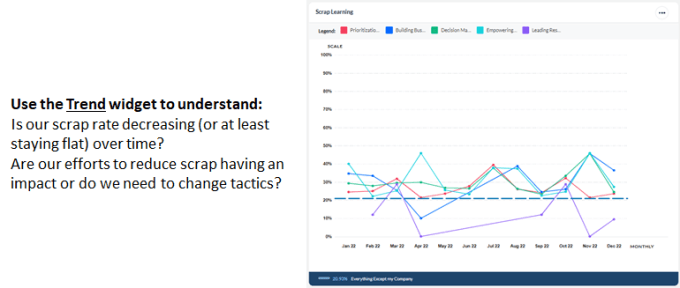
Trend widgets will display up to 10 training elements, trended over time, and compared against one or two benchmarks. Using the Trend widget, you can view your results for the last completed 6 months or the last completed 12 months, relative to the time frame configured for the Dashboard. For example, if today is September 20th, and your Dashboard is configured to display data from July – September of 2018, you can view a trend line for the previous 6 or 12 completed months, which would include data from March – August (the last fully completed month). As of October 1st, your 6-month trend would display data from April – September.
Additional configuration options for Trend widgets:
- Adjust scale to zoom in on smaller changes in trend lines over time
- Apply one or two benchmarks at a time
- Select a specific color for the trend line
- Link to Data Explorer for Course, Class, Instructor, and Demographic data by clicking on one of the items in the legend at the top right of the widget
- Filter, Export, Copy
Multichoice
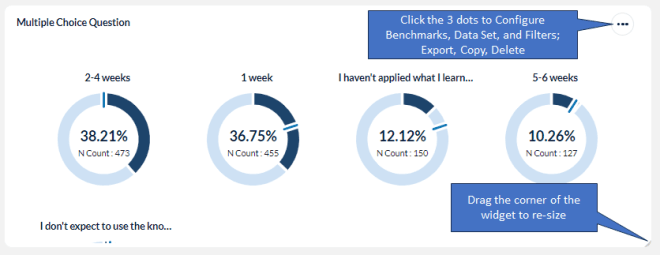
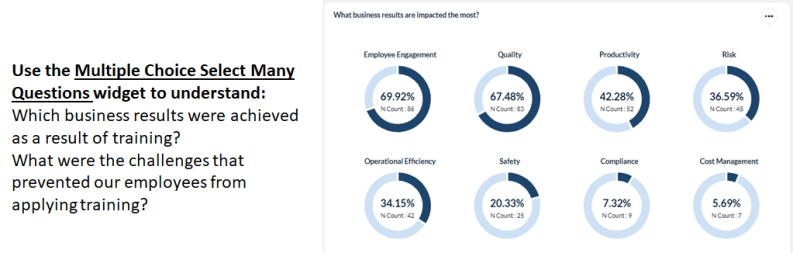
The Multichoice widget will display results for your multiple choice questions, including questions related to business results, barriers to impact, or any custom multiple choice questions you have on your surveys. Use this widget to validate whether training impacted the intended business results, what percentage of job impact was realized from training, and what prevented learners from applying training on the job.
Widget Actions
A Dashboard user with Dashboard Management permissions has access to all of the Widget Actions described below. However, for a Shared Dashboard user, Widget Actions are hidden “View Only.” Shared Dashboard Users do not see the Copy or Delete actions and while they can view each widget’s Configuration and Filters, they cannot make any changes. Shared Dashboard Users can Export an individual widget.
Widgets on Shared Dashboards can only be configured by the Dashboard Owner.
| Actions | Description |
|---|---|
| Configuration | • Rename widget (Best practice! Rename your widgets to reflect the data contained within) • Modify Display Options (Ranking Widget) • Select training elements to Report By • Configure Primary and Secondary Benchmarks |
| Filters | • Apply/modify Filters for individual widgets |
| Copy | • Copy a widget to add a duplicate widget onto your Dashboard • Copied widget can then be Configured or Filtered as needed |
| Export | • Export your widget display to a .png file • .png files will be available under Reporting Tools > My Files > Images |
| Delete | • Permanently delete a widget from your Dashboard |
|
Benefit to Cost Ratio
Benefit to Cost Ratio (BCR) will provide an estimate of BCR achieved from your learning programs. MTM calculates BCR based using Phillips’ ROI calculation methodology, combining adjusted performance improvement with the average cost and salary per learner to monetize the relative business value of your learning investments. This metric provides a validated method to quantify the relative value (compared to a benchmark and each other) of learning programs or assets.
Count: Unique Enrollments
The Unique enrollments indicates the number of unique individuals based on student identifier (i.e. email, Employee ID, etc.) that were enrolled during the dashboard's date.
Unique Enrollments do not include:
- anonymous enrollments
- learners who were un-enrolled from a class
- manager assignments
If a student were enrolled on December 31, 2023 for a class ending on January 1, 2024, they will not be included in a dashboard whose date range in January 1, 2024 - December 31, 2024.
Estimated Performance Improvement
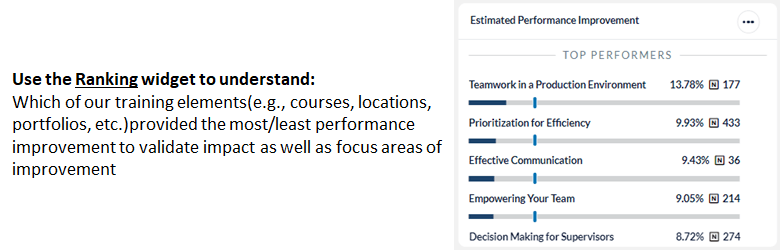
Estimated Performance Improvement indicates how much on-the-job performance will improve/has improved as a result of training. This metric can help you to calculate ROI, as well as help you to articulate the relative impact that training had on a business outcome.
Questions used in the Performance Improvement metric include:
- The content is applicable to _% of my job.
- I would attribute _% of my expected improvement to this learning experience.
Multiple Choice Questions
Multiple Choice questions allow students to provide feedback that can inform how training has impacted business results back on the job, whether or not learners experienced any barriers to training application, and more.
Any multiple choice questions you include on your survey will be available to include in a Multichoice widget, including:
- Business Results questions, e.g. “This training had a significant impact on (check all that apply)”
- Barriers to application questions, e.g. “Challenges that I have experienced preventing me from applying this content include:”
Net Promoter Score (NPS)
Net Promoter is a useful summary indicator of value; if a learner is willing to personally recommend the training to a colleague it is highly likely that they found it to be valuable.
Overall Average
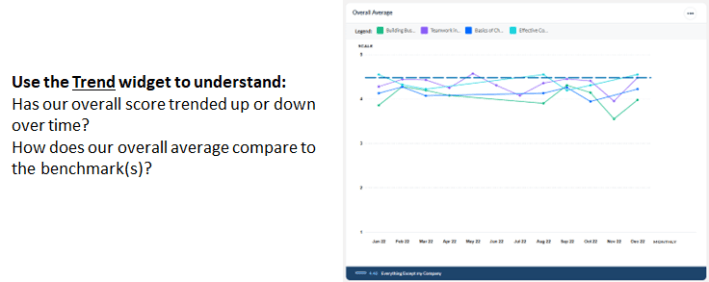
The Overall Average is calculated using the sum of all responses divided by the total number of responses. View Overall Average scores for your numeric (Likert) scale questions, reported by training assets or learner demographics. Use the Overall Average metric when you want to rank, trend, or view the overall rating for your training assets.
Overall Top Box
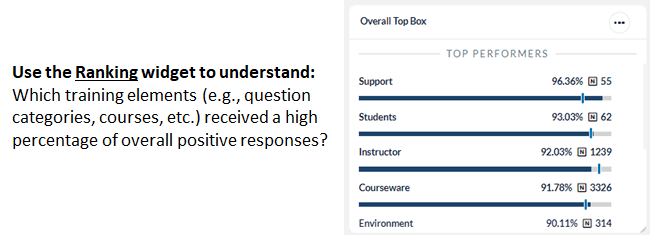
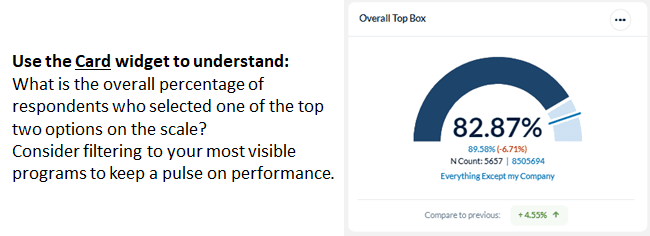
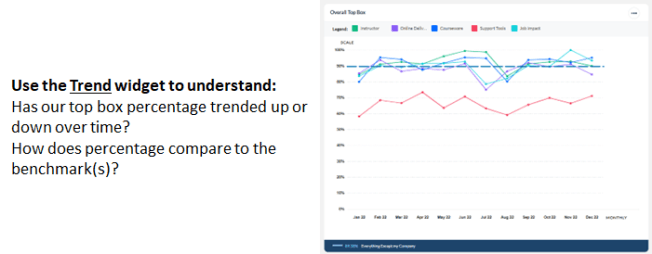
The Top Box represents the percentage of respondents who selected one of the top answer options on the numeric (Likert) scale. View the Top Box for your numeric (Likert) scale questions, reported by training asset or learner demographic.
Use the Top Box metric when you want to rank, trend or view the percentage of respondents who positively rated an item.
Overall Response Rates
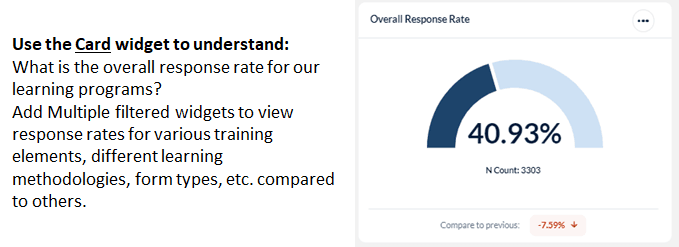
Overall Response Rates metric displays the calculated response rate for the data set that you have chosen to include in your widget. Response Rates are calculated based on the number of surveys submitted by students directly enrolled in the class in MTM. Responses submitted by students who are not directly enrolled in the class in MTM will not be included in the calculated response rate.
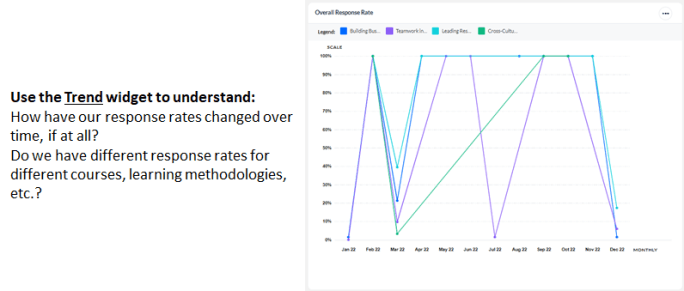
Use the Overall Response Rates metric when you want to view the overall response rate for all of your trainings or for a filtered set of your trainings or when you want to trend your response rates over time. Overall Response Rates widgets do not include a benchmark comparison.
Scrap Learning
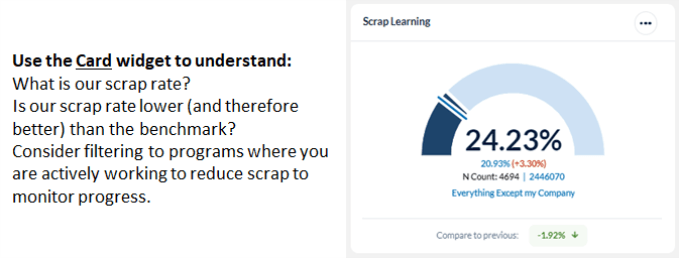
Scrap learning is the unrealized value of training. Use scrap to determine if the training you're providing is effective and having the desired level of on-the-job application. Unlike other metrics in MTM, you want your scrap rate to be as low as possible, since ideally learners should apply 100% of training.
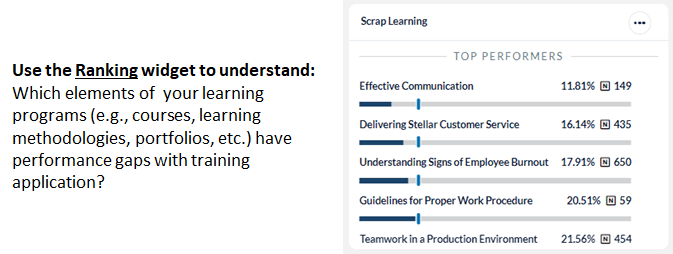
The Scrap Learning dashboard widget provides a summary view of the current scrap rate for a defined dataset, compared to a benchmark of your choice. The widget also provides insight into the question categories or courses which are driving the scrap rate, based on proprietary algorithms built into the MTM tool.
Questions used to determine the percentage of scrap in your learning programs include:
- I have used ___ % of this content on the job. [Question ID: 521462]
- I will use ___ % of this content on the job. [Question ID: 518230]
Comment Sentiment
Comment Sentiment identifies the emotion behind the comment, eliminating the need to interpret the intention behind the comment allowing you to quickly identify areas that are in need of further analysis.
Topic Sentiment
Topic Sentiment helps determine the subject/theme/topic respondents are talking about, and how they feel about it. Knowing the areas and emotions respondents mention can give you an easy way to communicate with stakeholders about strengths and opportunities for improvement.
Topic Sentiment cannot be used with the Card widget currently. When looking at a single aggregation like Dominant Sentiment for a particular program or course, we recommend using the Comment’s sentiment over the sentiment of the categorized Topics. This is because every comment will always have a Comment Sentiment, but some comments could have 0 Topic Sentiments and we want to ensure they are included in this dominant Sentiment score.
Recommendations
Recommendations empower you to quickly identify and review comments that contain suggestions on how to improve the course. These suggestions can be used as a starting point to further quantitative analysis or for action planning future changes to the course.
Recommendations cannot be used with the Trend widget currently. The intention of the Recommendations is to highlight comments that indicate suggested changes to a course. Historical recommendations would be better viewed using the card or activity widget.
Alerts
Alerts enable you to quickly identify comments that contain harmful, threatening, or concerning text. When analyzed, comments are assigned an alert score between 1 and 100, indicating the likelihood the comment contains text that should be reviewed.
Alerts cannot be used with the Ranking widget currently. The information that would be displayed in a ranking widget for Alerts is the same as is already available on the Activity widget. If a user wants to see a breakdown or ranking of which programs or demographics have the most Alerts, we recommend using the Activity widget.
Alerts cannot be used with the Trend widget currently. The intention of the alerts module is highlight comments needing immediate attention so that immediate action can be taken. Historical alerts should not be as relevant. If users need insight into how many alerts they received in the past, we recommend using multiple Card widgets, especially with its Compare to Previous feature.