Instructor Class Summary Report (Ready Report)
Overview
Introduction to the Instructor Class Summary Report
The Instructor Class Summary Report is designed specifically for instructors to highlight the most important information to them, and in a format that can be easily consumed in an email form. This report provides the overall instructor rating and all other instructor questions (e.g. Courseware, Instructor, and Environment) compared to a benchmark. In addition this report includes all learner comments for the standard question categories.
How can I use this report?
The Instructor Class Summary provides instructors all the information critical to making meaningful improvements in their class performance. Benchmarking functionality enables the instructor to easily determine areas that are not meeting expectations.
This report is useful for identifying areas of improvement instructors can look to make immediate adjustments to before facilitating the next class. This report can be used by instructor managers to monitor and manage their instructors' effectiveness to ensure continuous improvement and clear accountability.
Who should use this report?
The primary target audience for the Instructor Class Summary are instructors. Instructors can use this report to evaluate their own performance and make adjustments prior to teaching their next class. The benchmark comparison is helpful for instructors to gauge how their performance measures against their peers. Instructor managers can also use this report collaboratively with instructors and program designers to ensure performance is meeting expectations.
Job aid
This following information will help you understand how to interpret and use the Instructor Class Summary Report.
What does this report include?
- Event Details (Course name, location, and event end date).
- Overall Rating plus individual question scores for the Instructor Question Category Compared to a benchmark.
- Courseware and Environment Question Category and individual question performance compared to a benchmark.
- Learner Comments for all standard question categories.
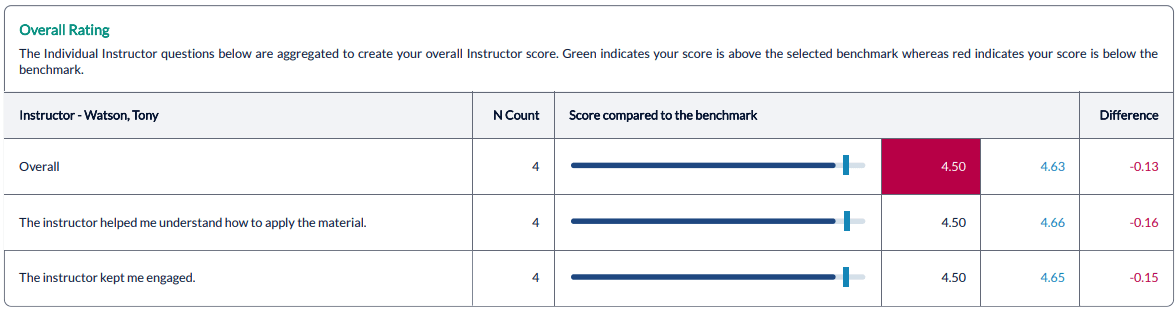
Overall Rating
Instructors: Use the scores in the Overall Instructor Rating section (based on Instructor Question Category results) to evaluate and manage your performance and drive positive outcomes.
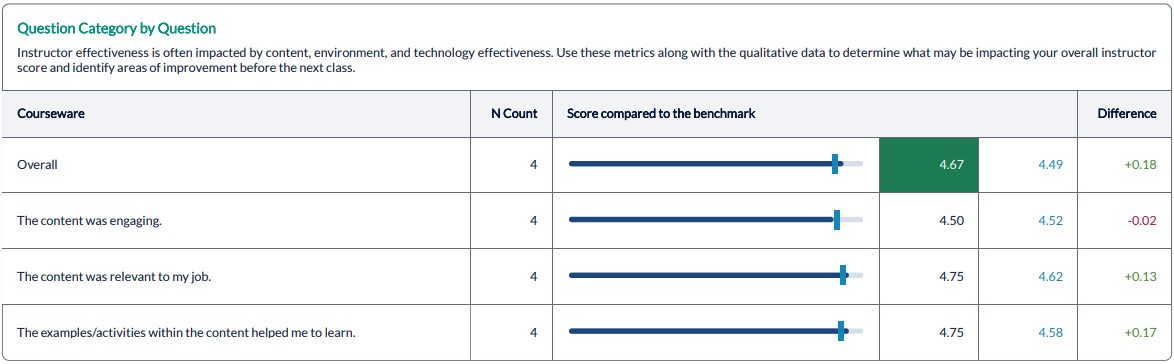
Question Category by Question
Quickly get insights into other areas that can influence Instructor scores and that you, as the Instructor, can influence, as well. If you are seeing lower scores here, think about what actions you can take to improve performance. Actions could include:
- Courseware - communicating with the course owner/designer to provide better examples within the course materials, coming up with additional stories/examples on your own to help facilitate the learning, identifying ways the learners can demonstrate expertise of the content throughout the session, reviewing audience selection process with appropriate parties
- Environment – review learner comments to determine where learner dissatisfaction came from, pass your own feedback onto decision makers about environment improvements.
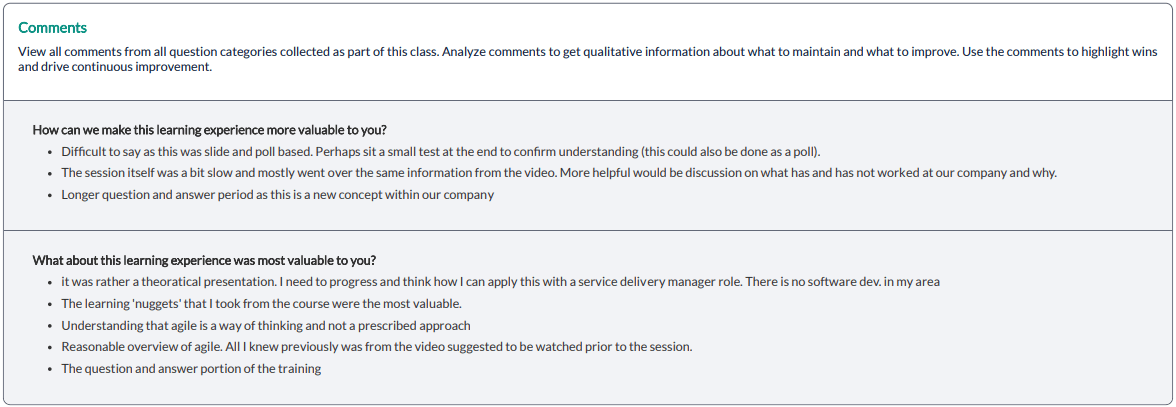
Comments
Analyze your Learner Comments to get first-hand information from learners about what to maintain and what to improve. Use the comments to highlight wins and drive continuous improvement. Examples of how learners plan to apply the training can be shared with future classes to help students connect the training with their job performance.
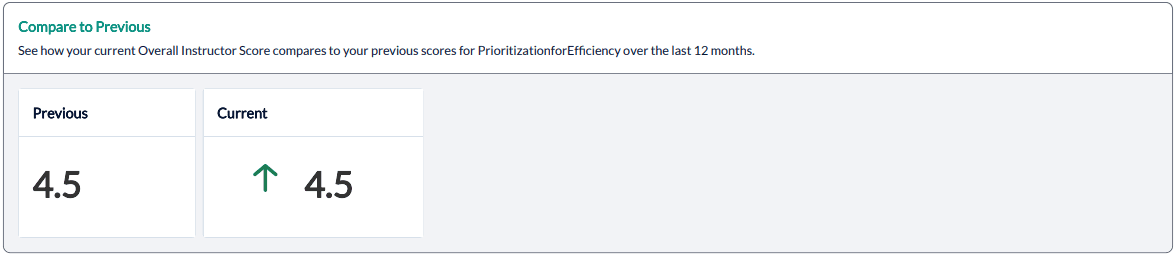
Compare to Previous
View your performance for this Course, compared to the previous 12 months. Use this data to gauge whether your performance as an Instructor has increased, decreased, or stayed flat and set development goals accordingly.
This report supports both class and (overall and session) data. All data included in the Instructor Event Summary are from the Post Event Surveys.
Step-by-step instructions
Run an Instructor Class Summary Report
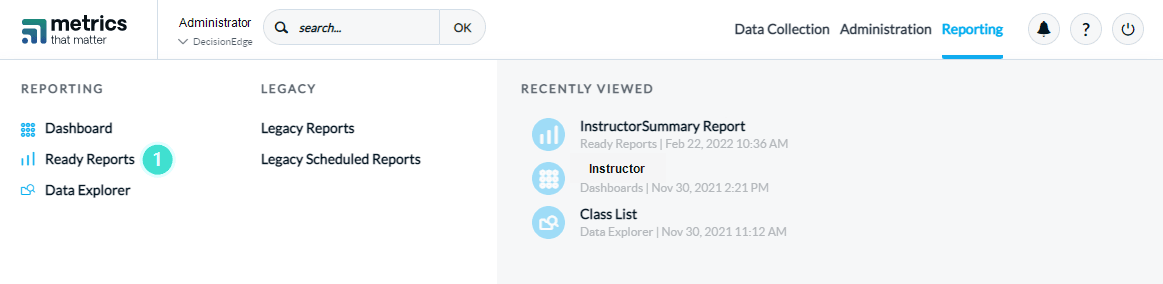
- Navigate to Reporting > Ready Reports.
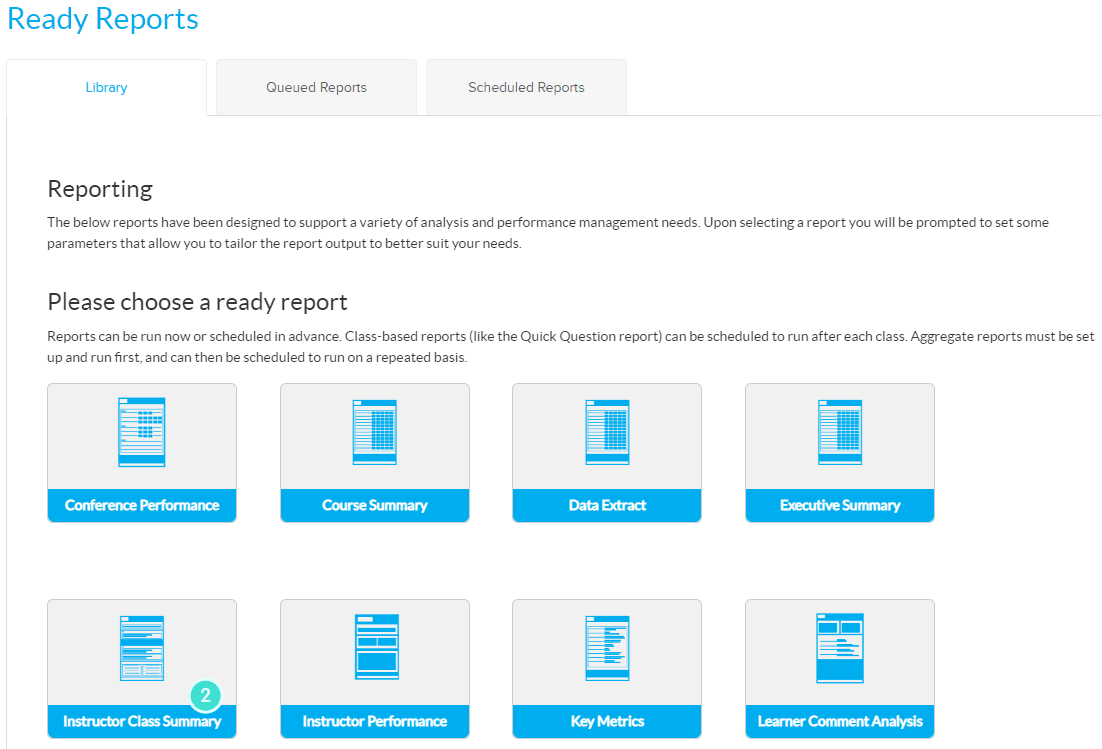
- Click the Instructor Class Summary icon.
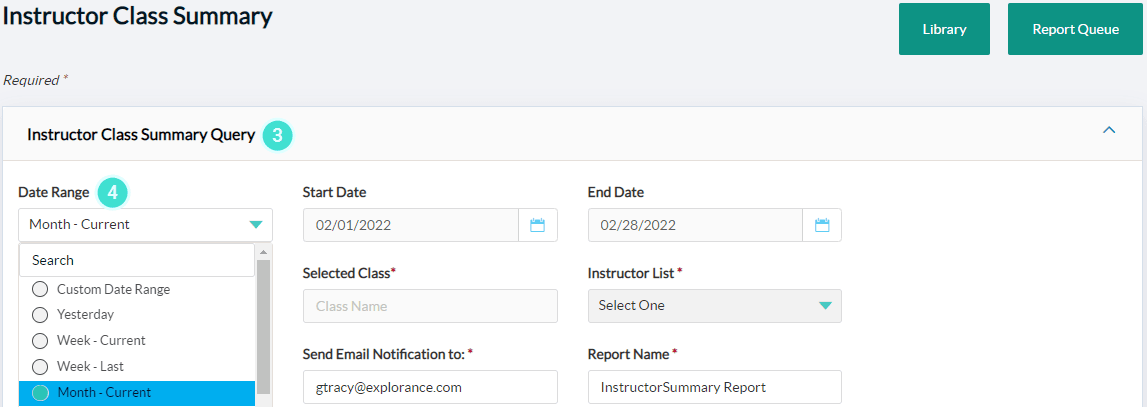
- Expand the Instructor Class Summary Query section.
- Select the Date Range in which you want to search for your class.
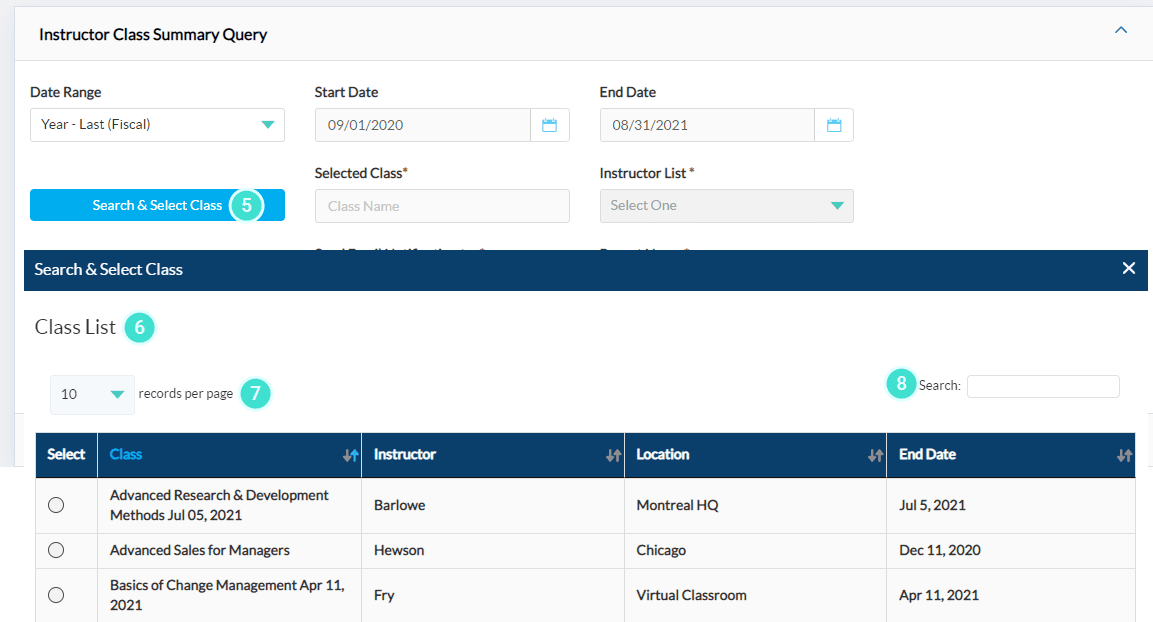
- Click Search & Select Class.
- A Class List pop-up window will display your search results.
- The Class List view can be expanded by selecting a higher number (25, 50, 100, 500) of records per page. Select your class from this list.
- Alternately, you can enter the name of the class in the search option to locate it directly.
- If you are running this report for a class that was taught by multiple instructors, click on the Instructor List drop-down to select only the instructor(s) you wish to include in the report.
Selecting multiple instructors from the drop-down Instructor List will deliver a separate report for each individual instructor including only their results to your email.
- Enter the email address(es) of the individuals who should receive this report in the Send Email Notification to: field.
This report is not generated directly in MTM but only emailed to those email address(es) added to the Send Email Notification to: field.
- Check the Send Email Notification to Instructors box if you would like the instructors to receive a copy of their own report.
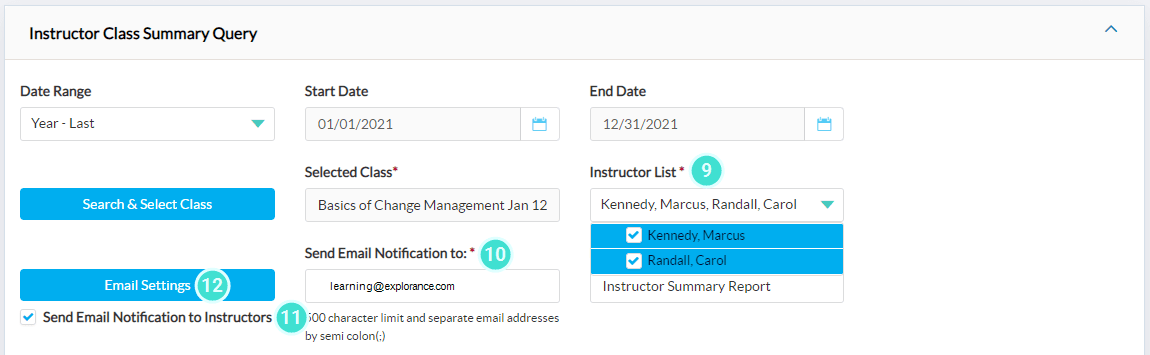
- The optional Email Settings allows you to customize the email that goes out with the report delivery. Click on the Email Setting button.
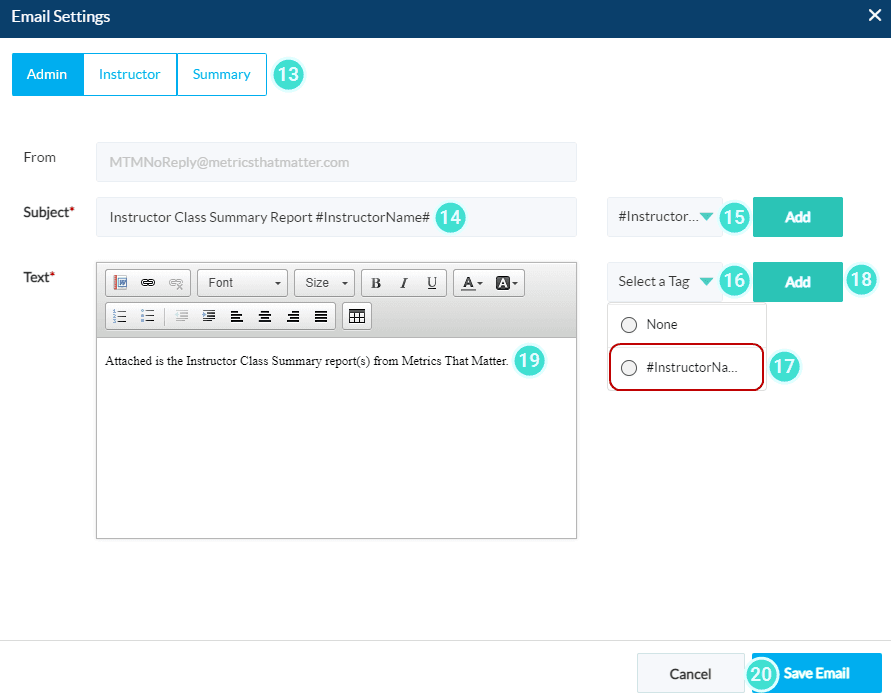
- In the Email settings pop-up window, select the Admin, Instructor or Summary view to customize the contents each of the email types.
- By default, the Subject field provides the Report Name - Instructor Summary Report. This field can be modified.
- In addition, the Select a Tag drop-down provides the Instructor name tag that can be added to the subject line of the email.
- The drop-down menu beside the email text box, provides a dynamic Tag for the instructor’s name which can be added to your email message. Position your cursor in the text where you would like to add the tag.
- Select the tag.
- Click Add
- Modify the email text that will accompany each report by communicating to the report users why they are receiving this report and what you expect them to do with the information contained within. You can use the HTML editor to customize the look and feel of the text as well as add links to content outside MTM.
- Click Save Email.
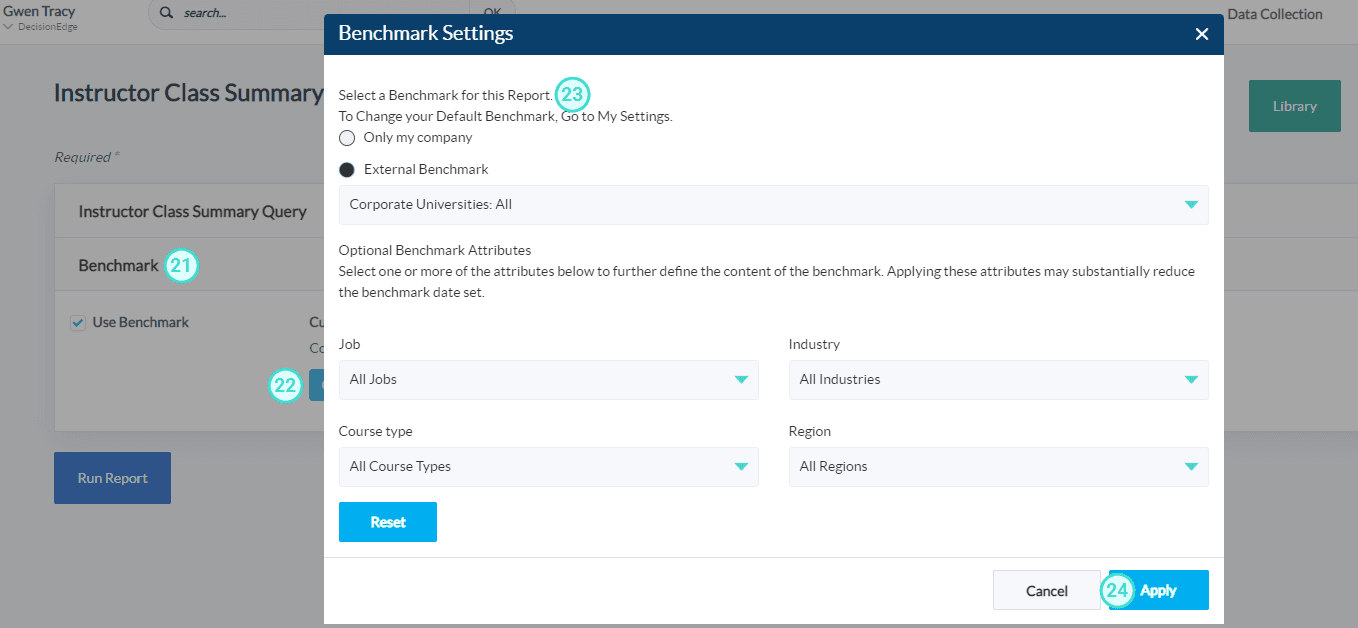
- This report includes a Benchmark comparison. To modify the Benchmark comparison for this instance of the report, expand the Benchmark accordion.
- Click Change.
- Select a different benchmark.
- Click Apply.
- To generate your report, click Run Report.
Schedule and distribute a Instructor Class Summary Report
Communicating results to instructors in a timely manner ensures they have the data they need to continuously improve their training delivery, ultimately improving the effectiveness and impact of training activities
Users can schedule multiple versions of the same class-based report, which enable them to respond to the needs of various audiences by:
- applying different filter attributes
- applying different benchmarks
- scheduling multiple reports to the same audiences (such as a Post Event report and then a Follow Up report 90 days later)
- This does not apply to group scheduling. If you need to send different reports to various instructors, contact your Customer Success Manager or support@explorance.com to create multiple instructor groups to send different reports to different groups.
There is no limit to the number of class-based reports a user can schedule in the same user account.
- Navigate to Reporting> Reporting > Ready Reports
- Hover over the Instructor Class Summary Report icon, and click Schedule
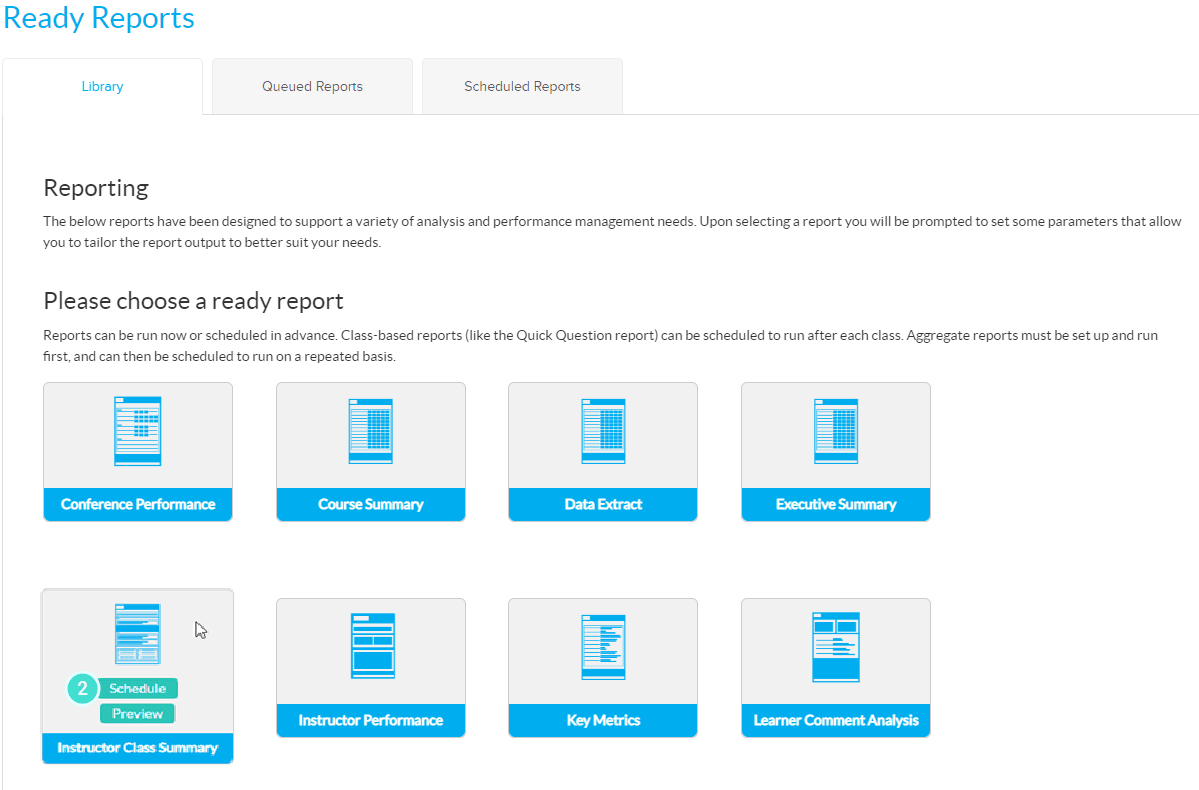
- Expand the Instructor Class Summary Query accordion to make changes to the Report name.
- Modify the name of the report in the Report Name field.
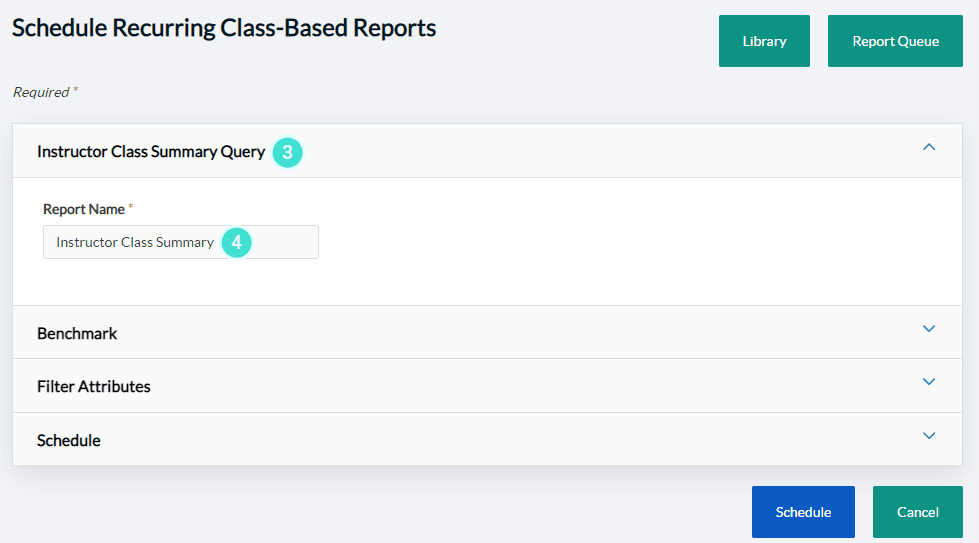
- Expand the Benchmark accordion to make changes to your Benchmark comparison.
- Click Change.
- Select a different benchmark.
- Click Apply.

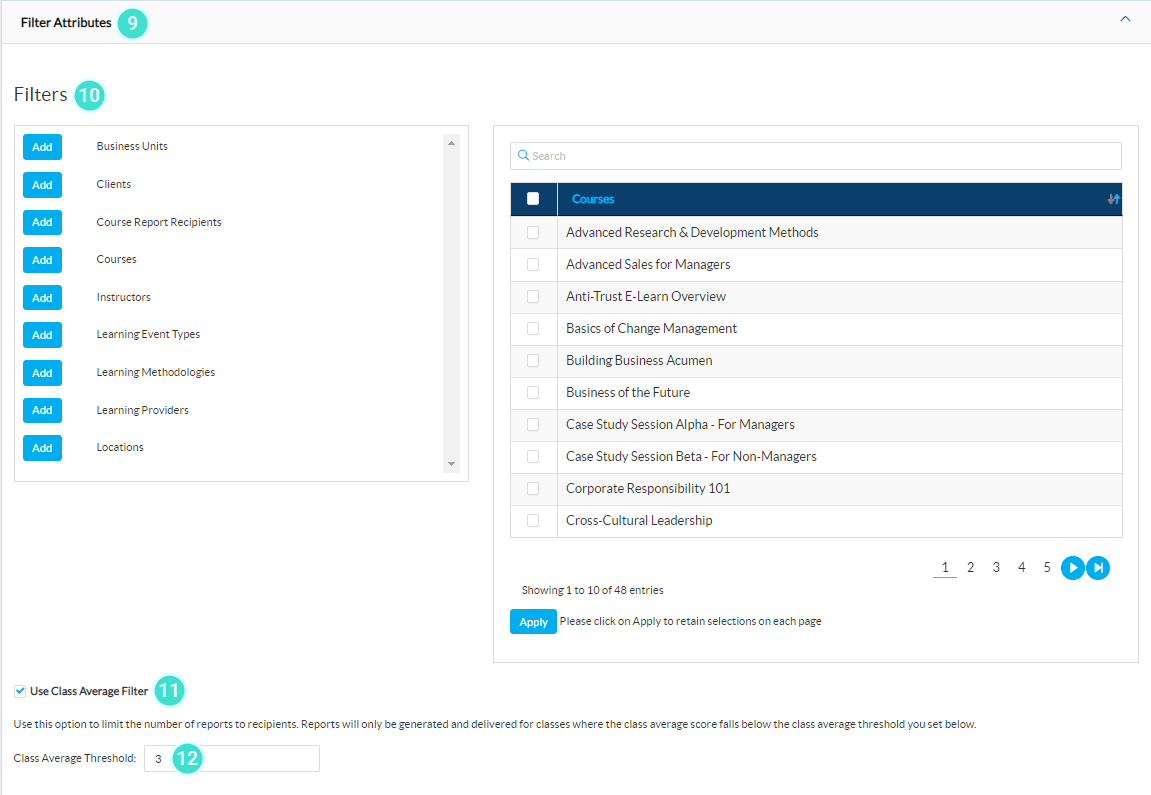
- Expand the Filter Attributes accordion to narrow down the set of data included in your scheduled reports. For example, if you manage learning for a specific location, you can receive reports for only classes taught in that (those locations).
- Add one or more filters and select the specific elements of each filter that should be included in your report.
- Click the Use Class Average Filter check box to apply a Class Average Filter.
- Enter a Class Average Thresholdin the field provided for example, if your organization uses a 1-5 scale on your surveys, you can enter a "3" to only receive reports when a class scores below that threshold.
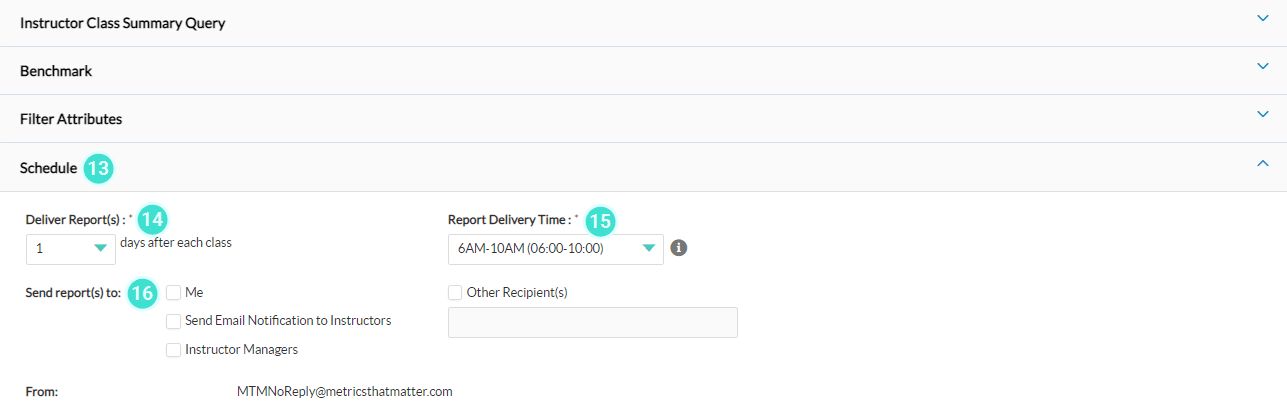
- Expand the Schedule accordion
- Select the number of days after each class in the Deliver Report(s) drop-down box that the report should be sent . Keep in mind that most surveys are open for 14 days.
- Select the time slot (per location time zone) in the Report Delivery Time drop-down box.
- In the Send report(s) to: section, click on the check boxes of your report recipients.
A report recipient can be Me (meaning the individual who is scheduling the report), Other recipient(s) whose email addresses have been added to this field, Instructors and Instructor Managers associated with this class.
Recommended settings for delivery of reports to the instructors after their class ends:
- 14 days for organizations that distribute evaluations via email.
- 1 day for organizations that have evaluations completed in class.
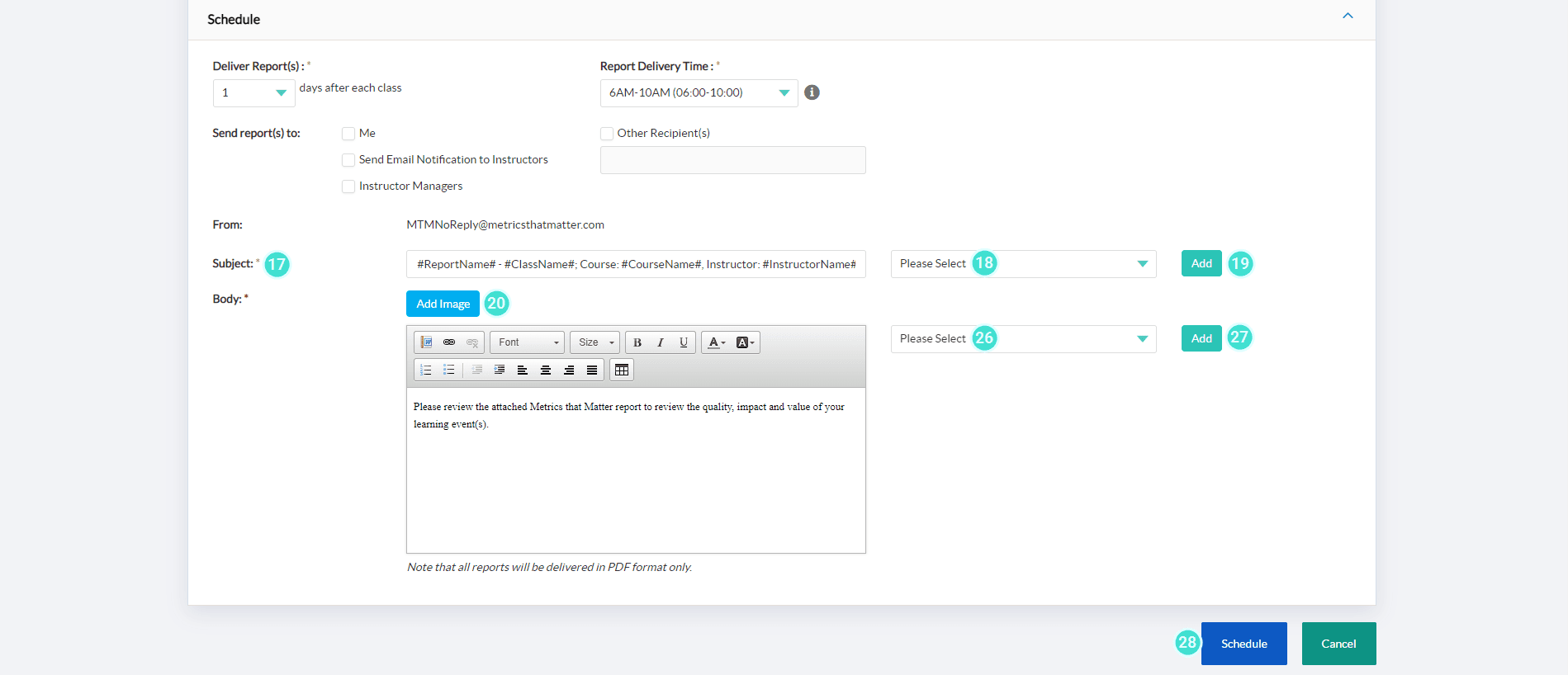
- By default, the Subject field provides the Report Name - Class Name; Course: Course Name, Instructor: Instructor Name for each class.
- To remove or add details regarding the class, click on the drop-down box beside the Subject field and select or unselect the items you wish to modify.
- To apply your selections, click Add.
MTM provides many opportunities throughout the system to add images and tags to your communications with your users. You can make your emails more visually appealing and aligned with your own organization’s brand by adding images or logos and tags to customize the message by including details related the actual class. In addition, an HTML editor provides you with features to enhance the text of your message and add links to helpful information outside of MTM.
- To customize your email, click Add image
- From the pop-up window, Select or search for an existing image or logo from the Library
- Or click on the Upload tab,
- then click on Browse to locate the image on your computer, network or shared drive.
- Enter an Image Name.
- Click Upload.
- The drop-down menu beside the email message, provides a list of dynamic Tags which can be added to your email message. Position your cursor in the text where you would like to add the tag. Select the tag.
- Click Add to apply. Repeat these steps to add multiple tags.
- Click Schedule to save and start the recurring scheduled report process.
All reports are delivered in PDF format only.