Learner Comment Analysis Report (Ready Report)
The Learner Comment Analysis report does not include data collected from Program Level or Session surveys of Blended Learning Programs. Use the Course Summary, Quick Question, or Program Performance report to view Blended Learning Program comments. You can also access your Blended Learning Program comments using the Data Explorer tool or the Data Extract Ready Report.
Overview
Introduction to the Learner Comment Analysis Report
The Learner Comment Analysis Report provides an analysis of your qualitative data in MTM to help you pinpoint insights quickly so you can focus on taking action for continuous improvement vs. reading through rows of learner comments to glean insights. This report leverages Natural Language Processing (NLP - an AI process) that enables software to understand and process human languages. Using NLP, the Learner Comment Analysis Report interprets your learner comments and assigns each sentence with a theme and a sentiment. The report identifies top positive and negative themes as well as overall top themes.
When you generate the report, you can also choose to have MTM email you an easily sortable Excel file with all the Learner Comments submitted during the selected time period, should you wish to analyze your comments in more detail. You can use the information in the report to easily understand the areas of your learning programs that are most positively perceived by your learners vs. the areas of your learning programs that are most negatively perceived by your learners, allowing you to focus continuous improvement efforts in the most efficient and effective way.
How can I use this report?
By using Learner Comment Analysis, you can pinpoint additional insights from your qualitative data to help take action quickly without the need to read rows and rows of data.
Who should use this report?
Anyone at your organization who is responsible for analyzing training impact and driving continuous improvement in your learning programs can benefit from the Learner Comment Analysis Report.
Will this report analyze comments in languages other than English?
The Learner Comment Analysis Report will only analyze comments submitted in English. If non-English comments are included in the data set, the report will still generate and non-English comments will be omitted from the analysis.
Job aid
This following information will help you understand how to interpret and use the Learner Comment Analysis Report.
What does this report include?
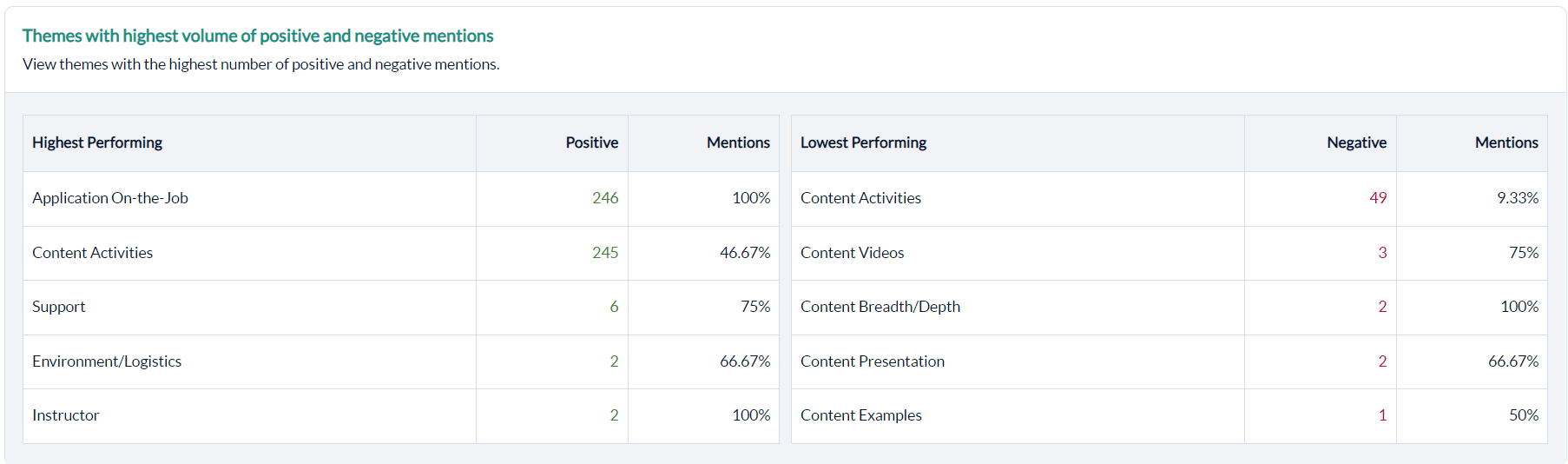
Themes with Highest Volume of Positive and Negative Mentions (Comments)
View the top (or all) themes tagged to your learner comments. Themes with the most positive sentiments are listed in the left column; themes with the most negative sentiments are listed in the right column. Use this information to focus improvement efforts on the top negative themes. The supplemental Learner Comments Excel output will provide you with specific learner feedback, sortable by theme and sentiment. We would recommend also leveraging Data Explorer to conduct additional root-cause analysis for specific courses / training elements.
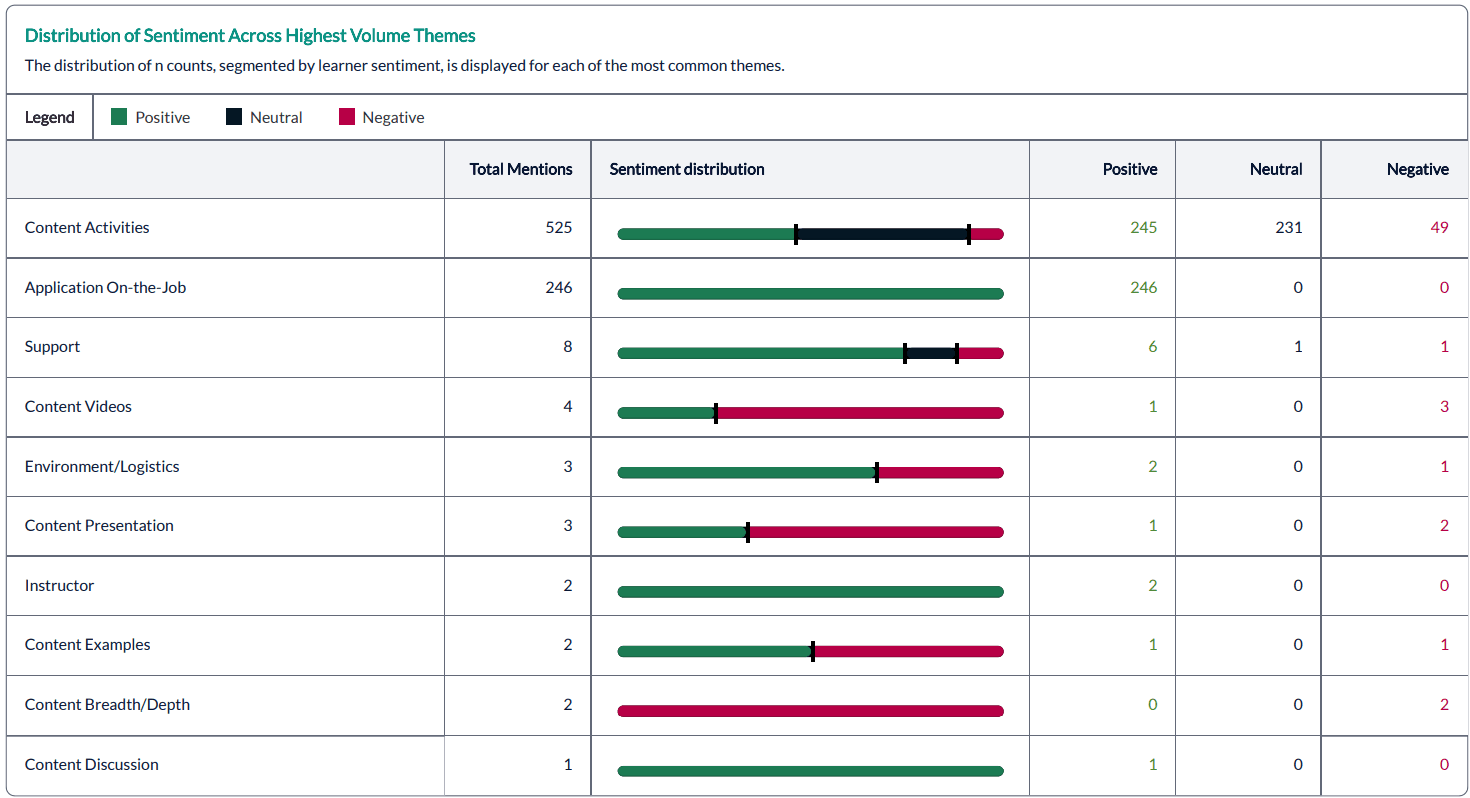
Distribution of Sentiment Across Highest Volume Themes
This section displays the distribution of top themes, segmented by learner sentiment by providing a breakdown not only of which themes had the highest number of comments, but also how those comments are distributed among the positive, neutral, or negative sentiments, once again providing you with insights into where to focus further analysis and/or improvement efforts.
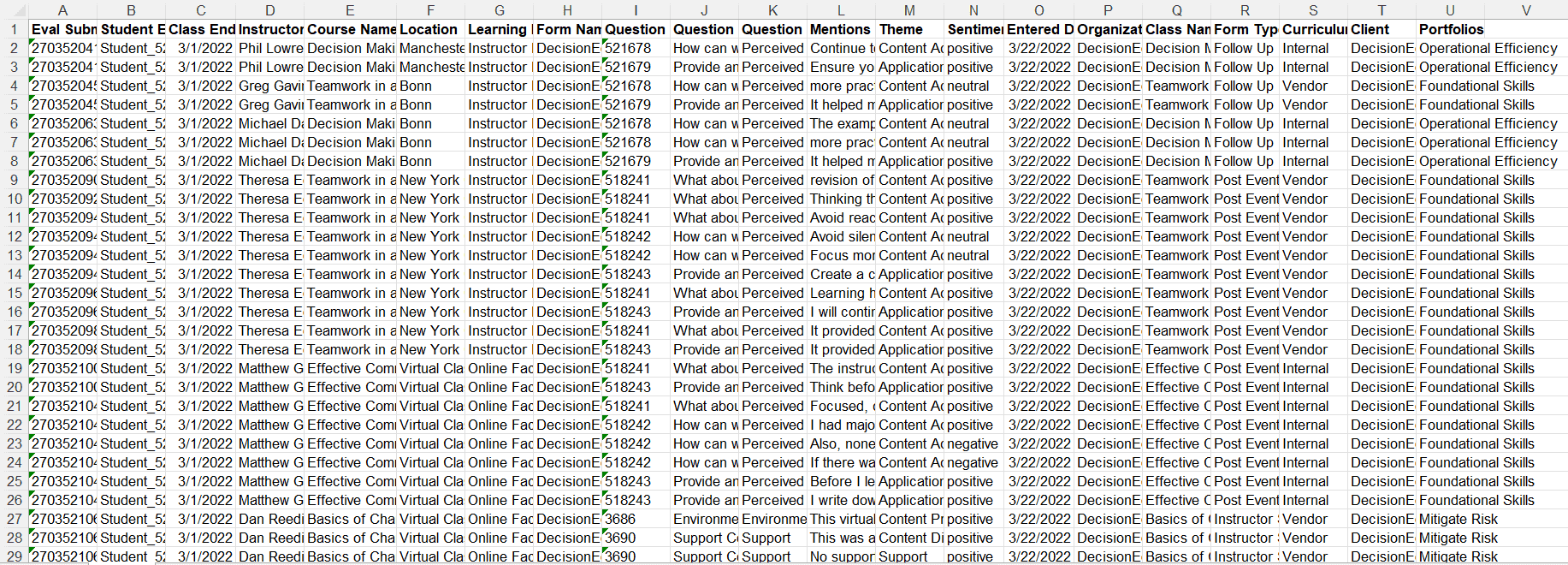
Companion Learner Comments Excel Output
Choosing to Include Learner Comments when you run the Learner Comment Analysis Report will generate an emailed Excel file with all the Learner Comments submitted, which you can then easily sort by Sentiment, Theme, Course, Question Category, Instructor, Portfolio, etc., to conduct further analysis of your results.
Step-by-step instructions
Create and view a Learner Comment Analysis Report
- Navigate to Reporting > Reporting > Ready Reports.
- Click the Learner Comment Analysis icon.
- Select Query Type and Date Range.
- Click on Search & Select Class to select a class.
- Choose to Display Top 10 themes or all themes with Show All.
- Customize the Report Name to differentiate this report from others you have created and may wish to locate in the future.
- Confirm whether you would like to Include All Comments.
- Run Report.
Schedule and distribute a class-based Learner Comment Analysis Report
Communicating the Learner Comment Analysis Report on a regular basis provides report viewers an opportunity to identity areas of improvement so that they can quickly take action to improve the learning effectiveness of the class.
- Navigate to Reporting > Reporting > Ready Reports
- Hover over the Report icon, and click Schedule
- Choose Class-based > Select
- Expand the Learner Comment Analysis Query accordion
- Select your Themes sort order, either Top 10 themes or Show All.
- To Include all Comments - click the check box beside this option
- Expand the Schedule accordion
- Enter a value from 0 to 730 days in the drop-down menu under Deliver Report(s) to determine the day the report will be delivered. To collect as much survey data as possible, when selecting a value for this field, keep in mind that most surveys are open for at least 14 days.
- Select a time period from the drop-down menu under the Report Delivery Time to determine when the report will be delivered.
- For Send report(s) to: Select Me, and / or enter the email addresses of Other Recipient(s) and / or select Course Report Recipients.
- By default, the Subject field provides the Report Name - Class Name; Course: Course Name, Instructor: Instructor Name for each class.
- To remove or add details regarding the class, click on the drop-down box beside the Subject field and select or unselect the items you wish to modify.
- To apply your selections, click Add.
- To customize your email, click Add image
- From the pop-up window, Select or search for an existing image or logo from the Library
- Or click on the Upload tab.
- Then click on Browse to locate the image on your computer, network or shared drive.
- Enter an Image Name.
- Click Upload.
- The drop-down menu beside the email message provides a list of dynamic Tags which can be added to your email message. Position your cursor in the text where you would like to add the tag. Select the tag.
- Click Add to apply. Repeat these steps to add multiple tags.
- Click Schedule to save and start the recurring scheduled report process.
Schedule and distribute an aggregate Learner Comment Analysis Report
- In the Report Name section, select Custom Query:
- Select a Date Range.
- Select a Start Date.
- Select an End Date.
- Click the drop-down arrow of the Display field and select your display option: Top 10 themes or Show All.
- Customize the name of your report in the Report Name field to easily identify and locate this report for future use and for the report recipients.
- To Include all Comments, click the check box.
- This option also allows you to filter your data. To use this feature, open the Filter accordion and click Create New Filter .
- In the pop-up Filter window, click Add beside the filter you wish to use.
- Select the filter item(s) to include in your report .
- Provide a title for your filter.
- Click Apply.
- Repeat steps i to k to add one or more filters.
- To generate this report, click Run Report