Share dashboards
Overview
Dashboard creators have the ability to share dashboard(s) with other MTM users, user groups and users without MTM credentials. This allows recipients to view up-to-date data each time they access their shared dashboards which facilitates discussions with colleagues and helps accelerate L&D initiatives.
Sample scenarios
- A CLO has created a dashboard to share overall L&D performance results and impact on the business with another executive of the organization who also has MTM credentials. This user accesses the Share Dashboard with other users option and selects the name of that MTM user.
- An Instructor Manager has created a dashboard to share course delivery and business impact results with a team of instructors by accessing the Share Dashboard with other users option to select instructors. In this option, each instructor will only see their own data, even though the Instructor Manager’s dashboard contains data for the entire team.
- A Learning Analyst has created a dashboard to share learning impact results with various colleagues inside and outside the organization who do not have MTM credentials. The Analyst accesses the Share Dashboard by email option and enters each of their individual email addresses. Each colleagues receives a personalized URL to access the dashboard via email.
Read-only shared dashboard features
The dashboard recipient is presented with the following options in the top left corner of a read-only dashboard display:
- Refresh : The refresh icon
 allows the end user to refresh the data in the dashboard.
 - Export : allows the end user to generate a .png image of the entire dashboard.

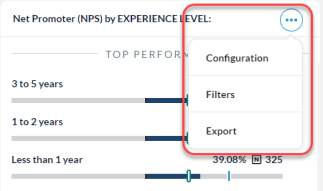
Although the recipient users cannot move or edit the widgets in the dashboard, they can click the three vertical dots in the upper right-hand corner of a widget to access the following options:
- Configuration : allows the user to see how the widget was configured (e.g.: Date Range, Display, Report By, etc.).
- Filters : allows the user to see the filters that were applied to the widget.
- Export : allows the user to generate a .png image of the widget.
Features comparison for shared dashboard recipients
| Features | Share with other MTM users | Share by email |
|---|---|---|
| How does the recipient access the shared dashboard? | Log into MTM > Reporting > Dashboards > Shared Dashboards | Via a personalized URL |
| What actions are available to the recipient of the shared dashboard? | Export Copy Refresh | Export Refresh |
| Can the recipient view applied filters? | Yes | Yes |
| Can the recipient view widget configurations? | Yes | Yes |
| Can the recipient temporarily change the date range? | No | Yes |
| Can the recipient drill down to Data Explorer? | Yes | No |
| Can the recipient expand a ranking widget? | Yes | Yes |
| Can the recipient create their own dashboards? | Yes | No |
| Can the recipient make changes to the shared dashboard? | No | No |
| Does MTM log the last date the recipient accessed the shared dashboard? | Yes | Yes |
| Does the recipient inherit the dashboard creator’s data rights? | No | Yes |
Security features for dashboards shared by email
- Limit access to the Share by email option to only trustworthy users, reducing the overall risk of sharing organizational data. Contact your Explorance Customer Success Manager or support@explorance.com to set up this feature for those users who will be allowed to share dashboards by email.
- Each dashboard creator can revoke the access of any user to their shared dashboards at any time for both the Share with other users and Share by email options.
- When dashboard recipients click on their personalized link in the invitation email, MTM will prompt them to confirm the same email address associated with the URL to authenticate that the correct user is accessing the dashboard.
- reCAPTCHA will appear after 3 incorrect login attempts.
- Only one session is allowed per user at a time.
- Multiple tabs in the same browser are supported.
- The session will timeout after 60 minutes of inactivity.
Dashboards cannot be Shared by email with another MTM user. A notice will appear on the screen and direct the user to the Share with other users option.
Step-by-step instructions
Share a dashboard with another MTM user or user group
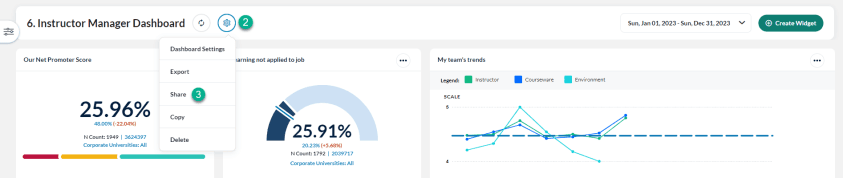
- Select Reporting > Reporting > Dashboards.
- Click on the
 action icon next to the name of the dashboard you wish to share.
 - Select Share from the drop-down menu
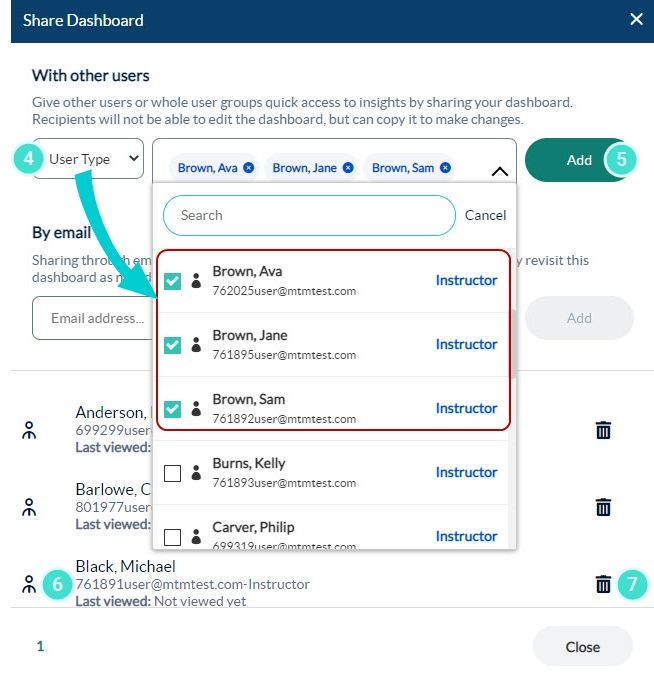
- In the Share with Others section, search and select a user, user type or user group to locate one or multiple users to share this dashboard.
- Click Add.
- These users will be added to the bottom section of the Share Dashboard pop-up window. Their email addresses, user email addresses and the dates each user last viewed the dashboard will also be displayed.
- To remove a user’s access from a shared dashboard, click on the delete
 icon. If needed, the dashboard can be re-shared at any time in the future.
The dashboard will then be available in the recipient’s MTM account on their dashboard homepage under Shared Dashboards.
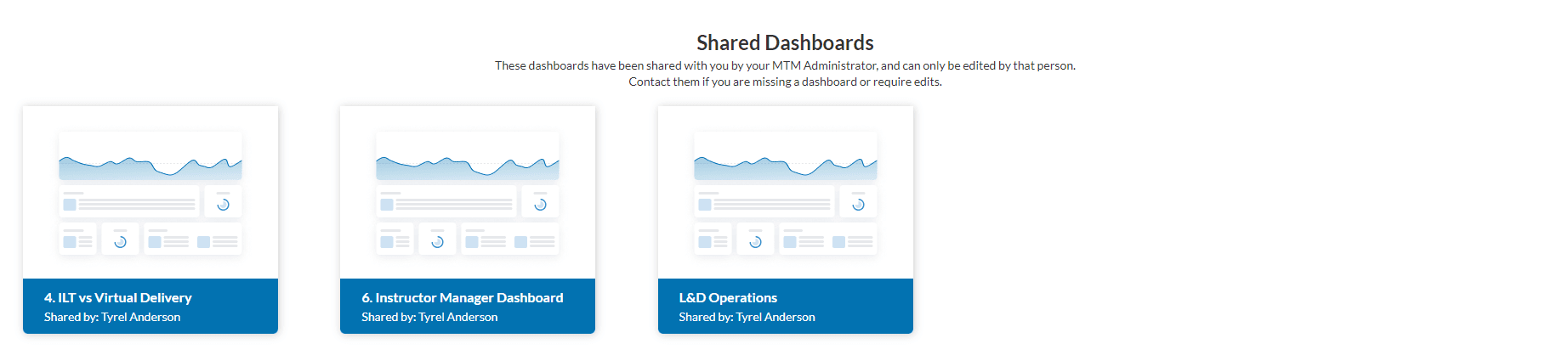
The users will be able to see all the content, the configuration of the various widgets and any changes made to the dashboard, but will not be able to edit, move or delete widget. For questions and update requests, the name and email address of the dashboard creator is displayed on the dashboard homepage.
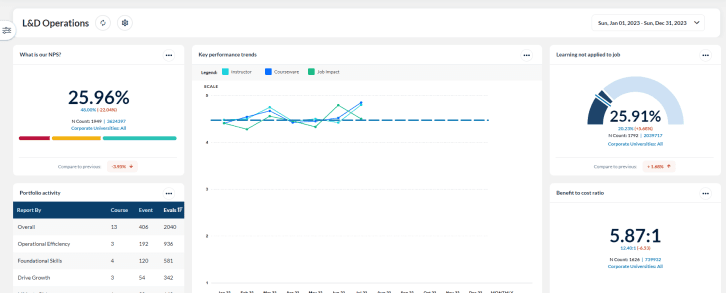
Share a dashboard by email
- Select Reporting > Reporting > Dashboards.
- Click on the
 action icon next to the name of the dashboard you wish to share.
 - Select Share from the drop-down menu

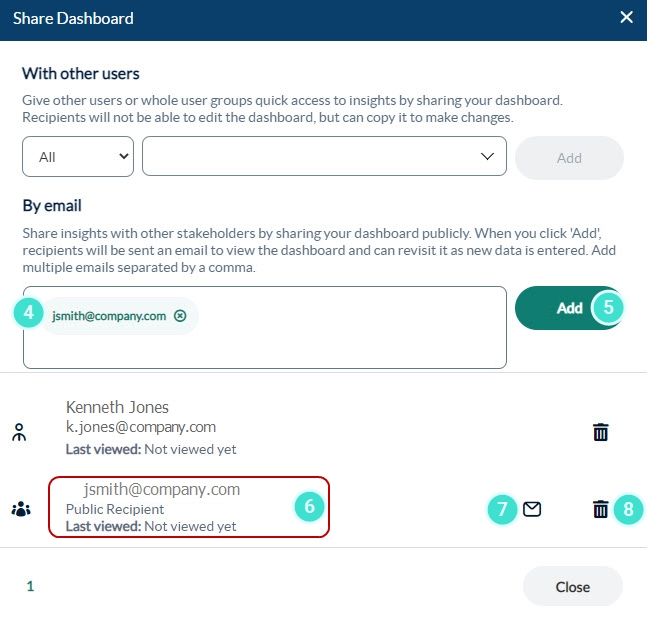
- In the Share Dashboard by email section, enter one or multiple email addresses separated by commas.
- Click Add to send the invitation(s) with the personalized URL link for each individual.
- This dashboard recipient will be added to the bottom section of the Share Dashboard pop-up window. The date each recipient last viewed the dashboard will also be displayed. Recipients who have received a dashboard by email will be labeled as Public Recipients.
- If a recipient has lost their URL or never received the original email invitation for a shared dashboard, another invitation can be sent to the recipient by clicking on the envelope
 icon. This saves the dashboard creator time and does not require the extra steps of revoking the original link and sending a new one.
 - The recipient’s access to the shared dashboard can be revoked by clicking on the delete icon.
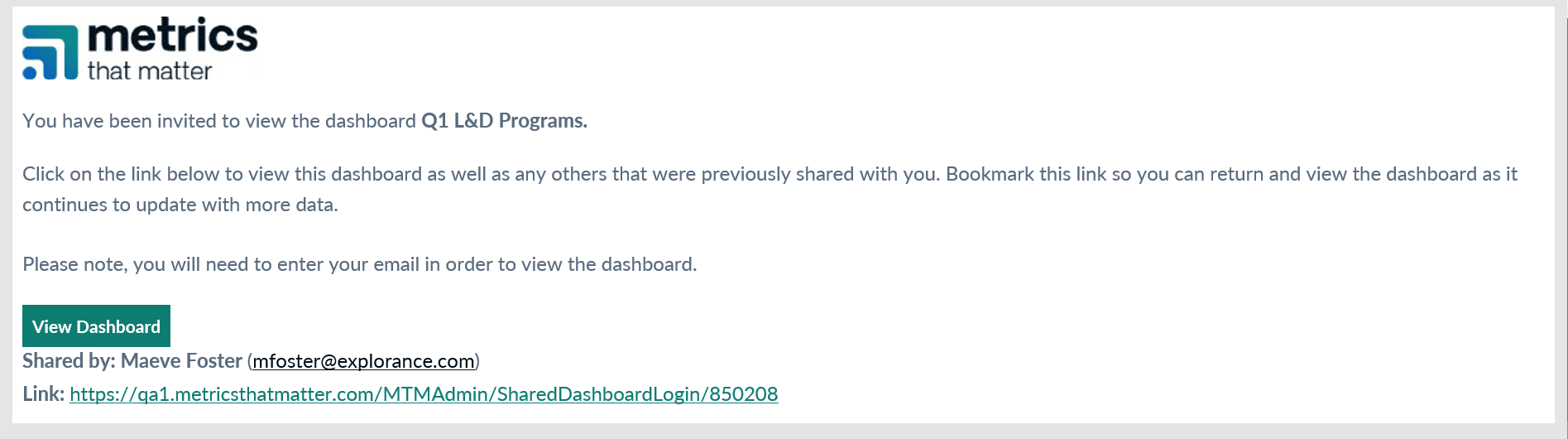
The intended dashboard recipient will receive an invitation email containing a personalized URL. When clicking on View Dashboard, MTM will prompt the user to confirm the email address associated with the URL to authenticate the user.
Upon logging in, recipients will see all dashboards shared with them displayed in alphabetical order by dashboard name. To access a dashboard, the user simply clicks on the read-only dashboard to view its contents.
Download an audit list of dashboard recipients shared by email
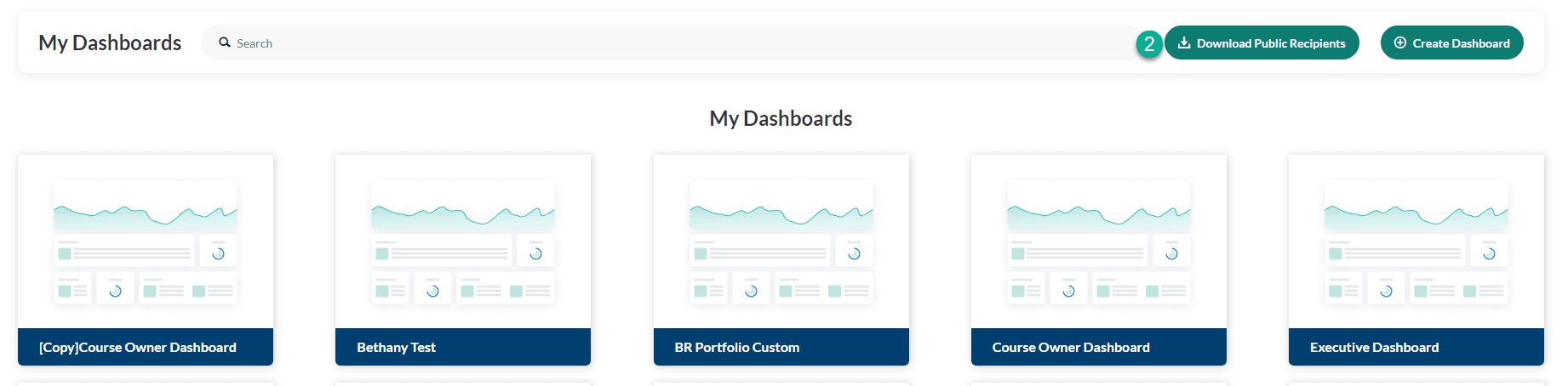
In MTM, users who do not have MTM credentials but have received a dashboard shared by email are designated as Public Users. Dashboard creators, who have been given the Share by email option are able to export an audit file listing everyone in the organization who received access to a dashboard shared by email. This export option is called Download Public Recipients and appears at the top right-hand corner of the screen in the Dashboard Homepage. This option allows Dashboard creators to easily review which public users have access to their organization’s data in shared dashboards without needing to check every dashboard one-at-a-time. If a Public User should be removed, the Dashboard creator can either deactivate the public recipient or impersonate the user who shared the dashboard and revoke access.
- Select Reporting > Reporting > Dashboards.
- Click on the Download Public Recipients button.
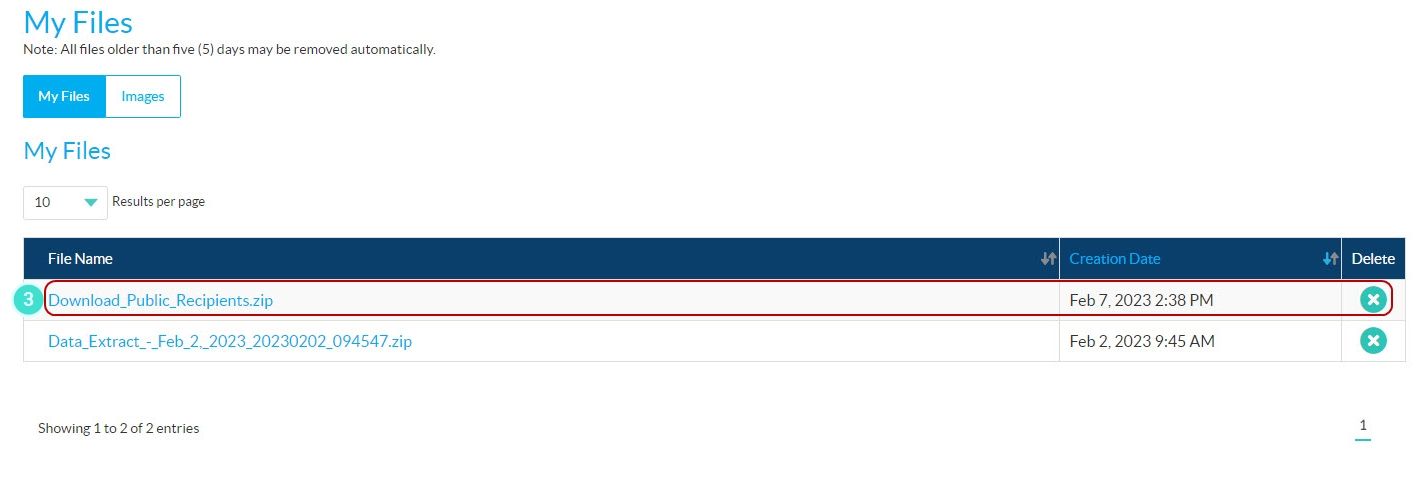
- Go to My Files to access a zip file containing a CSV document listing all of the recipients of your dashboards shared by email.
- Sample CSV file showing data provided:

When an MTM user receives a shared dashboard from another MTM user, the dashboard will utilize the data rights of that recipient. Different users may see different data populating the shared dashboard depending on their data rights in MTM. To learn more about data rights, click Create a user with restricted data rights.
Recipients of dashboards shared by email:
- do not require an MTM license and there is no charge for this type of shared dashboard. In addition, there is no limit to the number of users who can receive a shared dashboard by email. So instead of suggesting that users share a personalized link with others, send each user their own personalized link since each link only allows one user to connected to the shared dashboard at a time.
- inherit the data rights of the dashboard creator. This is an important consideration when planning to share a dashboard by email if the recipient(s) should not have access to all the data being shared.
Additional details:
- If the recipient’s email has changed, delete their access from the shared dashboards list and re-share the dashboard using their new email address.
- If an MTM user’s access has been deactivated, all dashboards that were shared by this user will no longer be available. Make sure to account for this when repurposing or deactivating user accounts.
- If an organization is deactivated, all dashboards related to that organization will no longer be accessible. Make sure to account for this if you restructure your multi-organization account.