Analyze your results
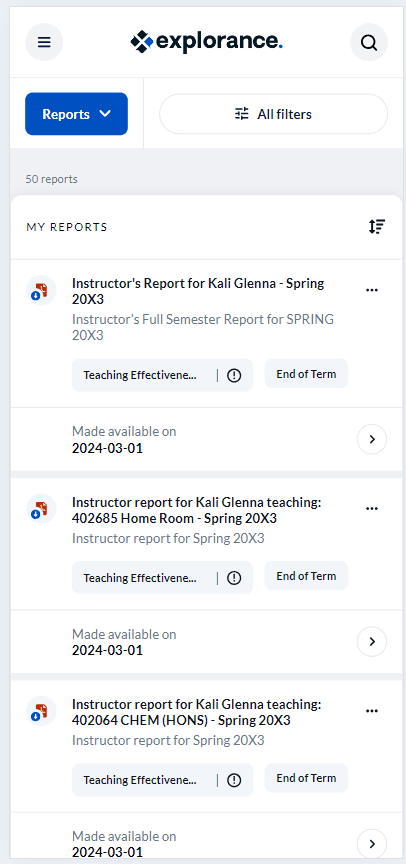
To view reports from your Blue Home page, navigate to the Reports section.
- Select a report you wish to view. A new page will open.
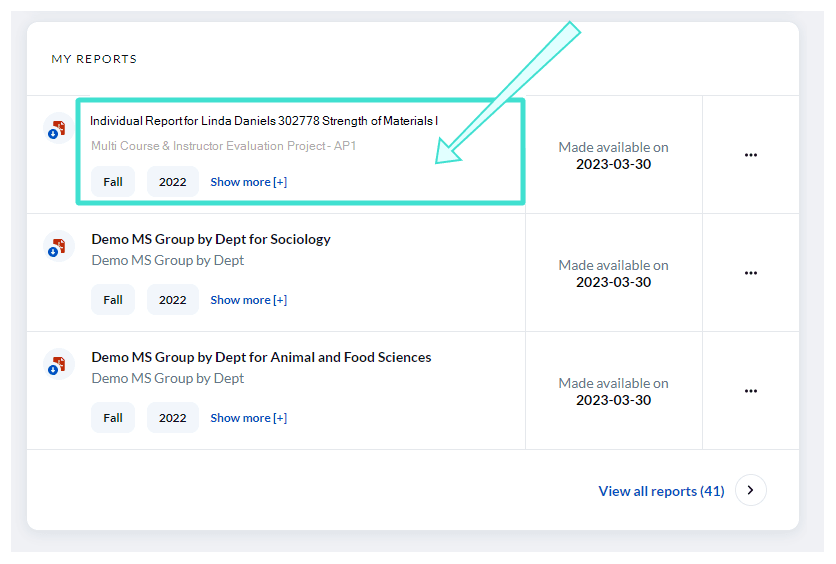
- View your report - To learn more, see Reports.
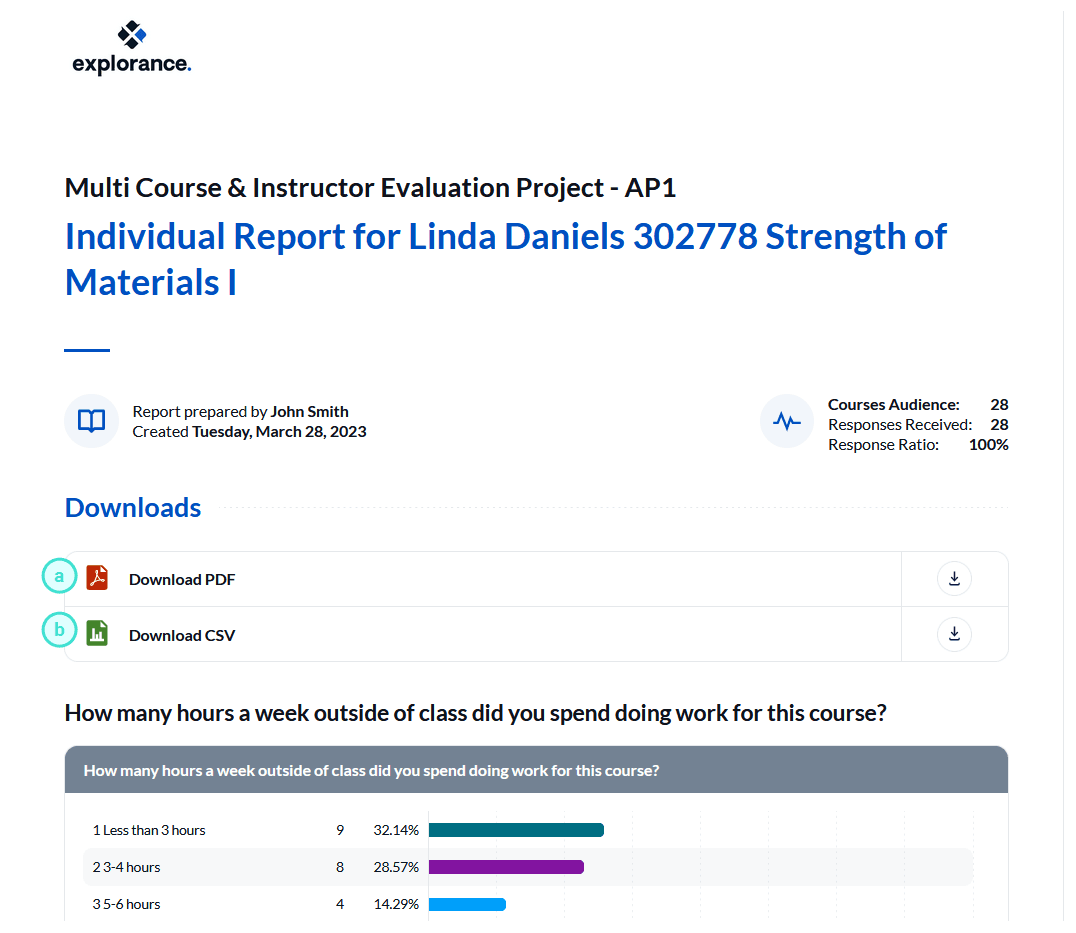
If allowed by your Blue administrator, you may be able to:
a. Download PDF - Download report to your computer as PDF file.
b. Download CSV - Download raw response data to your computer in CSV format.
REPORTS PAGE
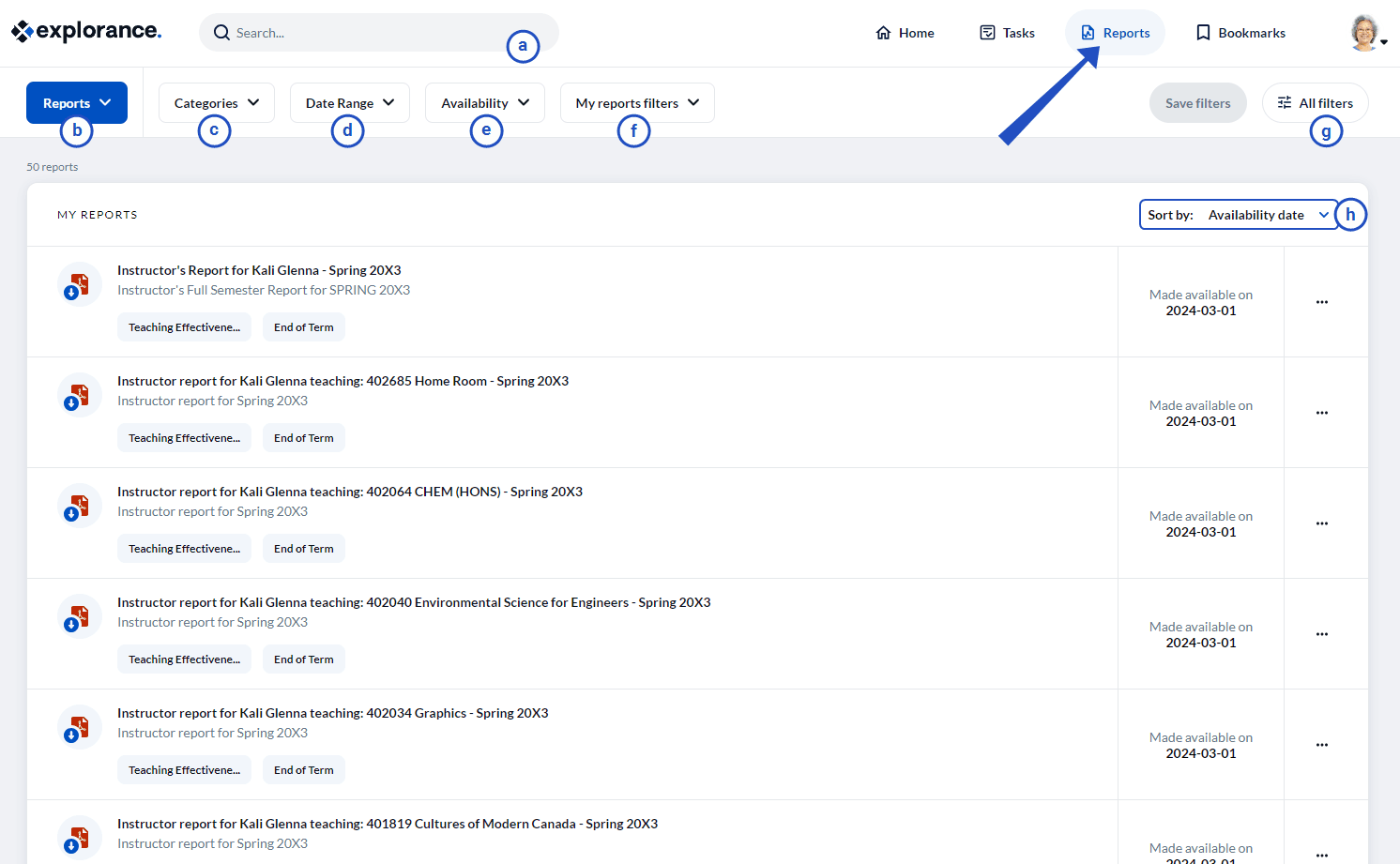
You may also view all of your reports on the REPORTS page. This dedicated page allows you to view all of your reports with different filter options.
Example of Reports page in desktop view:
TASK PAGE FEATURES
a. Search bar - Allows you to perform a keyword search to locate a specific report.
b. Reports/Tasks - Allows you to switch from displaying reports to tasks and vice versa.
c. Categories - Filters your reports list by category and subcategory.
d. Date range - Filters your reports list by date range.
e. Availability - Filters your reports list by availability status:
- Current - Reports that have been recently made available.
- Archived - Reports that have been made available some time ago for expired tasks.
f. My tasks filters - Filters your reports list by custom filters.
g. All filters - Allows you to view all filter conditions and create your own custom filter to use.
h. Sort by - Sorts the reports displayed in your reports list by the following criteria:
- Availability date - The date the report was made available.
- Title - The report title and link.
- Status - The report availability status.
- Category - Easily locate a report with a category (e.g. Course Evaluations).
- Subcategory - Easily locate a report with a subcategory (e.g. Fall or 2023).
Example of Reports page in mobile view: