Update Canvas Access Token in Blue Connector
This article explains how to update Canvas access tokens to maintain a secure integration between your Canvas instance and Blue.
NOTE: This update must be completed by the Canvas LMS Admin, not the Blue Admin, unless that user is an admin in both systems. Additionally, the Explorance Admin does not have access to make updates in your Canvas system.
Please follow these steps to update the Access Token in Blue Connector.
In Canvas:
The LMS admin should generate a new Access token key:
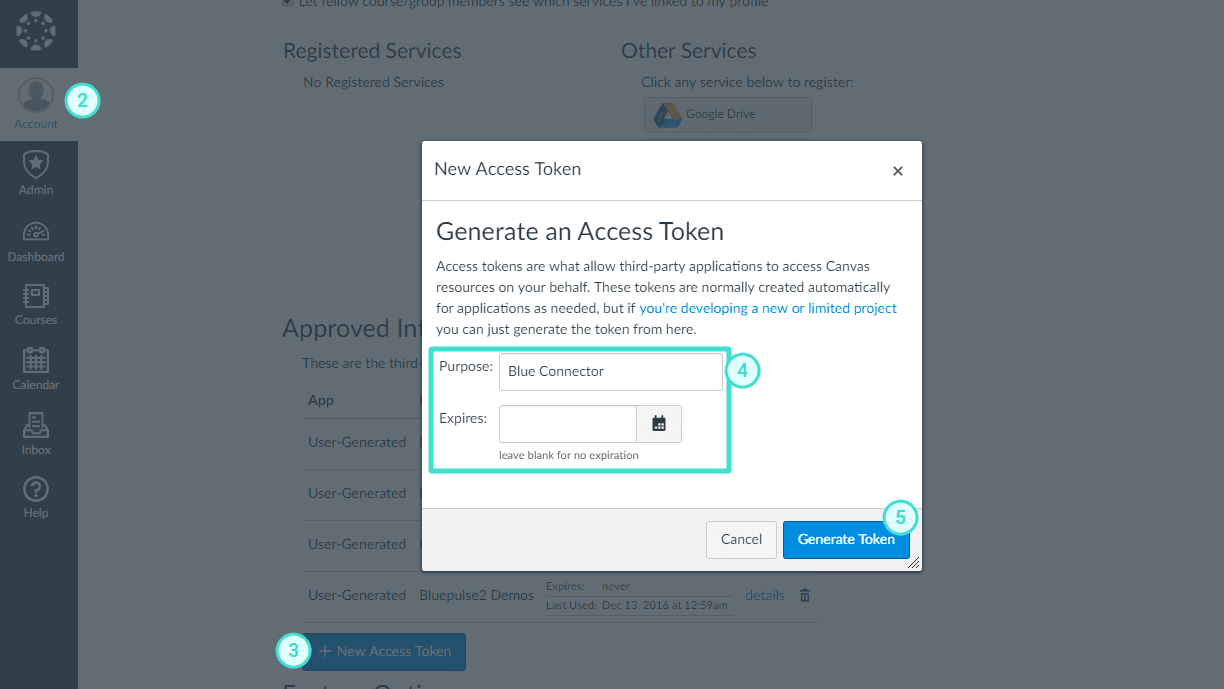
https://online-help.explorance.com/blue/articles/canvas?search=canvas+
- Log into Blue Connector
- In Consumer List , Edit your consumer
- In the first page enter your new Access token

- Click Save and next at the bottom
- Click Save on the bottom again
Validation step:
While logged in into your blue connector
Run this link syntax:
‘YourBlueConnectorLink + /LMSApiTest/Index’
Example :
‘https://Client.bluera.com/clientblueconnector/LMSApiTest/Index’
- Choose your Consumer
- Chose ‘Validate Access Token’
Click submit
- You get Status ➔ OK
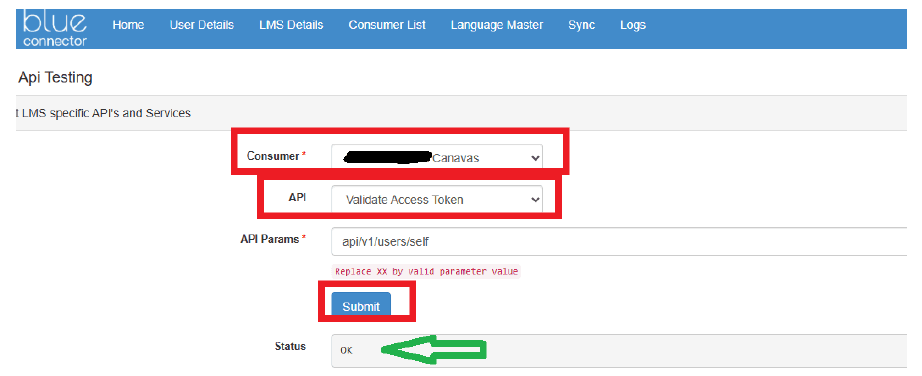
If you get Status OK then the Access Token is correct, otherwise repeat the steps.