Create and manage webhooks
Webhooks notify you any time something happens with a BlueX survey, allowing you to run a process that exists in a third party application that you manage. The data is then sent over the web (HTTP request) from BlueX to your application to interpret the data.
The Webhooks feature is only available on demand. Please contact our support team for assistance.
Visually, this is a simplified version of webhooks.
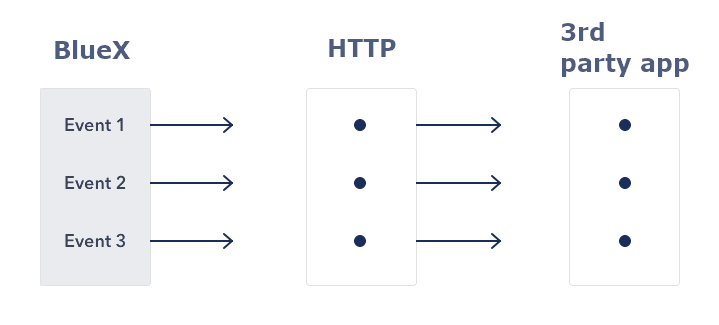
The data exchange happens through a webhook URL. The URL is the target third-party application. Imagine this functions like an email: BlueX sends an email to the other application when a certain event occurs. The email address is the endpoint URL, and its content is in JSON format, which is called the "payload".
The URL endpoint is a link to your application that will be able to receive the BlueX payload and do something with it. Consult your application's documentation for more information on how to manage webhooks.
Create a webhook in BlueX
Only BlueX administrators have access to webhooks, unless a custom permission is created that allows access to this feature.
- From the Homepage, select System webhooks
- Select Create new webhook
- Enter a name to identify the webhook
- Fill in the fields
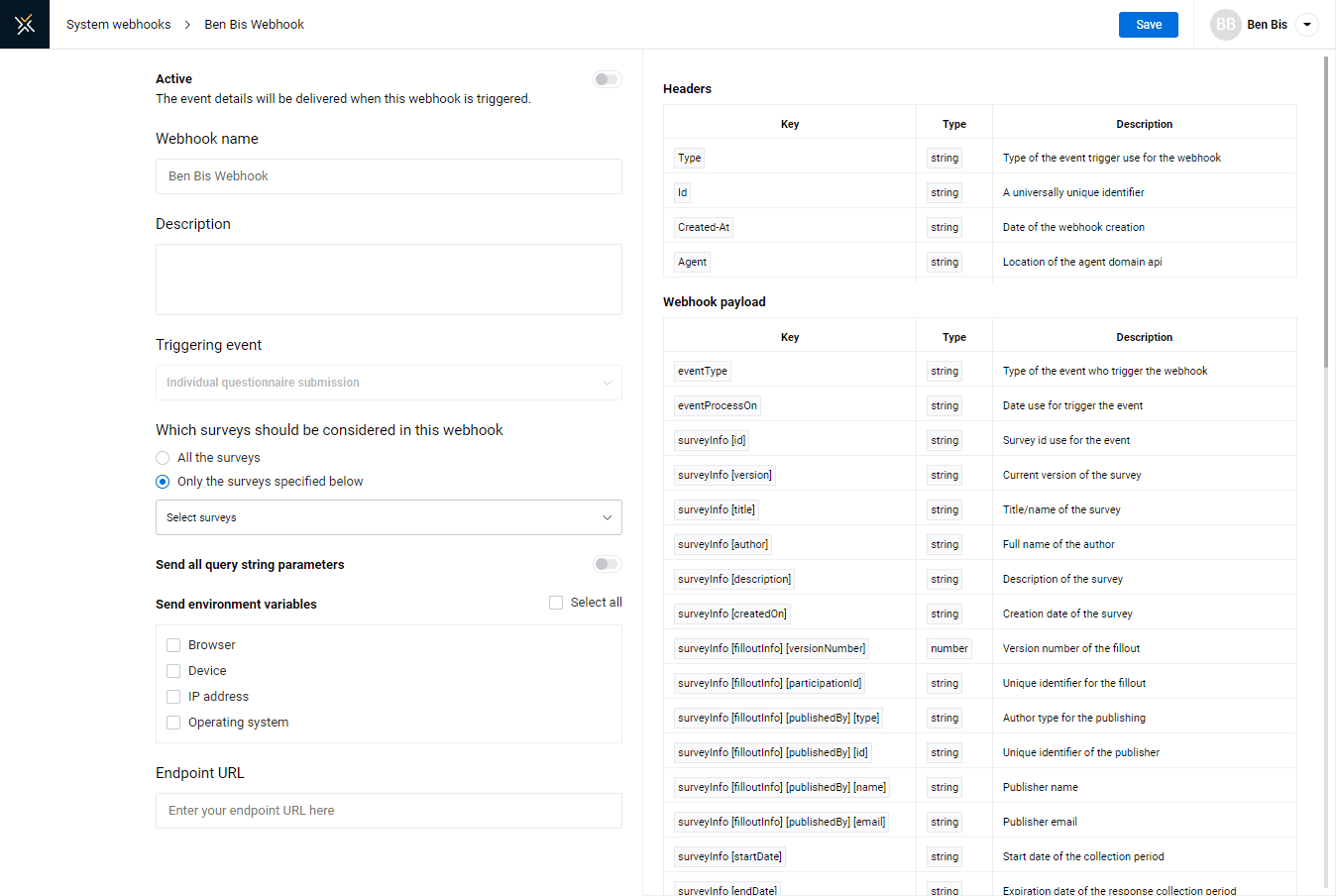
On the webhook page there are two lists: Headers and Webhook payload. The content therein is to help you understand what each key (like a variable) represents. Potentially, a payload can contain any or all of that information.
Webhook configuration
- Active - Determine whether this webhook is currently active or not. Disabling a webhook will keep it in BlueX but it will not be triggered.
- Webhook name - Identify the webhook with an easy-to-understand name.
- Description - Add additional information about the webhook. For internal use only.
- Triggering event - BlueX provides you with specific events that will trigger the webhook. Select the event that corresponds to your needs.
BlueX 1.5 offers the "Individual questionnaire submission" event, which means that the webhook is triggered once a respondent submits their questionnaire.
- Which surveys should be considered in this webhook - Select if this webhook's trigger happens for all surveys, a single survey or multiple surveys that you select from the drop-down list.
- Send all query string parameters - Determine if all the payload content is sent. When disabled, the webhook will still function as a triggering event, but will return empty arrays, therefore limiting the amount of information divulged.
- Send environment variables - Determine if analytics data should be included. This information is gathered when the event is triggered. Select all variables or only those you wish to send:
- Browser - Obtain the user's browser name and its version (e.g. Chrome, Firefox, Edge)
- Device - Obtain the user's device type (mobile or desktop)
- IP address - Obtain the user's IP address
- Operating system - Obtain the user's OS (MacOS ##, Windows ##, Ubuntu ##)
- Endpoint URL - Enter the third-party application URL to send the webhook payload to.
InManage the system