MLY in Blue Reports guide (Blue 9.6)
Exploring MLY based text analytics
MLY is a revolutionary advancement in the field of feedback analytics. Pronounced as "mi-lee", MLY represents the intersection of machine learning (ML) and the pursuit of answers (Y), where AI-powered feedback analysis becomes a powerful tool to understand and amplify the Voices of Employees and Students in Learning & Development (L&D), Human Resources (HR), and Higher Education (HE) domains.
MLY enables organizations to gather and interpret text feedback (comments) from students and employees throughout their academic and employment journeys. The analysis of these comments reveals key insights that empower leaders to address challenges in areas such as engagement, inclusion, performance, attrition, learning enhancement, organizational agility, etc.
Customers have shared valuable insights into the advantages of using MLY, including:
- Time-saving efficiency: MLY processes thousands of comments in just minutes, dramatically reducing analysis time.
- Uncovering hidden insights: It helps organizations identify valuable perspectives they may have previously overlooked.
- Driving impactful decisions: These insights empower teams to develop action plans that enhance performance across their organization.

MLY produces insights using the following analysis types (models):
- Employee Experience Insights (EEI)
- Employee Learning Insights (ELI)
- Student Experience Insights (SEI)
Each analysis type (model) focuses on a specific set of themes and topics and includes sentiment, recommendation, and alert analysis. To learn more: Introduction to insights
Blue projects can be customized to include specific questions for MLY analysis, with data uploads performed manually or on a daily schedule. After MLY processes the data, insights are available in Blue reports, including sentiment, recommendation, and alert analysis, as well as theme clouds and frequency or cross-tabulation tables and graphs. These insights enable organizations to correlate MLY analysis results with question responses and user demographics.
Additionally, comments containing harmful text, or potential issues can be flagged for removal or redaction, helping to maintain a secure and responsible reporting framework.
Benefits of MLY Integration with Blue Data:
- Comprehensive Data Analysis: By integrating Blue’s raw comments and demographic data, MLY can perform detailed text analytics, offering richer insights into customer feedback.
- Ongoing Feedback Monitoring: With daily data uploads, MLY can continuously monitor feedback, allowing organizations to track sentiment trends and emerging issues.
- Proactive Alerts and Recommendations: MLY can identify critical alerts and provide actionable recommendations based on the integrated data, helping organizations address issues promptly and effectively. See Explore an Analysis (in MLY)
Understanding data ownership - Who owns customer data in MLY?
Customers retain ownership of their data once uploaded and analyzed by MLY. In addition, customer data is only used in training MLY if the customer has provided written consent.
Crafting effective questions for MLY analysis
Not all course evaluation questions are suited for MLY analysis. Multiple-choice, yes / no, and other structured questions with limited answer choices can be efficiently processed using traditional quantitative analysis tools. In contrast, MLY is most effective for analyzing open-ended questions designed to gather detailed feedback on the student, employee, and learning experiences.
IDEAL QUESTIONS
MLY is best suited for analyzing comments from open-ended questions related to student experience, employee experience, and learning experience. By applying sentiment, recommendation, and alert analysis, MLY provides deeper insights into qualitative feedback, helping organizations better understand key trends and concerns.
Course Evaluation Questions
- What are the key strengths and areas for improvement in this course?
- In what ways could this course be enhanced to improve the learning experience?
- How can the instructor refine their approach to better support student learning?
- Describe the most impactful aspects of this course and how they contributed to your learning.
- What elements of this course did you find most effective or engaging?
- What aspects of the course, if improved, would enhance the overall experience?
- How did this course meet or fall short of your expectations?
- Please share the reasoning behind your overall rating of the instructor.
- What are the instructor’s strongest qualities, and where could they improve?
- What instructional methods were most helpful in supporting your understanding of the material?
- What specific strategies could the instructor implement to improve teaching effectiveness?
- How could this unit be adjusted to better support your learning goals?
- Would you recommend this course to other students? Why or why not?
- Would you recommend this instructor to other students? Please explain.
- To what extent do you agree with the following statement: This course significantly enhanced my understanding of subject/topic.
- Please provide any additional feedback or comments about this course.
General Feedback Questions
- Is there anything else you’d like to share about your experience in this course?
- How did the instructor inspire your interest and engagement in the subject?
- What is the most valuable lesson or concept you took away from this course?
- How has this course contributed to your personal or academic growth?
- Describe your most meaningful learning experience in this course.
- Which sections or activities of the course were the most effective, and why?
Introducing MLY insights and the analytics process
Leverage MLY to analyze student and employee feedback, uncovering data-driven insights that highlight issues, blind spots, emerging trends, and actionable recommendations. These insights empower organizations to make informed decisions and take timely action to enhance both experience and learning effectiveness.
Key topics used in each MLY analysis types (models) feedback data
Student Experience Intelligence (SEI): Administrative & institutional services, Teaching & learning effectiveness, Course materials & structure, Learning environment & resources, Learning outcomes & student development, Student life & extracurricular engagement, Communication, feedback & expectations, Institutional culture & general satisfaction, Campus transportation & accessibility, Health, wellbeing & balance, People & relationships.
Employee Learning Intelligence (ELI): Learning program design & delivery, Learning content & materials, Learner experience & environment, Learning outcomes & impact, Instructors, facilitators & speakers, Learning support & administrative elements, Assessment, feedback & evaluation, Learning activities & engagement.
Employee Experience Intelligence (EEI): Organizational effectiveness & structure, Talent management & HR operations, Learning, development & career growth, Employee qualities & professionalism, Job characteristics & work experience, Compensation, rewards & benefits, Employee relationships & social connections, Quality of life & work-life balance, Technology, infrastructure & support.
Sentiments: Positive, Negative, Neutral, Not explicit, Mixed.
Recommendations: Do more, Do less, Start, Stop, Continue, Change.
Alerts topics: Danger/Threat, Discrimination, Harassment/Mistreatment, Inappropriate Language, Mental Wellbeing, Physical Safety, Suggestive/Sexual Language, General Concern.
NOTE: All analyses include Sentiments, Recommendations, and Alerts insights.
During the MLY analysis process:
- A sentiment is added to each comment.
- One or more recommendations are identified.
- Alerts are detected.
- Themes/topics relating to the effectiveness of the experience and/or learning are defined.
- The analyzed data is retrieved from MLY and added to the associated Blue project.
- Blue reports are created to leverage the MLY insights.
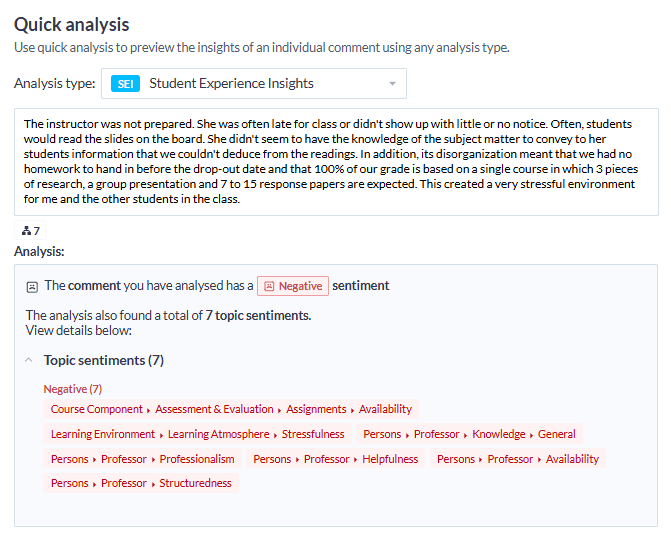
The following sample comment has been analyzed by MLY's quick analysis tool and provides an explanation of the results:
EXAMPLE
The instructor was not prepared. She was often late for class or didn't show up with little or no notice. Often, students would read the slides on the board. She didn't seem to have the knowledge of the subject matter to convey to her students information that we couldn't deduce from the readings. In addition, its disorganization meant that we had no homework to hand in before the drop-out date and that 100% of our grade is based on a single course in which 3 pieces of research, a group presentation and 7 to 15 response papers are expected. This created a very stressful environment for me and the other students in the class.
Leveraging MLY analytics in Blue - A high-level overview
Blue projects can be configured to include specific questions for MLY analysis, with data uploads either performed manually or scheduled daily. Once processed by MLY, insights become available in Blue reports, offering sentiment and recommendation analysis, word clouds, and frequency and cross-tabulations tables and graphs that link MLY findings to question responses and user demographics.
Additionally, comments containing harmful text, or potential risks can be flagged for removal or redaction, ensuring reports remain accurate and safe for review.
Organizations leveraging the MLY AI platform have access to immense potential, but realizing its full benefits depends on the strategic and effective deployment of the technology. This article outlines key considerations for successfully integrating MLY into your organization.
Before creating a questionnaire:
Understand the Challenges of Free-Form Feedback Analysis
- While human reviewers provide greater accuracy, computers can analyze significantly larger volumes of data at much faster speeds.
- Regional dialects, slang, and informal language may influence results.
- Context matters—framing questions correctly can greatly improve the insights gathered.
Ask the Right Questions the Right Way
- Keep questions focused on a single subject (e.g., instructor, coursework, university experience).
- Opt for open-ended questions—avoid prompts that lead to one-word responses.
- Provide clear guidance to ensure respondents understand what’s being asked.
- Separate advantages and disadvantages into different questions rather than combining them into one.
Familiarize Yourself with MLY Analysis Types
MLY offers domain-specific analysis, including:
- Employee Experience Intelligence (EEI)
- Employee Learning Intelligence (ELI)
- Student Experience Intelligence (SEI)
By structuring questions effectively and understanding MLY’s capabilities, organizations can unlock richer insights and enhance their feedback analysis process.
After responses have been gathered:
- Select Relevant Data for Analysis - Choose the MLY comment questions and demographics in Blue to upload and analyze in MLY.
- Generate and Distribute Reports - Produce reports that highlight top-ranked MLY insights for your organization, alongside the original comments for context.
- Conduct Deeper Analysis - Create reports that cross-tabulate MLY data with specific questions to uncover correlations and generate additional reports that compare MLY findings with demographic data to identify patterns and trends.
- Explore Insights Directly in the MLY - Dive deeper into the data by leveraging the entire MLY analysis to uncover more insights.
Setting up and managing MLY in Blue Reports - Key configuration steps
THINGS TO KOW ABOUT MLY IN BLUE REPORTS
Maximum comments per analysis
- Up to 10 comment questions can be used for a single analysis.
- A maximum of 400,000 total comments can be uploaded across all questions in the analysis. (example: 2 questions with up to 200,000 comments each, or 10 questions with up to 40,000 comments each).
- Up to 49 questions and demographics combined can be processed by a single analysis. (example, up to 5 questions and 44 demographics, up to 10 questions and 39 demographics).
- If you are using a multiple secondary definition type, the primary and secondary subjects are analyzed separately meaning that the above limits apply for each analysis.
Multilingual analysis
- The Multilingual analysis supports the translation of non-English comments to English only.
- In Translation mode, MLY also processes redacted comments to the appropriate language to ensure confidentiality and privacy.
- The report creator can display translated comments and redacted comments in separate blocks and separate reports for the same project.
Analyzing your MLY data
- When clicking the Apply button to perform the analysis, the process will continue in the background. The analysis cannot be stopped once it has been started, it will continue in the background. The entire applicable quota is applied for all the comments analyzed.
- When Manual redaction is enabled for a MLY in Blue analysis, MLY users can redact individual comments in the MLY Redaction workspace. These manual redactions are automatically synced to the Blue project, with no need to use the Retrieve feature in the MLY in Blue analysis setup.
- When using manual redaction, analyzing the same question with multiple analysis types (models) may result in manual redactions not appearing in the reports. Instead, either the original comment, or if redacted, the last redacted version will be displayed.
- MLY manual redaction may not be displayed in the report for a question(s) that has been analyzed using multiple models, for example, using both EEI and ELI for those question(s).
- If a report gets updated before the MLY analysis has been generated, the original comments will be displayed.
- MLY in Blue Reports currently does not support Custom analysis and this type of analysis is unavailable through Blue. Please note that if an Admin reruns an existing analysis created in Blue using a Custom Analysis in MLY, the associated Blue project and reports will not be updated within Blue.
Categorized alerts in comment blocks
- Alerts are categorized into appropriate topics enabling users to quickly review them and determine follow up actions required.
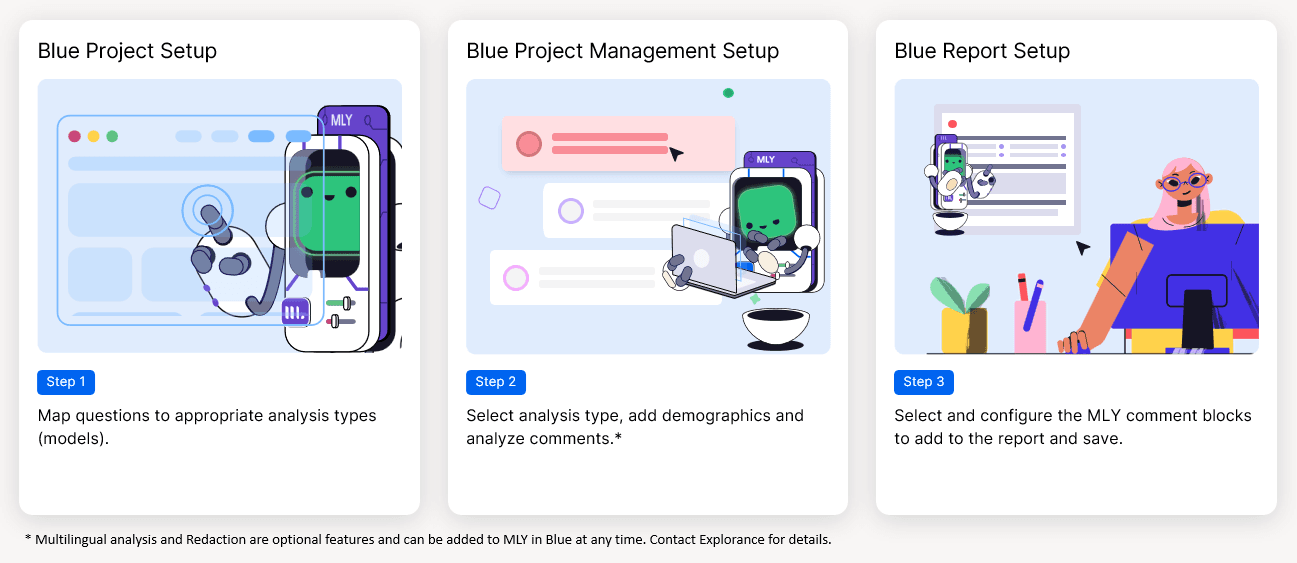
3-steps to configure MLY in Blue
Prerequisite
To configure MLY in Blue
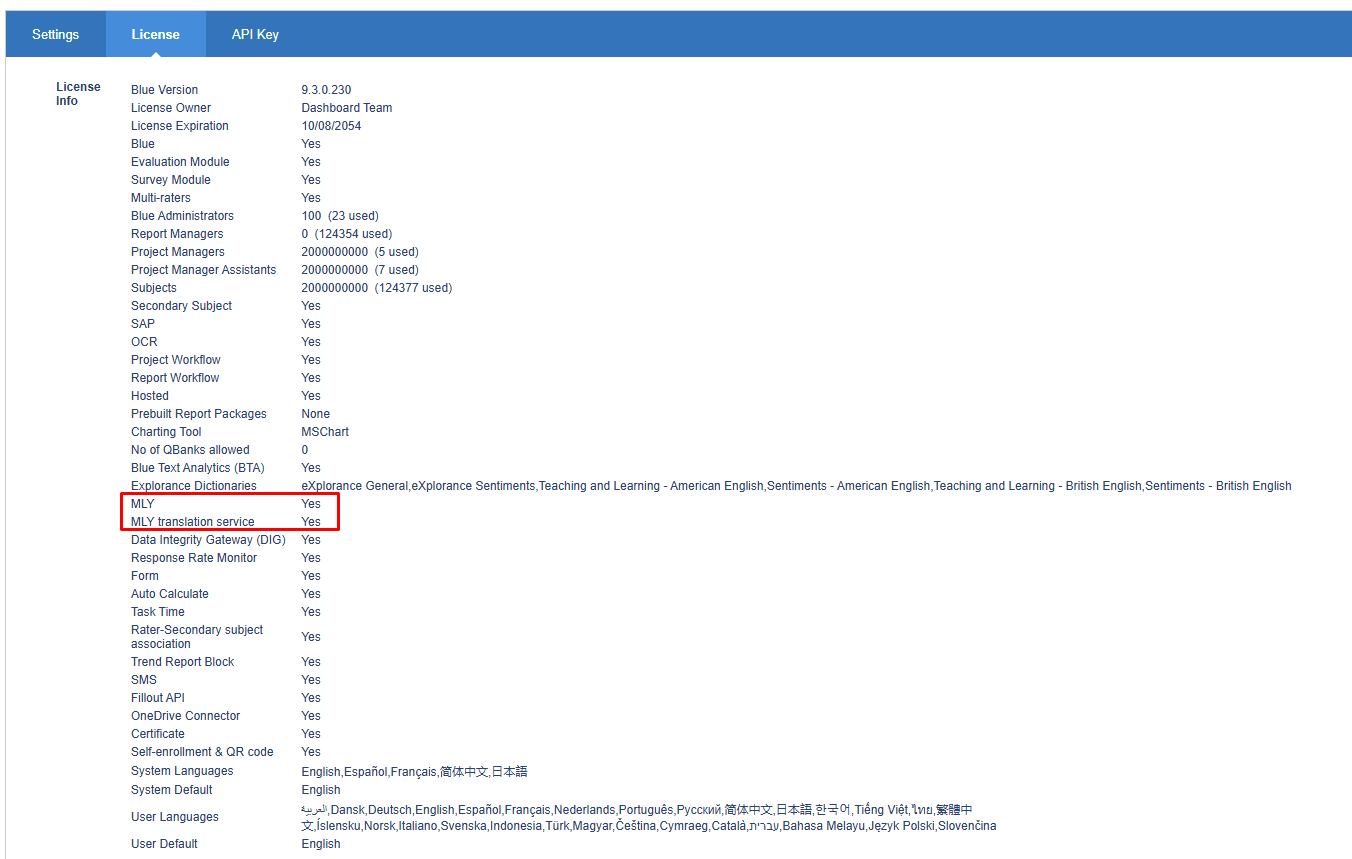
MLY in Blue Reports is a license-controlled feature of Blue.
Verify that MLY is enabled in Blue: In Blue, log in as a Blue administrator and navigate to CONNECTION > LICENSE to view the license Info.
MLY Access for Blue Users: Blue administrators, project managers, and project manager assistants must also have a MLY analyst or admin account if their projects will use MLY analytics.
Establish a connection with MLY: The Blue support team will configure the Blue settings to correctly identify the MLY location and establish the appropriate connection properties.
Step 1 - Link MLY comment questions to appropriate analysis types
Link MLY to a project
In your Blue Project, map your quantitative comment questions with the relevant MLY analysis type(s). These analysis types (models) will be applied to analyze the comments and generate insights for your reports. Examples of these analysis types (models) include SEI (Student Experience Intelligence), EEI (Employee Experience Intelligence), and ELI (Employee Learning Intelligence). The SEI model offers two versions that allow users to produce individually analyzed results by course or by instructor.
As a project manager, incorporating MLY text analytics is a straightforward and efficient process. To get started, let's assume that you have already created and configured a project, either published or unpublished. MLY text analytics can be applied to projects that are already published and actively receiving feedback.
THINGS TO KNOW ABOUT MLY ANALYSIS OWNERSHIP
- The Blue administrator, project manager, or project manager assistant that creates the project in Blue becomes the project owner.
- The Blue project owner will be the owner of the analysis in MLY when that project uses MLY analytics. Therefore, every Blue project owner must be a MLY analyst or MLY admin to facilitate sharing, manual redaction, and other MLY features.
Steps to set up MLY text analytics for a project:
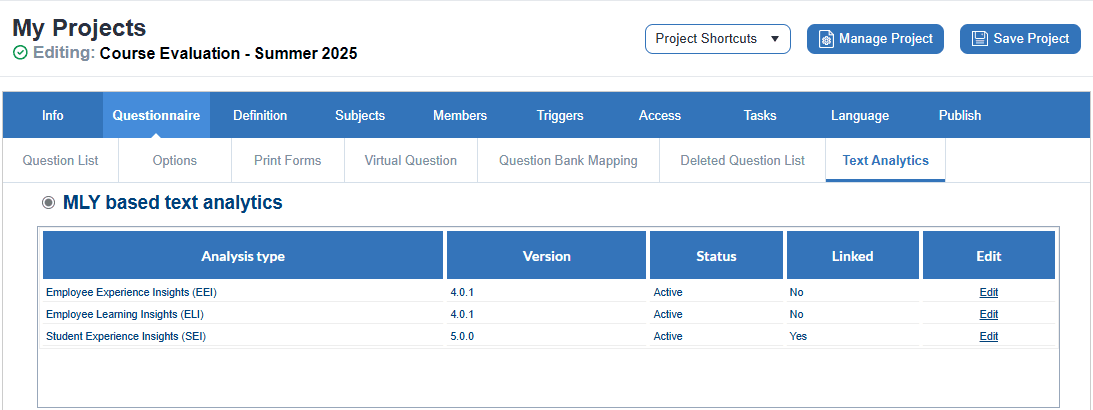
- Edit the project and navigate to QUESTIONNAIRE - TEXT ANALYTICS.
- This page appears only if the MLY license has been installed by a Blue administrator.
- Click Edit beside an analysis type to associate comment questions.
- All available MLY analysis types (models) will be listed with a version number and status.
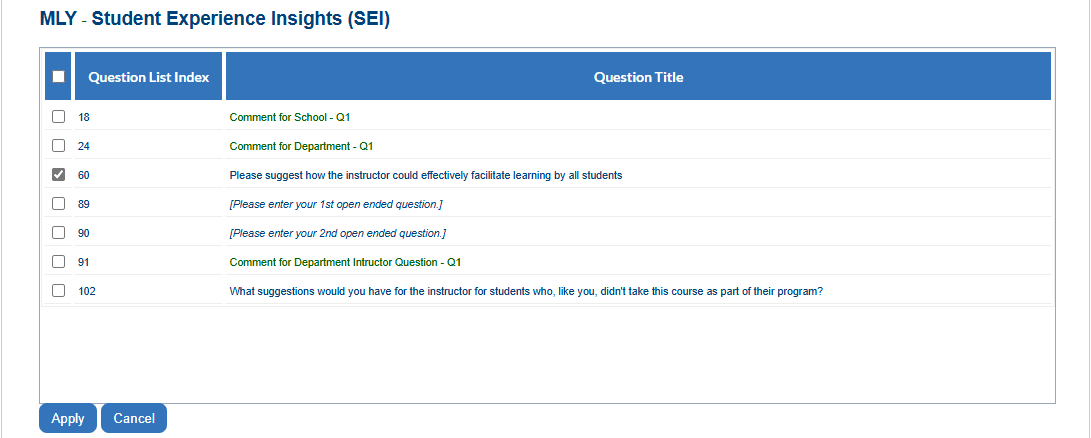
- From the list of questions, select those you want to analyze by this analysis type (model) Note: Questions can be analyzed by more than one analysis type (model).
- After selecting the questions, click Apply to confirm.
- Click Save Project before leaving the page.
Step 2 - Analyze comments responses - MLY based text analytics
MLY can be applied to both published and unpublished projects. Throughout the project's lifecycle, questions can be assigned to or removed from analysis types. As a result, feedback may not have been analyzed by the intended MLY analysis types or may have been processed using a different analysis type.
Blue is designed to accommodate these scenarios seamlessly.
The following assumes that you have a published or unpublished project with an established MLY connection for comments analysis.
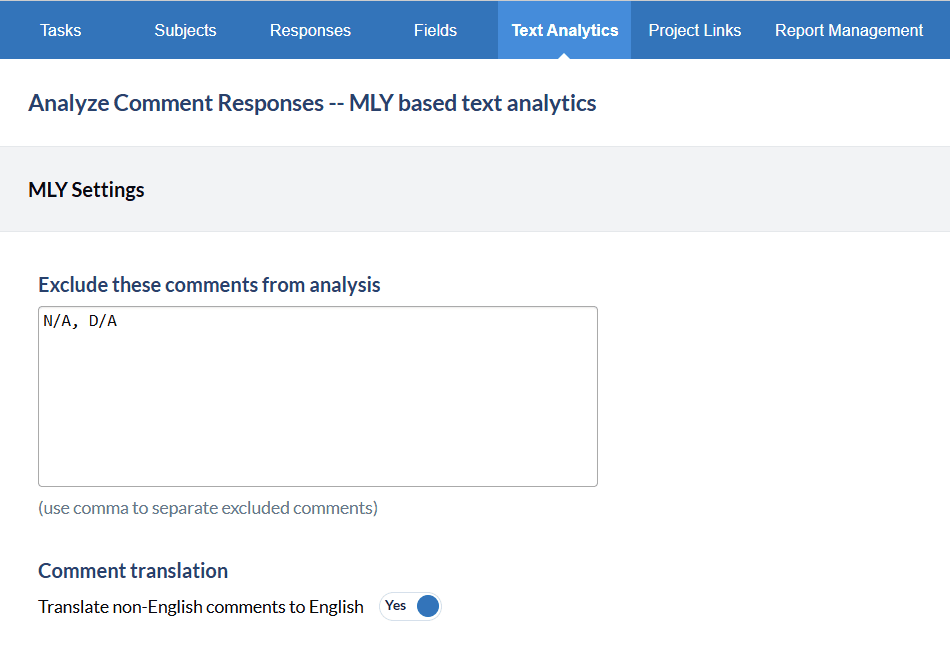
- Navigate to Blue Management > Text Analytics > MLY Settings
- Excluded comments: Add terms or word-count limits for comments that may contain terms such as symbols, abbreviations, or insufficient words to enable MLY to effectively analyze them. These comments are excluded from MLY processing. Filtering them out reduces unnecessary analysis of low-value input, resulting in more accurate insights. Excluded comments do not count toward your MLY quota. By default, N/A and D/A are excluded from MLY analysis.
- Comment translation: When enabled, non-English comments are translated into English so they can be included in MLY insights. This improves coverage and ensures feedback is not excluded due to language, as untranslated non-English comments would otherwise be ignored.
If this feature is enabled in report comment blocks, both the original comment and the English translation are displayed.
MLY REDACTION
If the Redaction feature is enabled in your Blue MLY instance, click the link below to learn how to set up and manage MLY redaction in your Blue project. MLY redaction in your Blue project.
ANALYSIS TYPE
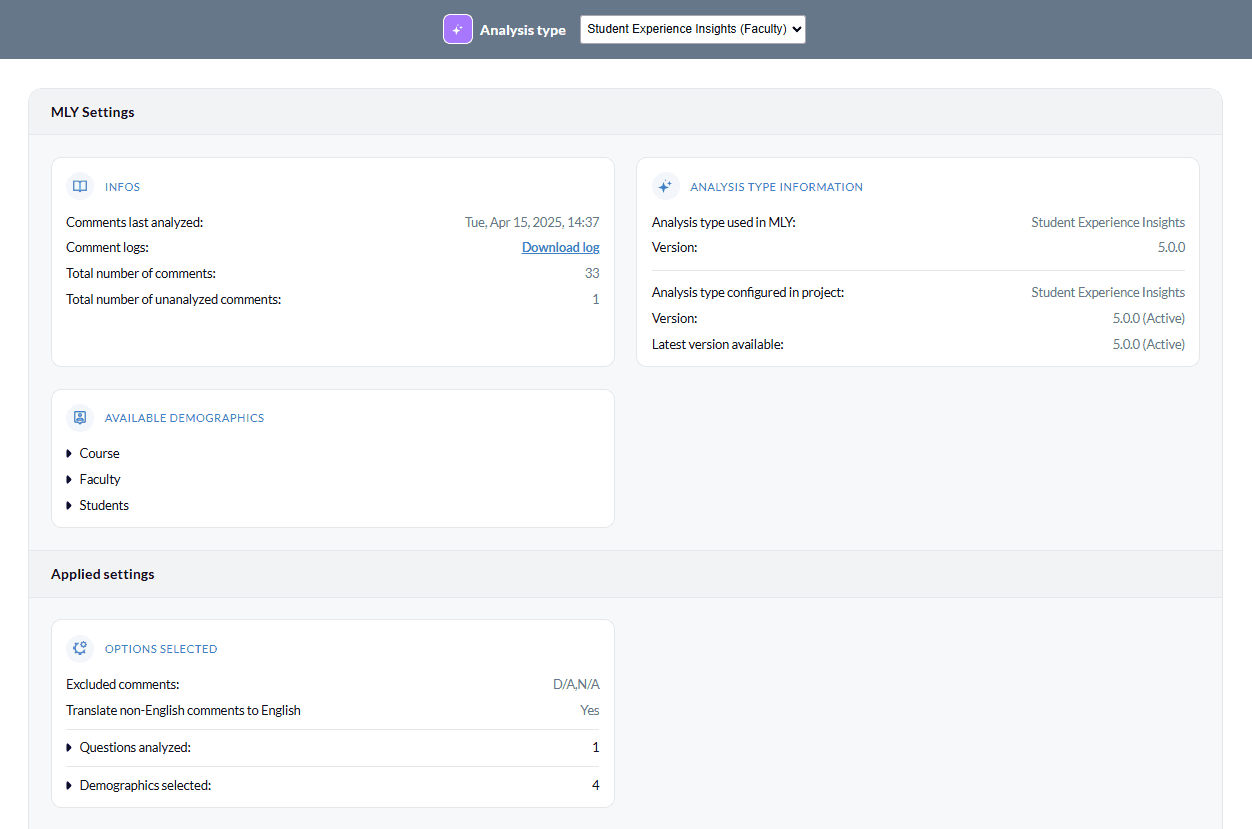
- Select one of the Analysis types (models) from the drop-down menu in this section. The list will show only the models that are already linked to your project in My Project > Questionnaire > Text Analytics.
- If you have more than one model (for example, Student Experience Insights – Faculty and Student Experience Insights – Course), you can run the analysis twice: first with the faculty model to produce instructor-level analyzed comments, and then again with the course model to produce course-level analyzed comments.
MLY SETTINGS
- Info: Shows the date and timestamp of the last analysis, the total number of comments, and the number of unanalyzed comments. If comments were previously uploaded, you can also download the log of those uploads.
- Analysis type (model) info: Shows which MLY analysis versions processed your data, which version is configured in the project, and which version is currently available. If a newer version exists, you can update your analysis without using additional quota.
- Available demographics: Optional. Selecting demographics is used exclusively to filter the analysis directly in MLY. Selecting demographics here has no impact on Blue reports.
- Applied settings: A summary of the configuration that determines what data is uploaded and analyzed. Review this before moving to the next step.
SYNCHRONIZATION SETTINGS
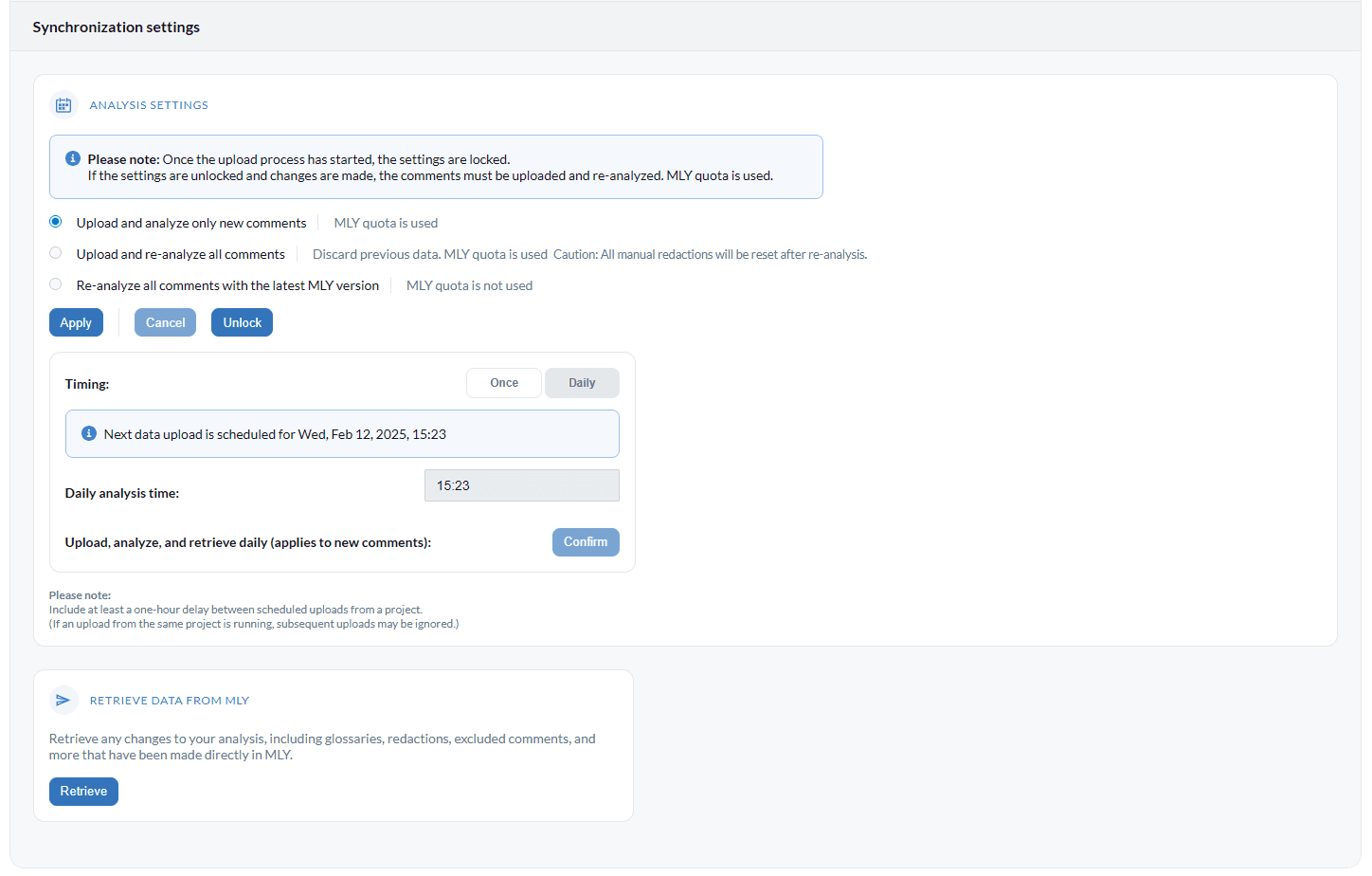
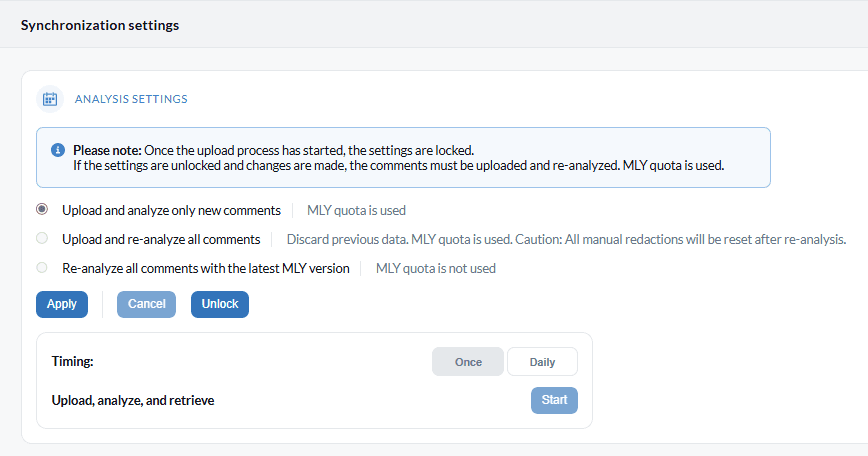
Analysis settings
There are three possible scenarios when uploading comments to MLY for analysis:
- Upload and analyze only new comments: The default option. Only new comments are analyzed, and they consume MLY quota once processed. Supports both scheduled daily uploads and manual uploads.
- Upload and re-analyze all comments: Required when settings are unlocked and modified. All comments must be uploaded and re-analyzed, previous data is discarded, and MLY quota is consumed.
- Re-analyze all comments with the latest MLY version: Available only when a newer MLY analysis model exists. This re-analyzes all comments using the new model without consuming any quota.
Controls
- Apply: Confirms the settings and begins upload and analysis. Once started, the settings become locked.
- Cancel: Cancels changes to the analysis settings before upload begins. It does not stop an analysis already in progress.
- Unlock: Allows re-uploading and re-analyzing comments after an analysis has completed. This process consumes MLY quota.
Timing
There are two options for scheduling updates to analysis results used in Blue reports: • Daily analysis: Set a specific time for new Blue comments to be analyzed by MLY each day.
- Once (single) analysis: Run the MLY analysis manually, triggered by an administrator whenever additional Blue comments need to be analyzed.
Retrieve data from MLY
Once data has been sent to MLY, you can use MLY’s features to refine the analysis. After making updates—such as glossary changes, redactions, excluded comments, or other adjustments—click the MLY in Blue Synchronization settings to Retrieve these changes.
Note: Making changes to the original analysis settings such as using a new version of your glossary, changing the excluded comments, using another model, etc. will require MLY to re-analyze the data and additional quota will be applied.

Step 3 - Add MLY report blocks to Blue reports
Blue’s advanced reporting, integrated with MLY, enhances the value of qualitative comment analysis in Blue Reports. The MLY report block applies robust text analytics to open-ended responses, delivering clearer insights and supporting stronger data-driven decisions.
Follow these steps to include MLY text analytics in Blue Reports:
- Open an existing report or create a new report.
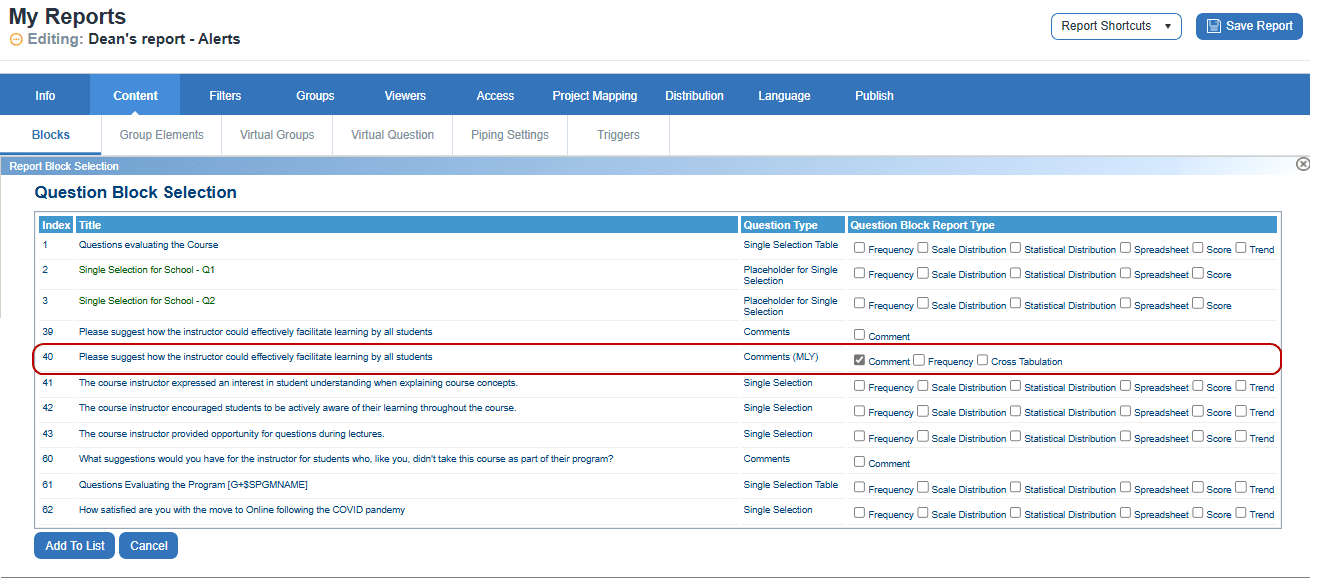
- Navigate to the Content > Blocks > Report Block List and click Add Report Block.
- Select the MLY Comment Question(s) in the Question Type column and in the next column select a Question Block Report Type. See below for a list of report types:
- Comment - a list of comments with one of these options: include all comments, include only comments without alerts, include only comments with alerts, or hide alerts topics.
- Frequency – chart, table or word cloud display based on comment sentiment.
- Cross Tabulation – chart or table display based on category chosen and cross tabulated with a demographic field or question statistics.
- Click Add to List to create the selected MLY question report blocks and be redirected back to the Report Block List.
- Click Edit or Preview for any of the Question Type Report Blocks to adjust the default settings as necessary.
- Finally, navigate to the PUBLISH page to generate and publish the report the same way you would any Blue report.
Introduction to MLY analytics report blocks
MLY report blocks are specifically designed to transform comment feedback into clear and concise visual representations. These dynamic visualizations allow report viewers to efficiently identify data anomalies, emerging trends, and critical insights, enabling them to take informed action with confidence.
While the default settings of MLY report blocks provide compelling and effective visuals, further customization can enhance the clarity, relevance, and impact of the data being presented. By fine-tuning attributes such as scaling, categorization, and display preferences, users can tailor reports to align with their analytical goals.
Additionally, MLY report blocks share a set of streamlined attributes that improve usability and customization, ensuring that users can adapt their reports with ease. This consistent framework supports a seamless reporting experience while maximizing the depth and accessibility of comment analysis results.
BEST PRACTICE
Preview the MLY analytics report block at any time to see how changes to different attributes affect the output.
MLY comment report block
The MLY comment report block shares many characteristics with a standard comment report block, while also offering distinct MLY-specific features, including the variations outlined below:
NOTE
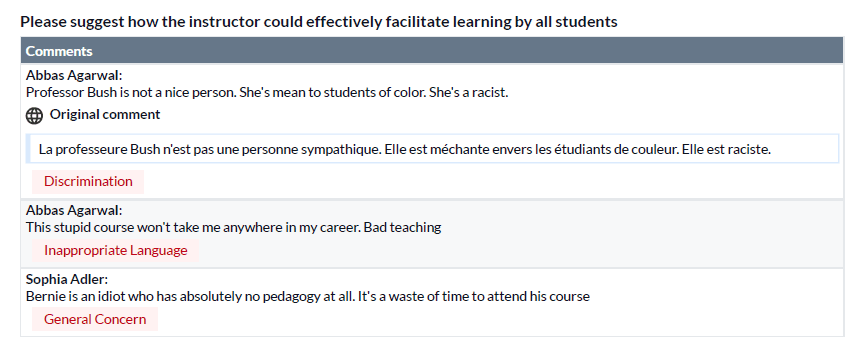
- Comments with alerts: Displays a list of comments grouped by alert topics. Users can select all, some, or none of these topics. Alert topics are generally shown in descending order based on the number of comments in each topic.
- Original comments: Shows comments exactly as stored in the Blue.
- Translated comments: Presents non-English comments alongside their English translations. (NOTE: The Comments Translation toggle must be enabled in the Blue Project Management > Text Analytics screen for this feature.)
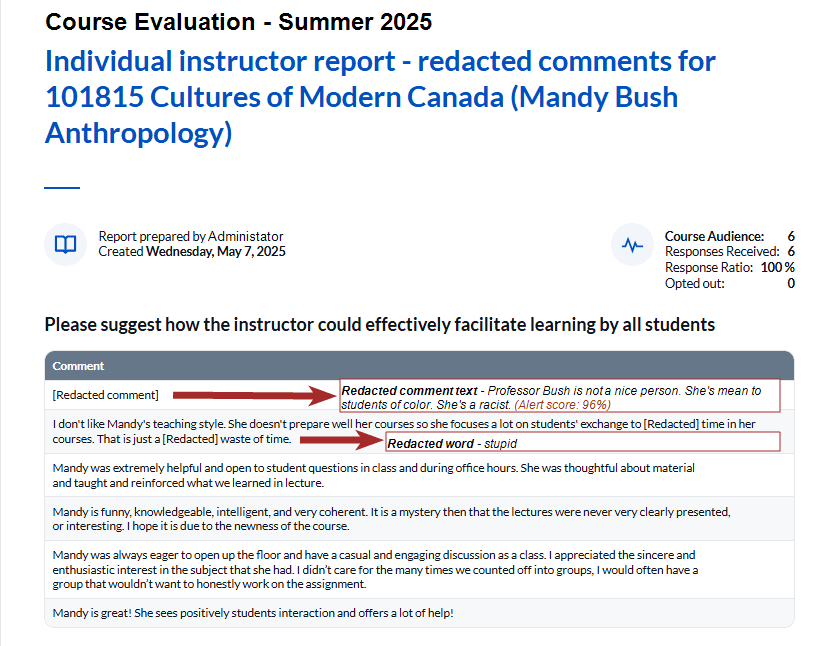
- Redacted Comments: Lists comments with redactions applied according to the selected Redaction rule set(s) for the MLY analysis.
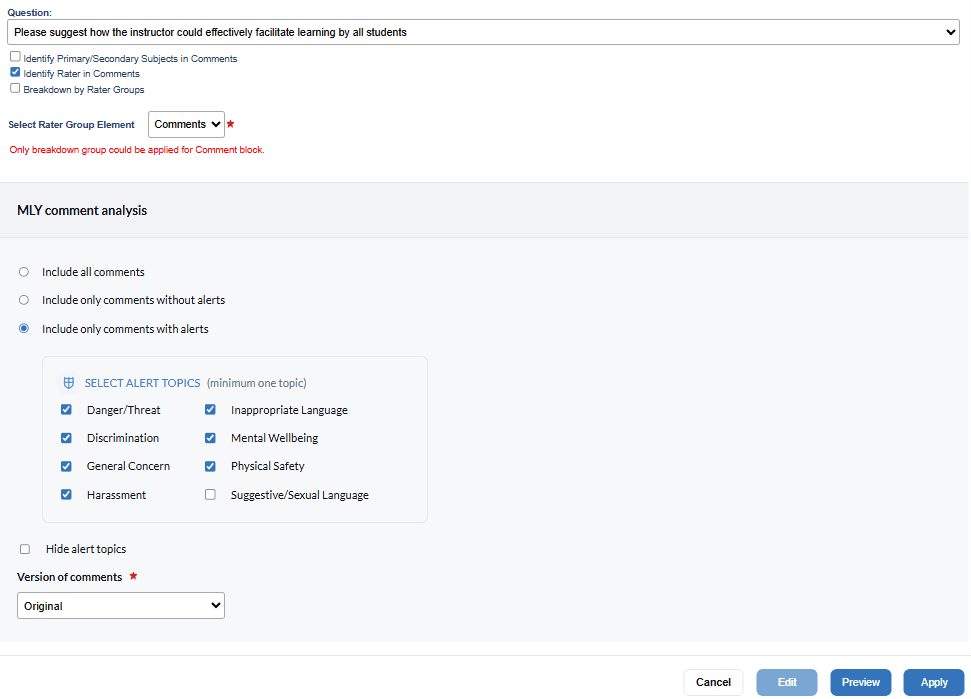
To configure a MLY comments report block with Alerts.
- Select the corresponding qualitative feedback Question.
- Identify a Subject, Rater or Rater group.
- Select a Rater group element.
- Select the MLY comment analysis option from the following: include all comments, include only comments without alerts, include only comments with alerts. In addition, you can select to hide alert topics if you include comments with alerts.
- Choose a comment version: Original or Translated.
- Preview the block.
- Click Apply to save.
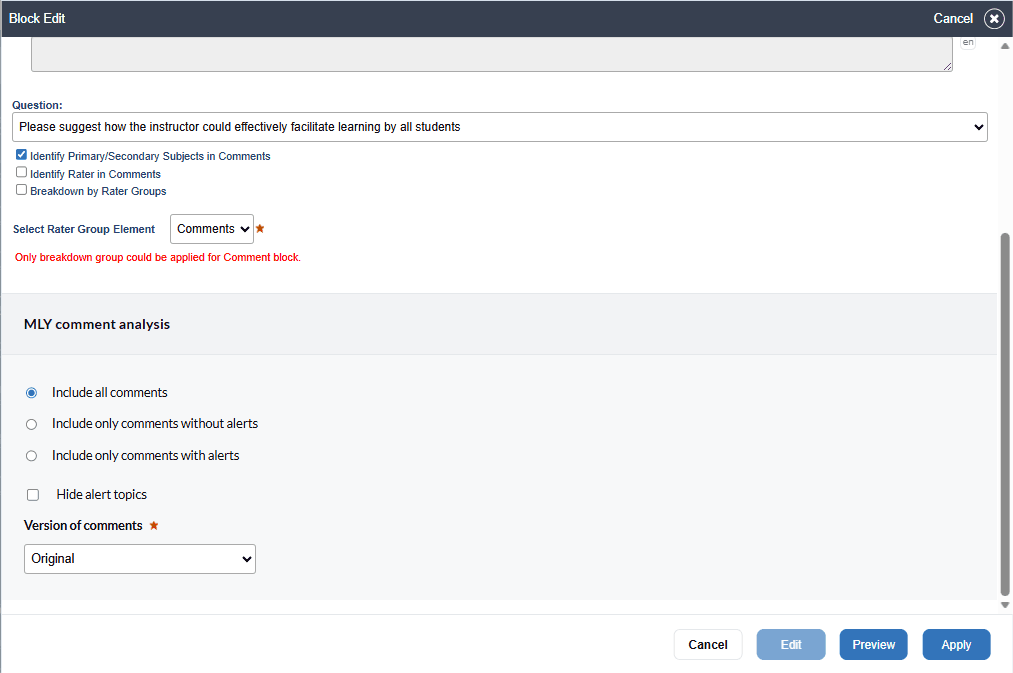
To configure a MLY comments report block displaying Original comments.
- Select the qualitative feedback Question it will be associated with.
- Select a Subject, Rater, or Rater group.
- Select the Original version of the comments.
- Preview the block.
- Click Apply to save.
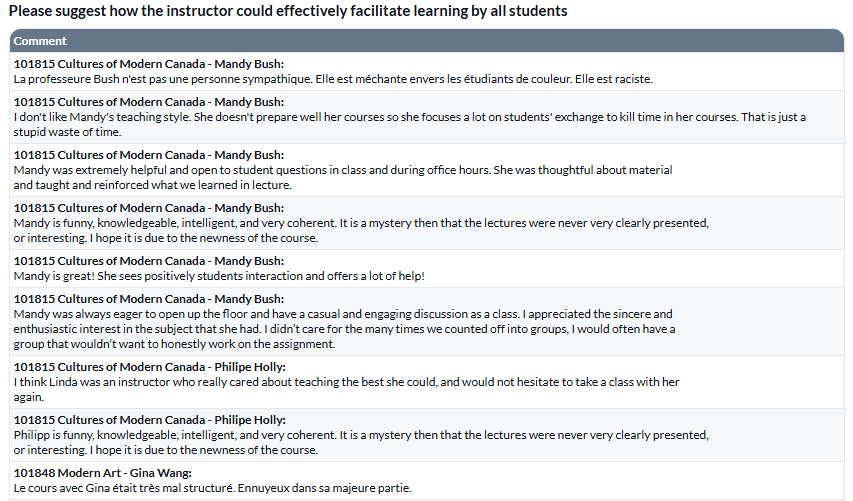
Sample of an Original MLY comments report block This block presents the raw text of comments exactly as submitted by respondents, without modifications or summarization, allowing users to review unfiltered feedback, and preserving the authenticity and nuance of individual responses. This comment format helps users, such as analysts, researchers, and leaders, interpret sentiment and intent without algorithmic adjustments.
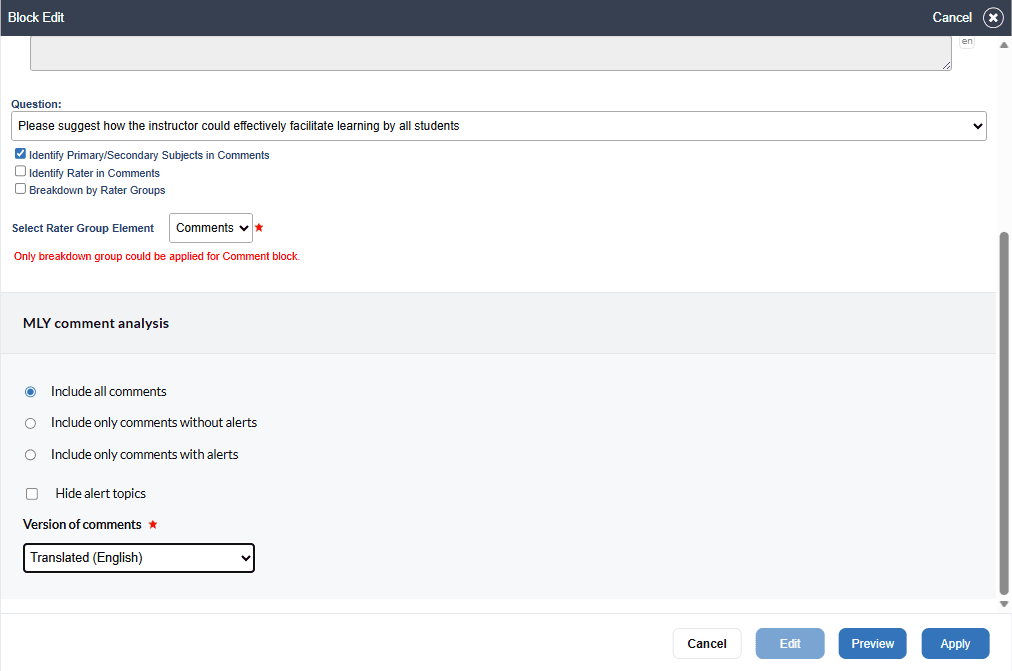
To configure a MLY comments report block displaying Translated comments:
- Select the corresponding qualitative feedback Question.
- Select a Subject, Rater, or Rater group.
- Select Translated English as the Version of comments for the block.
- Preview your block.
- Click Apply to save.
Sample of a MLY Translated comments report block This block presents respondent feedback in both its original language and English translation, allowing for seamless multilingual analysis without losing context or meaning. By ensuring accessibility across languages, it provides instructors, managers, and decision-makers with a more comprehensive view of feedback, helping them identify key insights across the entire organization or institution.
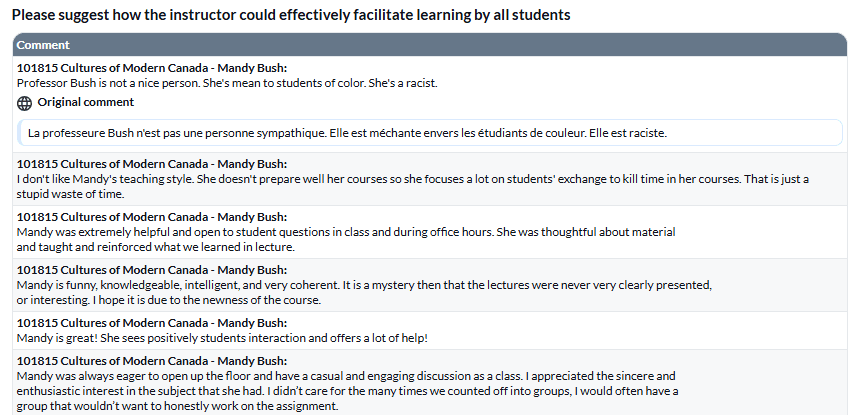
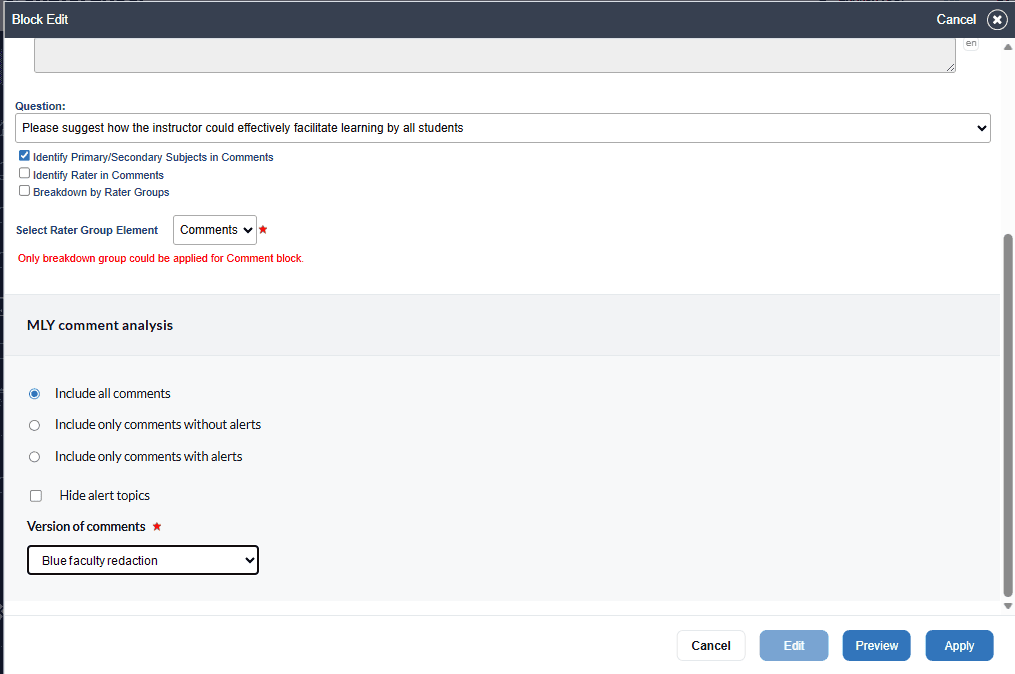
To configure a MLY comments report block displaying Redacted comments:
- Select the corresponding qualitative feedback Question.
- Select a Subject, Rater, or Rater group.
- Select Redaction rule set as the Version of comments for the block.
- Preview your block.
- Click Apply to save.
Sample MLY redacted comments report block This block presents respondent feedback with sensitive or inappropriate content automatically removed based on predefined redaction rules. This ensures that comments remain constructive while safeguarding psychological safety and inclusivity.
NOTE
- MLY comment blocks do not support project mapping in this release.
- Translated comments are supported in the MLY comment block as well as in the Response sheet block.
MLY frequency report blocks
The MLY Frequency Report Block is a powerful tool designed to analyze and categorize qualitative feedback, making it easier to identify key themes and trends within large volumes of responses. By leveraging MLY’s advanced analytics, users can efficiently sort and quantify comment data, translating unstructured feedback into actionable insights.
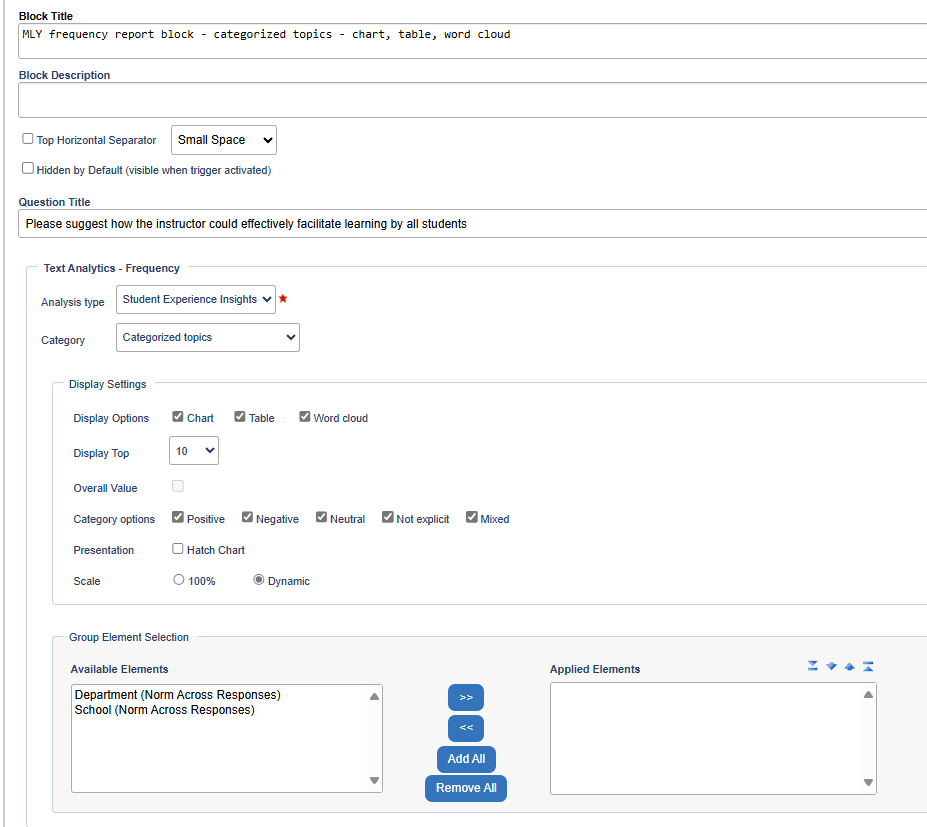
To configure a MLY frequency report block (categorized topics. categorized and uncategorized recommendations and general sentiment)
- Select the qualitative feedback question that the block will be associated with.
- Depending on the nature of the analysis, multiple Analysis types (models) may be available for the selected question—each offering distinct categorization methods that impact the insights generated. Select one of the analysis types (models) if more than one is available.
- MLY frequency report blocks allow users to choose from the following options:
- Categorized Topics – Organizes comments based on sentiment (e.g., positive, negative, neutral).
- Categorized Recommendations – Groups feedback into actionable suggestions (e.g., start, stop, continue).
- Uncategorized Recommendations – Captures general recommendations without predefined classifications.
- General Sentiments – Highlights emotional tones within responses.
- Choose from 3 Display options: Chart, Table or Word cloud.
- Once the report is generated, MLY automatically sorts comments into specific insights, displaying the most frequently occurring topics or recommendations. Users can refine their reports by adjusting the Display Top setting, which controls the number of top-ranked insights included in the final output.
- The results of the comment analysis are typically displayed as a percentage of the number of responses received. Enabling Display Overall Value adds the actual number of responses for each insight, percentages are still displayed on the report as normal.
- The available category options will change based on which category the block is configured to include. For example the options for categorized topics are positive, negative, neutral, not explicit, and mixed. The options for categorized recommendations are: do more, do less, start, stop, continue, and change. It is also possible to further select only some options such as show positive only or negative only for a block.
- Customization options within the Presentation settings further enhance accessibility and readability. Users can enable hatching in charts for improved visibility and adjust the scale range to refine graphical representations.
- Finally, the Group Element Selection feature offers comparative analysis capabilities, allowing users to assess feedback differences across departments, course sections, or other project elements. This functionality provides deeper context, enabling organizations to tailor their strategies based on real-time insights.
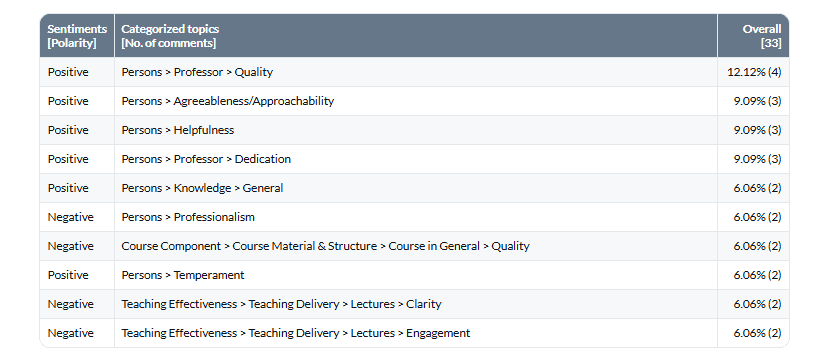
Table
Sample MLY frequency report block displaying categorized topics in a table format By displaying sentiment analysis in a table format, users gain a clear and concise view of feedback distribution across different topics. This enhances decision-making, providing actionable insights to improve services, products, or user experiences. The tabular structure enables easy comparison and filtering, making data interpretation more intuitive and effective.
Chart
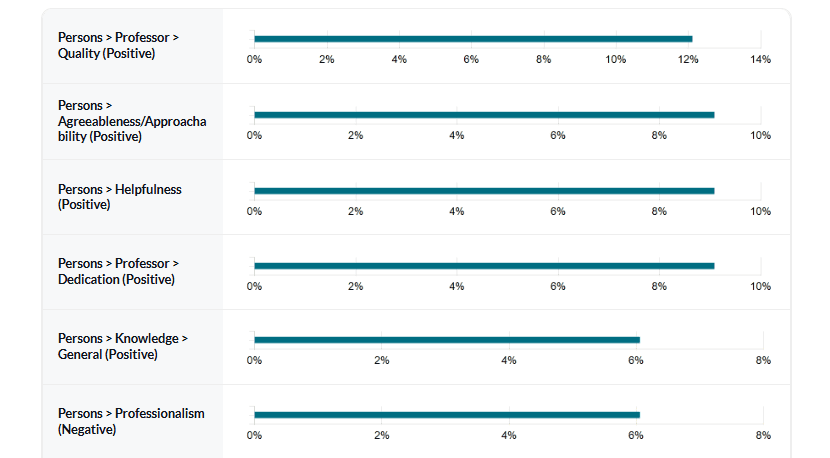
Sample MLY frequency report block displaying categorized topics in a chart format Using a chart-based approach, users can identify trends at a glance, compare sentiment proportions across topics, and highlight areas requiring attention. This method improves decision-making and storytelling, offering a clear and intuitive way to interpret large volumes of feedback effectively.
Word cloud
The Frequency report block is unique because it can create a "word cloud" style graphic of topics or recommendations that displays the relative frequency of topics or recommendations in the comments data. The more frequently a word appears in the comments, the larger and more centered the topic or recommendation is represented in the word cloud.
Sample frequency report block word cloud displaying categorized comments In this block, key topics or themes identified through MLY’s analytics are displayed, where the size and positioning of words indicate their frequency in responses. The more often a topic appears in the comments, the larger and more prominent it is in the word cloud. This simplifies complex feedback by translating large volumes of text in easily digestible graphics which allow users to quickly spot recurring concerns, positive trend, or areas needing.

MLY cross-tabulation report blocks
The Blue MLY cross-tabulation report block allows users to examine MLY analysis data in conjunction with additional variables for deeper insights. To construct a meaningful cross-tabulation report, users must first determine the type of data to integrate with the MLY analysis data, choosing either a demographic field or a question statistic.
- Cross-Tabulating with a Demographic Field: When selecting a demographic field, users must first identify the appropriate rater group. After this selection, they can specify the field that contains the relevant demographic data for analysis.
- Cross-Tabulating with a Question Statistic: Users also have the option to cross-tabulate MLY analysis data with a specific question statistic. In this approach, users need to define the scale for comparison, ensuring accurate analytical representation.
To enhance data visualization, users can select from a variety of table and chart types, which provide graphical representations of cross-tabulation results. These visual elements help convey relationships and trends effectively.
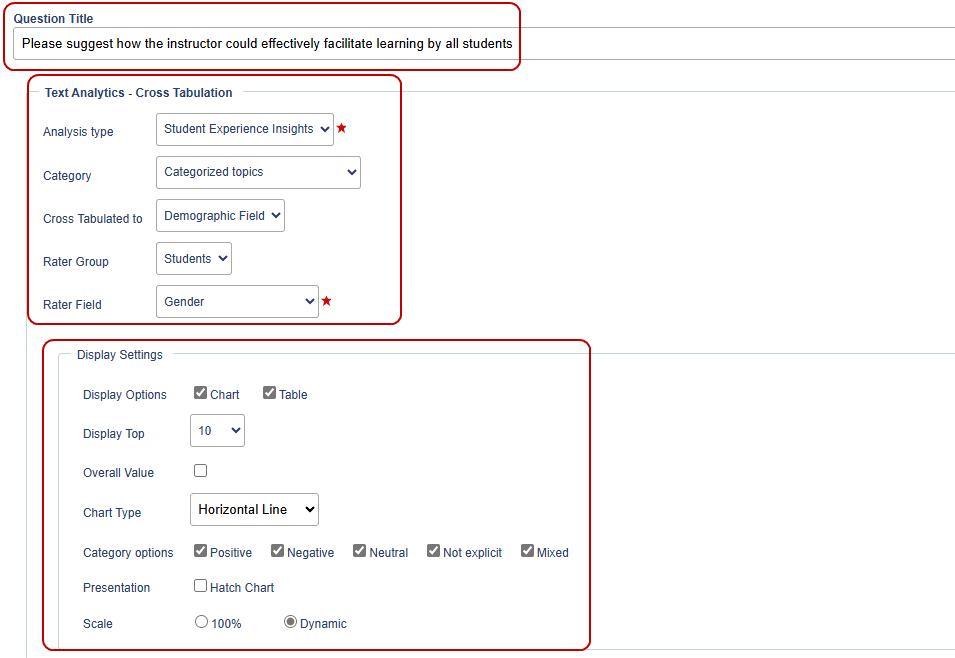
To configure MLY cross-tabulation blocks
Question Title
- Select the qualitative feedback question that the block will be associated with.
Text Analytics - Cross-Tabulation
- Analysis type (model): If more than one type is displayed in the drop-down menu, select the analysis type that will produce the insights you want to show in your report block. For example: SEI will provide results based on the analysis of Student Experience and Learning insights, ELI will provide results based on the analysis of Employee Learning insights and EEI will provide results based on the analysis of Employee Experience.
- Category: Choose what aspect of the analysis you will base your cross-tabulation from the drop-down menu containing the following items: Categorized topics, Categorized recommendations, Uncategorized recommendations, General Sentiments.
- Cross-tabulate to: Choose to cross-tabulate to either a Demographic field or Question statics.
- Rater group: Select a group from the drop-down menu such as Student.
- Rater field: Select which demographic fields from the drop-down menu that you will use in your report block
Display settings
- Display options: Select a Chart or Table or both.
- Display top: Select the range of top results you want to display in your cross-tabulation from the drop-down menu. (1 to 1094 possible selections) Once the report is generated, MLY automatically sorts comments into specific insights, displaying the most frequently occurring topics or recommendations. Users can refine their reports by adjusting the Display Top setting, which controls the number of top-ranked insights included in the final output.
- Overall value: Click this check box if you want to enable this selection. The results of the comment analysis are typically displayed as a percentage of the number of responses received. Enabling Overall Value adds the actual number of responses for each insight, percentages are still displayed on the report as normal.
- Chart types: Select from the following visualizations listed in the drop-down menu - Horizonal line, Horizontal bar, Horizontal bar_2, Radar chart.
- Category options: Select which recommendation categories you want to include in your report block. The available category options will change based on which category the block is configured to include. For example the options for categorized topics are positive, negative, neutral, not explicit, and mixed. The options for categorized recommendations are: do more, do less, start, stop, continue, and change. It is also possible to further select only some options such as show positive only or negative only for a block.
- Presentation: Click the check box for Hatch Chart to further enhance accessibility and readability. Users can enable this feature for improved visibility and adjust the scale range to refine graphical representations.
- Scale: Select either 100% or Dynamic to indicate how the scale will appear.
- Preview your report block.
- Apply for save your configuration.
Table
Sample: MLY analysis cross tabulation table - general sentiment vs enrollment This table helps organizations understand how enrollment status influences feedback sentiment, whether students or employees feel more positive, negative, or neutral based on their engagement levels. Institutions can detect sentiment shifts over time and then proactively adjust policies and/or communication strategies and/or make improvements in program structure based on sentiment patterns linked to enrollment.

Chart
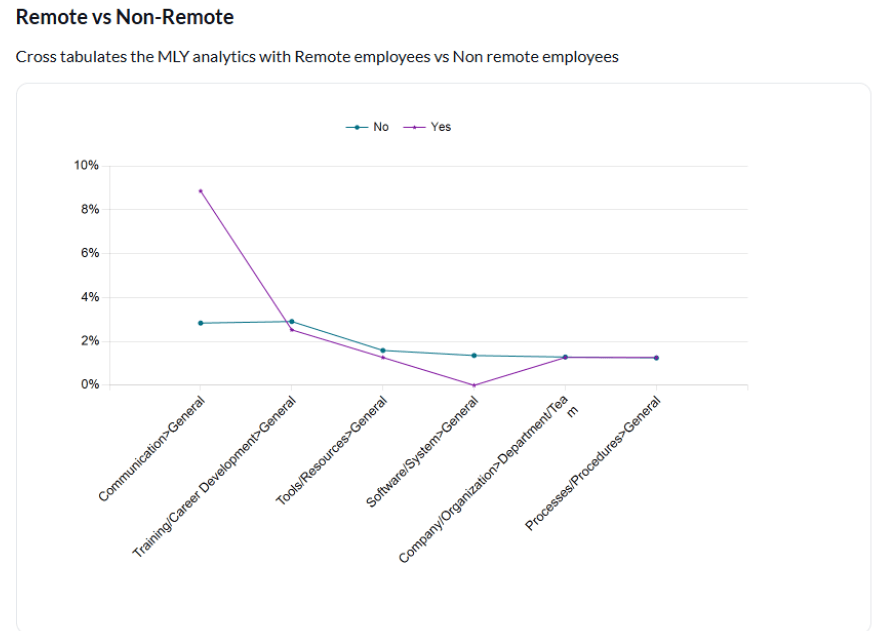
Sample - MLY analysis cross tabulation horizontal line graph - categorized topics vs remote or non-remote students or employees This visualization compares categorized topics across remote and non-remote students or employees and helps organizations understand how different work or study environments influence feedback trends. Organizations and institutions can then refine policies or engagement strategies based on topic distribution.
Radar chart
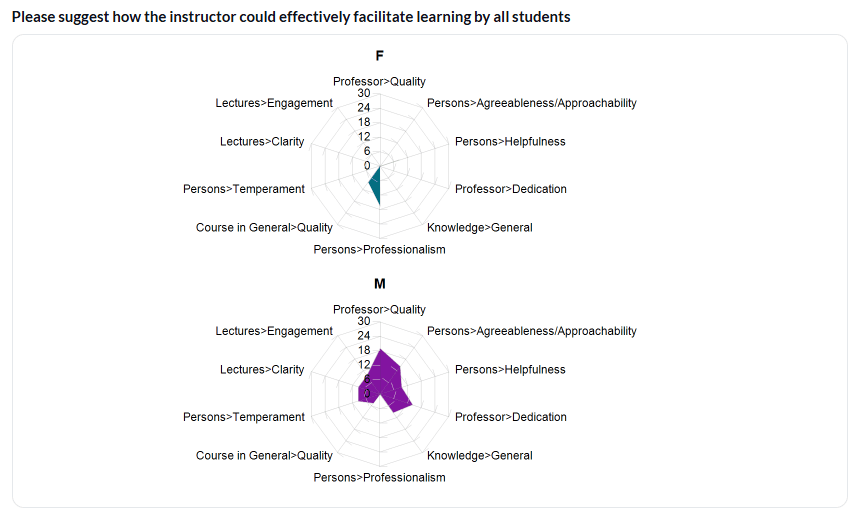
Sample - MLY analysis cross tabulation radar chart - categorized topics vs gender This chart provides an intuitive way to compare multiple categories simultaneously helping organizations identify patterns in feedback and understand how sentiment or key themes vary based on gender. Organizations and institutions can then refine policies or engagement strategies based on topic distribution.
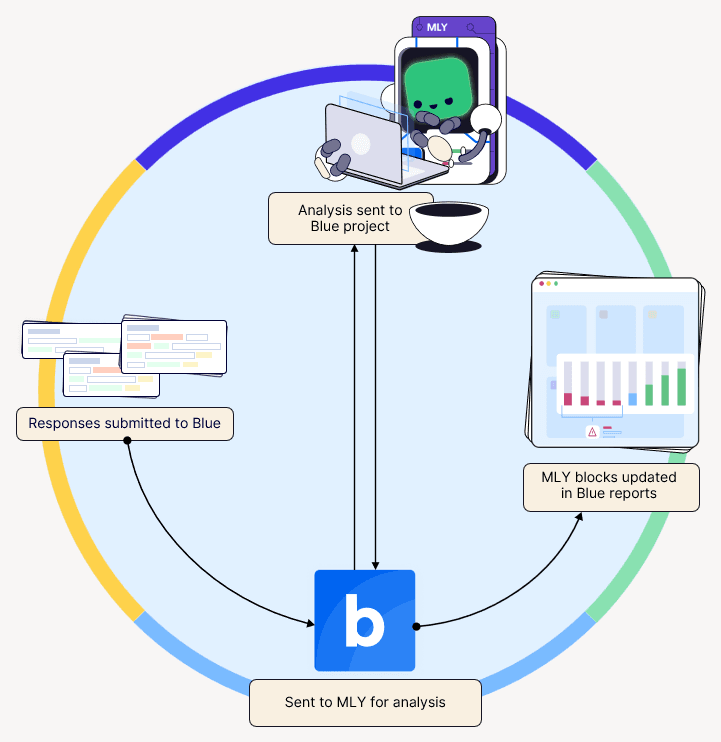
MLY in Blue data exchange
Feedback from students and employees flows into Blue as they submit their responses. Blue then sends their qualitative feedback comments to MLY for analysis. Once the analysis is complete, the results are returned to Blue, which updates the corresponding MLY blocks within the project’s Blue reports.