View Blue Home as a manager
This is Blue home, the page that you will first land on after logging in. You will be able to manage and monitor your evaluations and also view reports from this page.
Desktop view of Blue home:
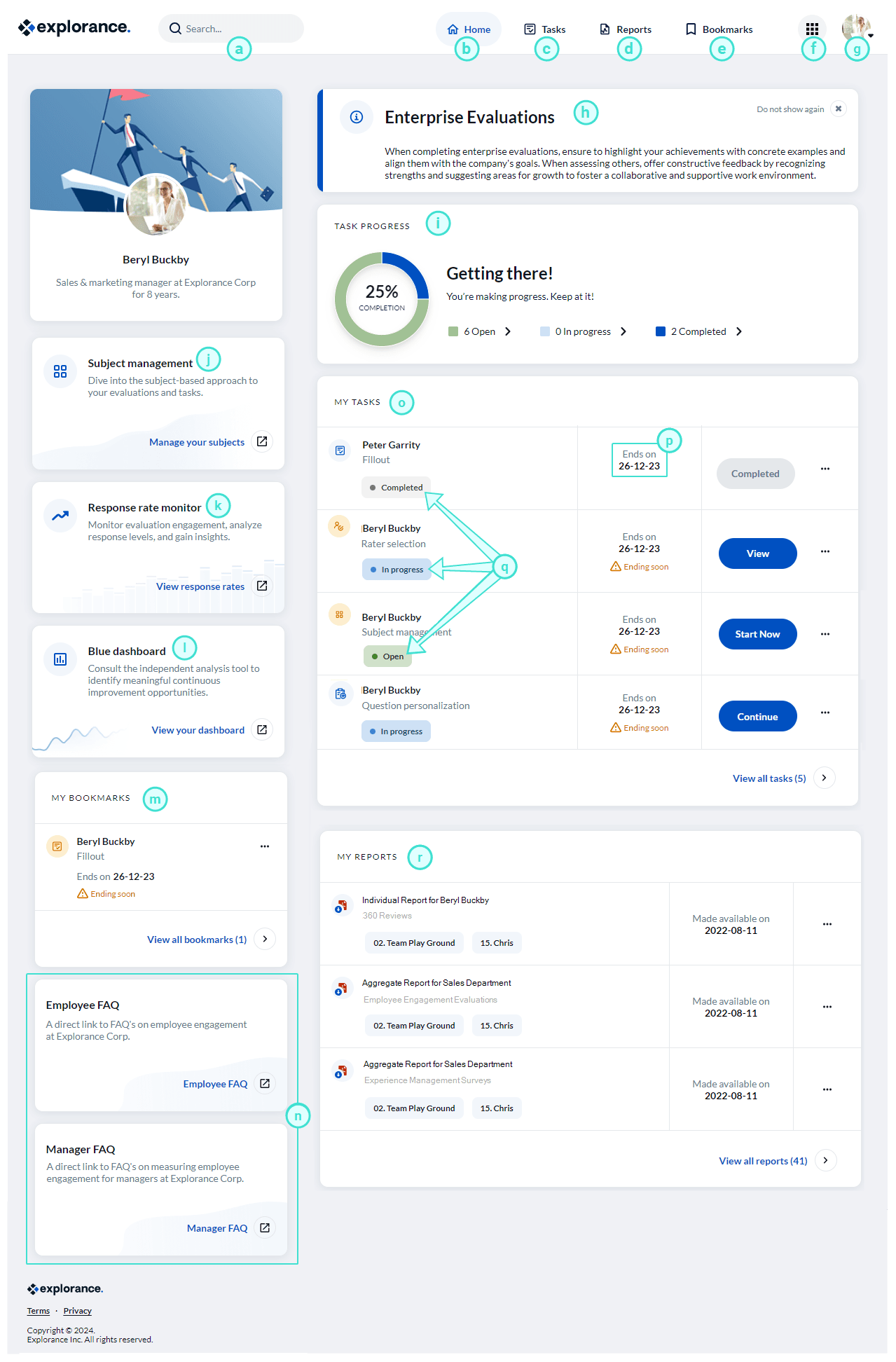
Blue home features
- Search bar - Allows you to perform a keyword search to locate a specific task or report.
- Home - Directs you to Blue Home.
- Tasks - Directs you to a new page displaying all of your tasks.
- Reports - Directs you to a new page displaying all of your reports.
- Bookmarks - Directs you to a new page displaying all of your bookmarked tasks and reports.
- Menu icon - Displays access to Home and the Help Center.
- Home - Directs you to Blue Home where you can access all your tasks and reports.
- Help center - Directs you to the Blue Online Help Center.
- My profile - Displays your name and avatar used in Blue.
- My account - Allows you to configure account settings such as display name and image, email address, and password.
- Language - Allows you to select a different language.
- Help - Directs you to the Blue Online Help Center homepage.
- Sign out - Ends your session.
- Advisory message - Describes a customized message displayed to all users.
- Task progress overview - Displays the number of tasks that have been completed. The status can be Open (not yet started), In Progress (started but incomplete), or Completed (submitted and nothing left to do).
- Subject management launcher - Launches a new page for you to access subject management in tile-view. To learn more, see View the Subject Management page.
- Response rate monitor launcher - Launches a new page for you to access the response rate monitor. To learn more, see View the Response Rate Monitor.
- Blue dashboard launcher - Launches a new page for you to access the Blue dashboard. To learn more, see Blue Dashboard (Overview).
- My bookmarks - Displays a widget of all bookmarked tasks and reports.
- Custom launchers - Launches a new page for you to access a custom link. This custom link is usually personalized for a specific role (Ex: employee or manager).
- My tasks - Displays a widget of evaluation tasks and links. To learn more, see Open your tasks.
- End date - Displays the deadline to complete the evaluation.
- Status - Indicates the evaluation status. The status can be Open (not yet started), In Progress (started but incomplete), or Completed (submitted and nothing left to do).
- My reports - Displays a widget of reports assigned to you. To open, simply click on the link. To learn more, see Analyze your results.