Create your survey
To create a survey, select My workspace, or to create and share a survey, select your Team workspace.
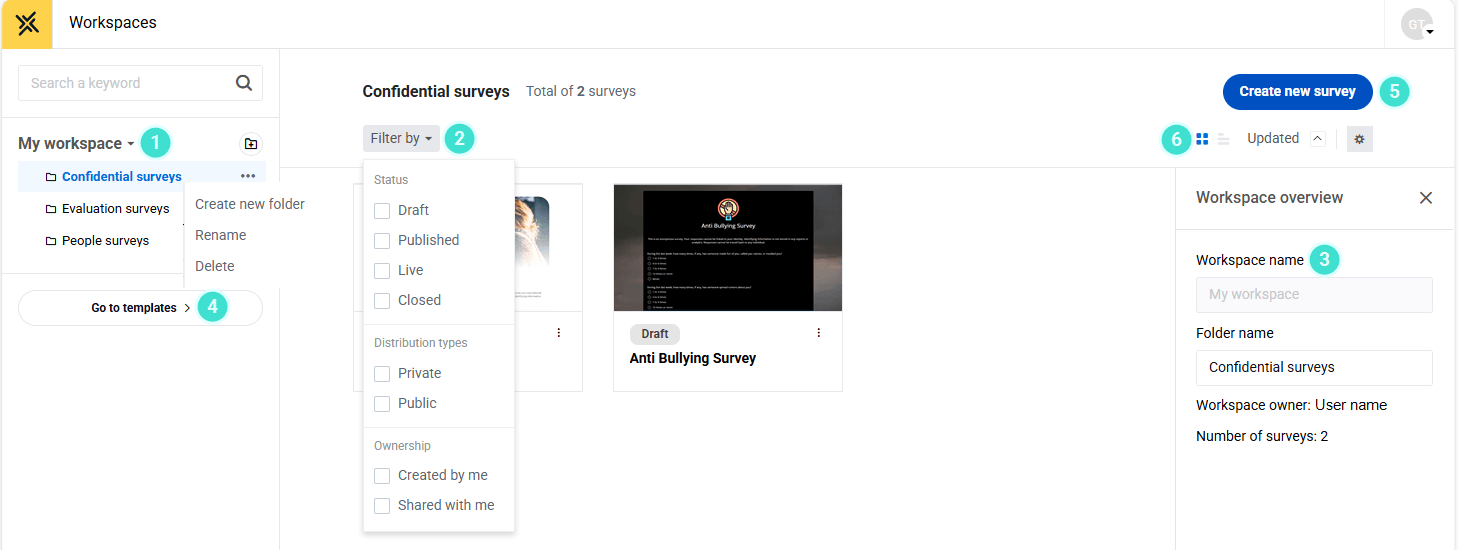
Use the Filters and search to find an existing survey, or select Create new survey to start a new one.
- Surveys - In the workspace you will see images of your personal surveys (My workspace) or shared surveys (Team workspace)
- Filter by - Select a survey status, distribution type, or ownership type to limit the number of surveys displayed.
- Workspace properties - Select a survey from the list, then select the settings icon (gear icon) to view or edit survey properties.
- Go to templates - Select a template that you have created.
- Create a new survey - Select to view your Recent surveys, your Templates, and to access the Predefined templates.
- Image or list view: You can also switch from the image view to a List view of your surveys.
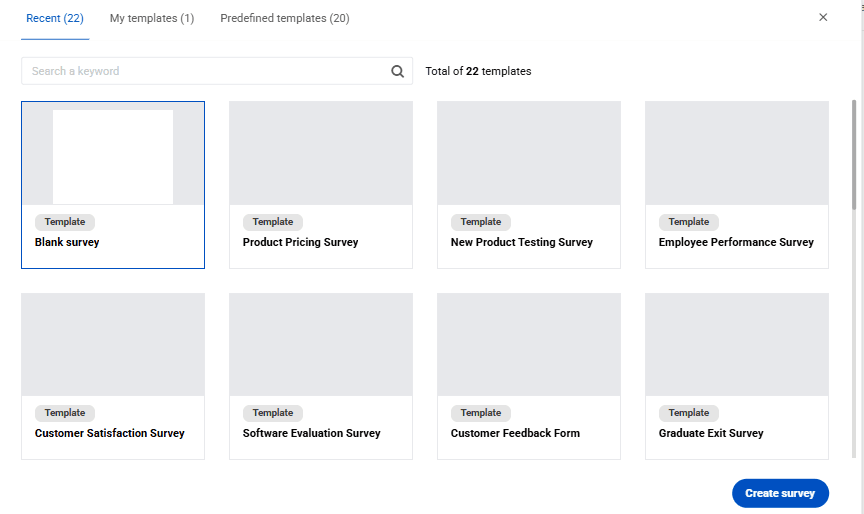
Options for creating a new survey
This pop-up window provides access to your Recent surveys, your Templates and the available Predefined templates.
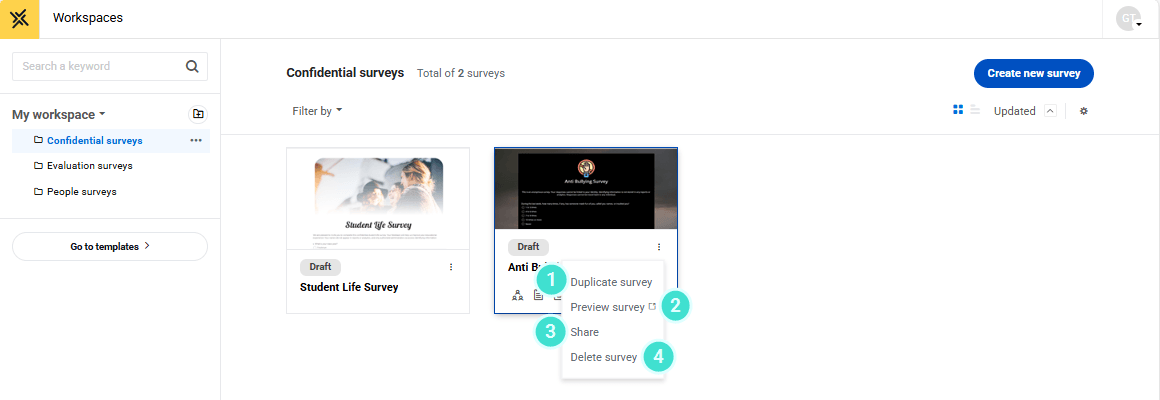
Survey options
When you open the actions menu (...), you can perform several tasks.
- Duplicate survey - Creates a new copy of the survey with all its settings, including the form, logic, design, respondents, email campaign. Publishing settings are not copied.
- Preview survey - Opens the survey as it would appear to a respondent so you can review it. For more information, see: Preview your survey.
- Share – Opens a pop-up window where you can select the users with whom you want to share the survey.
- Delete survey – Permanently removes the survey from the list. This option is only available for drafts and closed or expired surveys.
Deleting a survey means you can no longer access its content, including all responses and compiled data.
Create the survey
To Create a new survey you can choose a template from the BlueX Pre-defined templates or launch a blank canvas.
You can also duplicate an existing survey.
Once the survey has been created, add information that will help you identify it more easily. On the right-hand side, locate Survey Overview – Properties.
- Name – The internal survey name displayed in the survey list.
- Description – Details about the content or purpose of the survey.
- Tags – Short descriptive identifiers (usually one or two words) used to help identify the survey.
- Categories – Groups or classes of surveys that share similar characteristics or themes.
There is no single correct way to build your survey, but there are four important aspects to consider:
Select your respondents
There are two types of surveys: public surveys and private surveys.
- A public survey can be accessed by anyone who has the survey link. Responses are collected anonymously from an unknown group of participants.
- A private survey allows participation only from a predefined group of respondents selected by the survey creator. Data is collected from this specific, known group.
Learn more: Select your respondents
Build the questionnaire
Your form will contain a set of questions designed to collect information from respondents on a specific subject. The form does not follow a fixed structure and allows free-form editing, similar to working in a text editor.
Learn more: Build the questionnaire
Configure the email campaign
If you plan to send the survey to your respondents by email, BlueX can help you automate this process. You can schedule the following types of emails:
- Invitation
- Reminder
- Final reminder
- Completion
Learn more: Configure the email campaign
Send your survey
Before publishing your survey, determine the following:
- When will the response collection period start and end?
- Will respondents be able to change their answers after submitting?
- When will emails be sent to respondents?
Learn more: Publish your survey